After you install an Edge site or are granted a Collibra Cloud site, you can create a connection to Amazon Web Services (AWS).
Tip
Do you use a vault?
|
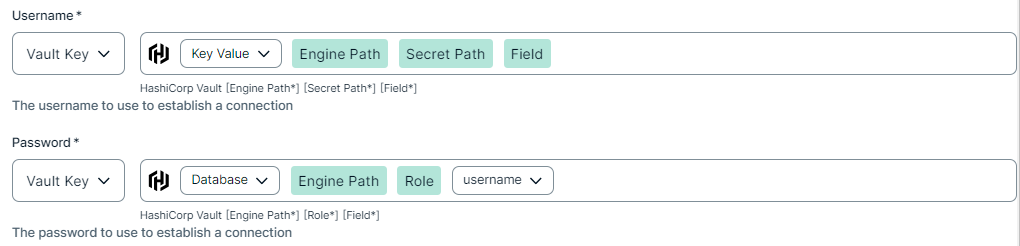
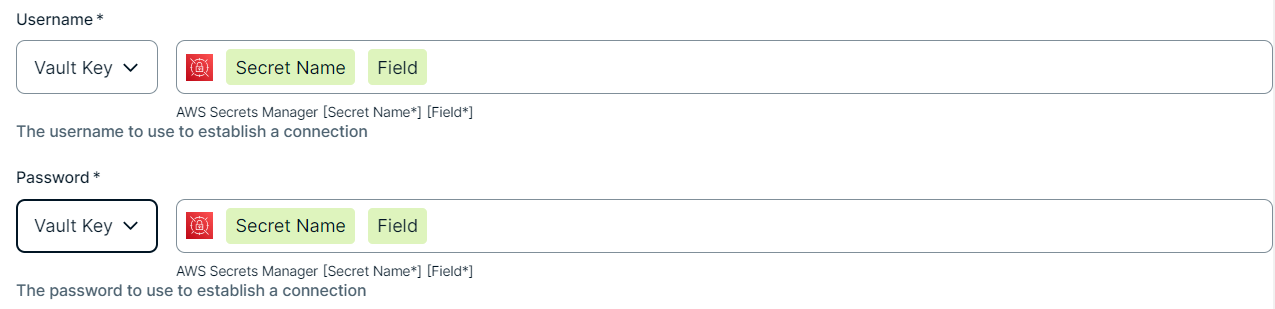
You can use a vault to add your data source information to your Edge site connection. Check the connection property table below to see which information is available for your vault. Vaults are not available for Collibra Cloud sites. |

No vault

AWS Secrets Manager

Azure Key Vault

CyberArk Vault

Google Secret Manager

HashiCorp Vault
|
|
|
|
||
|
How to use your vault...
To use your vault, do the following:
To use your vault, do the following:
To use your vault, do the following:
To use your vault, do the following:
To use your vault, do the following:
|
||



Prerequisites
In your Collibra environment
-
You created and installed an Edge site.Note
If you have defined an outbound (forward) proxy on your Edge site, the integration will take that configuration into account when connecting to the data source. The following proxies are supported for:
- Path through (No authentication)
- Path through (Basic authentication)
- MITM (No authentication)
- MITM (Basic authentication)
- No proxy for noProxy hosts defined by Edge
- You have added a vault to your Edge site.
- You have a global role that has the Manage connections and capabilities global permission, for example, Edge integration engineer.
In your AWS environment
For details on AWS permissions, see Actions in AWS documentation.
- Your IAM role or user must have the following AWS permissions in AWS IAM for inbound metadata synchronization:
datazone:ListDomainsdatazone:ListProjectsdatazone:SearchListings
Steps
- Open a site.
-
On the main toolbar, click
 →
→
 Settings.
The Settings page opens. -
In the tab pane, click Edge.
The Sites tab opens and shows a table with an overview of your sites. - In the table, click the name of the site whose status is Healthy.
The site page opens.
-
On the main toolbar, click
- In the Connections section, click Create connection.
The Create connection page appears. - Select the AWS connection.
- Enter the required information.
Field Description Required Available for Vaults? Name The name of the Edge site AWS connection.
 Yes
Yes No
No
Description The description of the connection.
No
No
Vault The vault where you store your data source values. No
No
Authentication type The type of authentication you use. Only IAM authentication is supported for SageMaker Unified Studio.
Yes
NoAccess Key ID The access key ID of the programmatic AWS user.
Yes for IAM authentication type. YesSecret Access Key The secret access key of the programmatic AWS user.
Yes for IAM authentication type. Yes
- Click Create.
The connection is added to the Edge site.
The fields become read-only.
What's next?
You can now add the SageMaker Unified Studio data catalog capability to an Edge site.