Warning The end of life of Jobserver and all related Jobserver integrations has been announced for September 30, 2024. This means that the Tableau via Jobserver integration method is deprecated and will also reach its end of life on September 30, 2024. To integrate Tableau metadata and create lineage, please use Edge or lineage harvester.
Before you can perform stitching, you have to prepare Tableau's logical data layer and Data Catalog's physical data layer. In this section, we describe how to prepare the physical data layer.
Prerequisites
- You have a global role with the Catalog global permission, for example, Catalog Author.
- You have a role with the following resource permissions on the community:
- Asset: add
- Attribute: add
- Domain: add
- Attachment: add
Steps
- Register a database as data source.
After registration, the assets of the following asset types are created in Data Catalog:- Schema
- Table
- Column
- Create a Database asset.
- Open the product for which you want to create an asset, for example, Business Glossary.
-
On the main toolbar, click
 .The
Create dialog box appears.
.The
Create dialog box appears. - Click the Assets tab, then click Database.
The Create Asset dialog box appears. - Enter the required information.
- Click Create.
A message stating that one or more assets are created appears in the upper-right corner of the page. - Create a relation between the Database asset and the Schema asset using the Technology Asset has / belongs to Schema relation type.
-
In the tab pane, click
Add characteristic.
The Add a Characteristic dialog box appears. - Click Relations.
- Search for and click has schema.
The Add has schema dialog box appears. - Enter the required information.
Option Description Assets The name of the .
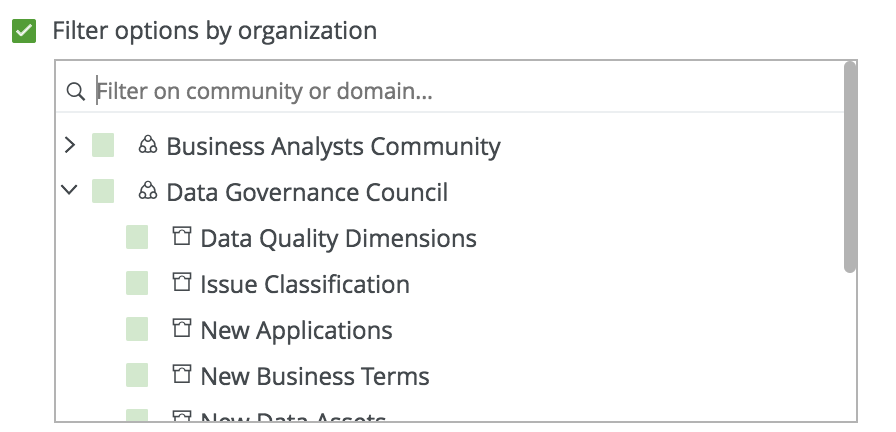
Filter suggested assets by organization
Option to filter the suggestions based on selected communities and domains.
If this option is selected, the organization tree appears. You can then filter and select domains and communities.
Start date Optionally enter the date on which the relation between the assets becomes applicable. Leave this field empty to create a permanent relation. End date Optionally enter the date on which the relation between the assets is no longer applicable. Leave this field empty to create a permanent relation. - Click Save.
-
In the tab pane, click
Add characteristic.
- Check that the following relations are created for all Column assets that you want to stitch to Tableau assets:
- Schema contains / is part of Table
- Column is part of / contains Table
Tip We strongly recommend to use the name as your original data source, so that the name of the Database asset matches Tableau's naming convention.
What's next?
If you haven't done so yet, prepare the Tableau logical data layer.
After both the logical data layer and the physical data layer are prepared, you can stitch them.