After the synchronization, the assets are available in the specified domain.
Warning Do not move the assets to another domain. Doing so may lead to errors during future synchronizations.
Asset status
By default, the assets are shown in a plain list, but you can enable a multi-path hierarchy to show it in a tree structure.
The status of assets depends on the selected value in the Default Asset Status field in the capability.
- If No Status is selected, newly created assets receive the first status listed in your Operating Model statuses, and existing assets keep their assigned status.
- If Implemented is selected, all assets receive the "Implemented" status.
Synchronized metadata
Important considerations:
- We always integrate the latest version of a model.
- The integrated attributes depend on training run type.
- If you don't see the listed synchronized metadata, you can add characteristics to the layout on the asset type page.
|
Asset type |
Synchronized metadata |
Public ID |
|---|---|---|
| AI Base Model | Description | Description |
| Creation Date in Source | CreationDateInSource | |
| Retirement Date in Source | RetirementDateInSource | |
| Required Content Filtering | ContentFilter | |
| Databricks AI Model Version | Description | Description |
| Model Accuracy | ModelAccuracy | |
| Model Precision | ModelPrecision | |
| Mean Squared Error | MeanSquaredError | |
| Mean Absolute Error | MeanAbsoluteError | |
| Model Type | ModelType | |
| Feature Importance | Feature Importance | |
| Version | Version | |
| Description from source system | DescriptionFromSourceSystem | |
| Repository | Repository | |
| Required Content Filtering | ContentFilter | |
|
Any custom metrics defined via the configuration. If you use custom metrics, ensure that you add them to the assignment and layout on the asset type page. Show available custom metrics
|
||
| AI Model Deployment | Description from Source | DescriptionFromSourceSystem |
| Initiating User in Source | InitiatingUserInSource | |
| Creation Date in Source | CreationDateInSource | |
| Modification Date in Source | ModificationDateInSource | |
| Retirement Date in Source | RetirementDateInSource | |
| Implemented Content Filtering | ImplementedContentFiltering | |
| Compute Configuration | ComputeConfiguration | |
| AI Agent | Description | Description |
| Description from source system | DescriptionFromSourceSystem | |
| Instructions | Instructions | |
| Creation Date in Source | CreationDateInSource | |
| Tool Usage | ToolUsage | |
|
Any custom metrics defined via the configuration. If you use custom metrics, ensure that you add them to the assignment and layout on the asset type page. |
||
| AI Endpoint | Access Method | AccessMethod |
| Access Instructions | AccessInstructions | |
| Traffic Split | TrafficSplit | |
| AI Monitor | Data Drift Detection Enabled | DataDriftDetection |
| Prediction Drift Detection Enabled | PredictionDriftDetection | |
| Schedule | Schedule | |
| Alert Configuration | AlertConfiguration | |
| URL | Url | |
| File | Description | Description |
| URL | Url | |
| Document size | DocumentSize | |
| File Type | FileType | |
| Document creation date | DocumentCreationDate | |
| Document modification date | DocumentModificationDate | |
| Access Type | AccessType | |
| Storage Container | Description | Description |
| URL | Url | |
| Location | Location | |
| External System Label | ExternalSystemLabel | |
| Database | Description from source system | DescriptionFromSourceSystem |
| Owner in source | OwnerInSource | |
| Data Source Type | DataSourceType | |
| Schema |
Description from source system |
DescriptionFromSourceSystem |
| Owner in source | OwnerInSource | |
| Data Source Type | DataSourceType | |
| Table |
Description from source system |
DescriptionFromSourceSystem |
| Owner in source | OwnerInSource | |
| Column |
Description from source system |
DescriptionFromSourceSystem |
| Column Position | ColumnPosition | |
| Is Nullable | IsNullable | |
| Is Primary Key | IsPrimaryKey | |
| Primary Key Name (if the column is the primary key) | PrimaryKeyName | |
| Original Name | OriginalName | |
|
Technical Data Type Tip
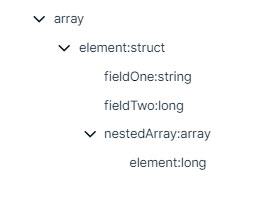
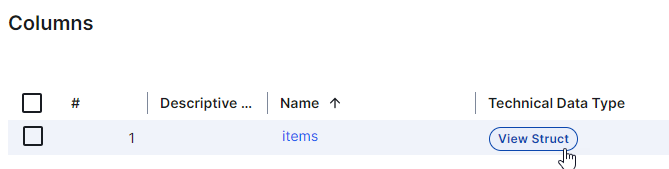
You see the technical data type in the Technical Data Type field in the At a glance sidebar of the Column asset. If the At a glance sidebar is hidden, click |
TechnicalDataType |
 . For columns that have a structured technical data type, Array or Struct, click the hyperlink to see the structure of the data in a dialog box. In other locations, for example, in Table assets, click the