This feature is available only in the latest UI.
Synchronizing outbound metadata via the Knowledge Catalog (formerly Dataplex Universal Catalog) integration is the process of pushing enriched metadata from Collibra to Knowledge Catalog. You can only synchronize manually. Once you have set it up, outbound synchronization runs automatically every 5 minutes if there are outbound events to process. This feature is in preview.
Any attribute changes in Collibra Platform are reflected for all supported asset types in the Dataplex Universal Catalog integration. This includes Schema, Table, Database View, and Column assets.
Prerequisites
- When you created the GCP connection, you set the necessary permissions in Dataplex Universal Catalog for outbound.
- You have integrated metadata from Dataplex Universal Catalog to Collibra Platform.
Steps
Manually synchronize Dataplex Universal Catalog:
-
On the main toolbar, click
 →
→
 Catalog.
The Catalog homepage opens. -
On the main toolbar, click
 .
.
The Create dialog box appears. - In the Register with Edge section of the Create dialog box, click Integration Configuration.
The Integration Configuration tab page opens. - In the Connection name column, locate the GCP connection that you used when you added the Dataplex Universal Catalog capability and click the capability link in the Capabilities column.
The Dataplex Universal Catalog capability configuration page opens. - Select the Metadata Outbound tab and then click Add configuration.
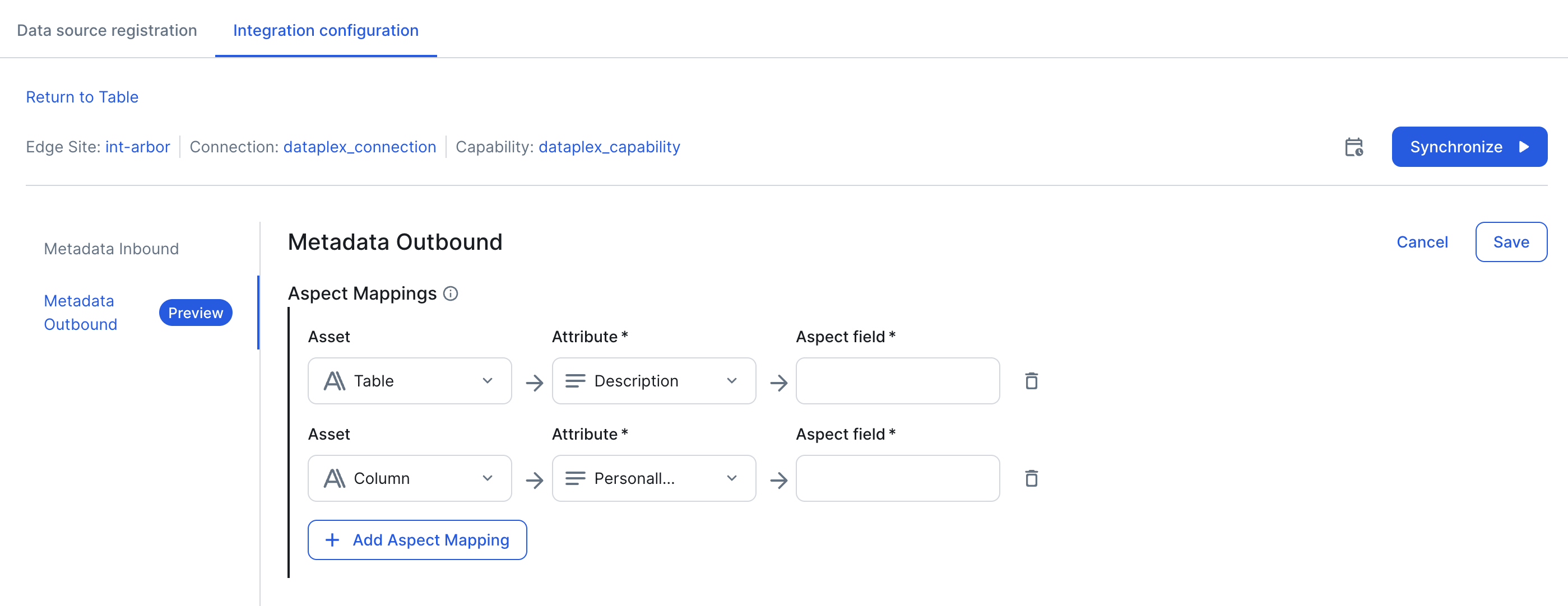
- In the Aspect Mappings section, click Add Aspect Mapping to add a new mapping:
- In the Asset field, select the supported asset type to which you want to apply the aspect mapping. If you do not specify an asset type, the aspect mapping will apply to all applicable asset types by default.
- In the Attribute field, select the attribute whose value you want to send to Dataplex Universal Catalog.
- In Aspect field, specify the aspect and field path in Dataplex Universal Catalog where the attribute value should be mapped.
Use the following pattern:projectid.location.aspectName>fieldPath.
For example: xxxxxxxx.europe-west4.custom-aspect>custom_field1.
- Click Save.
Outbound synchronization runs automatically every 5 minutes if there are outbound events to process.
The synchronization job synchronizes the Knowledge Catalog data.
After the synchronization:
- You can view a summary of the results in the Activities tab in Collibra settings.
- You can view the updated aspects in Knowledge Catalog.