Under certain circumstances, for example if you import an asset, you have to manually start the lifecycle.
Prerequisites
- The Activate Lifecycle tracker option is selected in the Lifecycle tab of the asset type's global assignment.
Note The Lifecycle management feature is currently only available for select asset types.
- You have a global role with the Product Rights > Assessments global permission.
- You have a resource role with the following resource permissions, for the community or domain in which the asset is stored:
- Asset > Update Status
- Asset > Responsibilities > Add
Steps
- Open the relevant asset page.
- Click Start lifecycle.
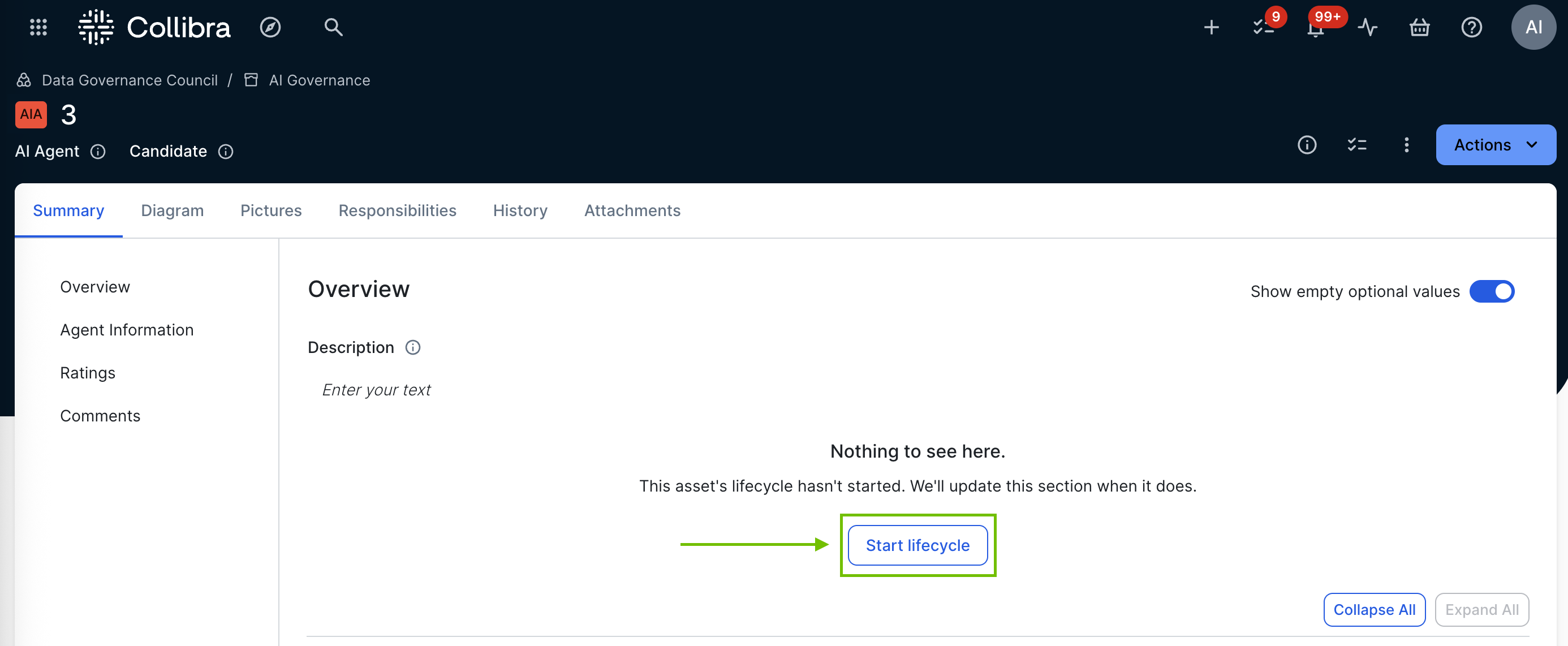
The Start lifecycle for <name> dialog box appears. - Enter the required information.
Option Description Owner A user or user group to act as Owner for the asset.
Owners are responsible for assigning tasks, managing activities, and guiding the asset through its lifecycle.
- Click Start.
The Lifecycle tracker is shown on the asset page and populated with the relevant lifecycle activities.
The specified Owners are sent a notification that the lifecycle has started.