Claude Desktop connects to the Collibra MCP server through a custom connector configured with OAuth 2.0. Once connected, Claude can use Collibra's governed metadata tools directly in your conversations. The recommended approach is for an administrator to create the connection once and share it with selected user groups.
Important While you can use an external IDP to set up this integration, the following instructions outline how to set up this integration if you use the Collibra IDP. If you use an external IDP, go to that IDP's documentation and refer to Collibra's JWT configuration documentation.
Note The Claude Desktop integration connects to a server in the Collibra Cloud environment, so it is not available for Collibra Platform for Government or Collibra Platform Self-Hosted (CPSH).
Prerequisites
In your Collibra environment
- You need admin privileges in Collibra to register an OAuth application.
In your Claude Desktop environment
- Each user signs in with their own Collibra credentials (OAuth 2.0, per-user).
- An administrator can create the organization-level connector once and share it with the relevant user groups. Do not share a Client ID and Client Secret between individual users.
Step 1: Register an OAuth application in Collibra
This step requires admin privileges in Collibra.
- Go to Settings.
- Click OAuth applications.
- Click New Application.
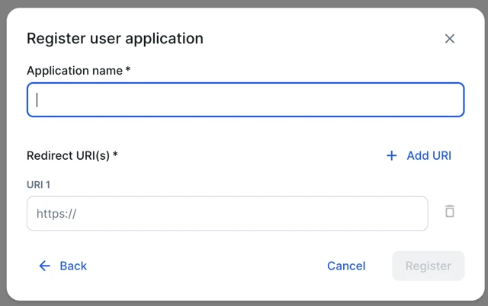
- Click Register user application.
- Enter an application name.
- Enter the redirect URI for Claude Desktop:
https://claude.ai/api/mcp/auth_callback - Click Register.
- Copy the Client ID and Client Secret. You need them to configure the connector in Claude Desktop.
Step 2: Configure the connector in Claude Desktop
Configure the connector at the organization level so it is available to all users automatically. This requires organization admin privileges in Claude Desktop.
- Select Claude → Settings… from the menu bar.
- Select Organization, then click Connectors.
- Click + Add and select Custom, then Web.
- Enter the connector details:
Field Value Name Your choice Remote MCP Server URL https://<tenant>.collibra.com/rest/mcpOAuth Client ID From Step 1 OAuth Client Secret From Step 1
Note Individual users can also add the connector under their personal Connectors tab (Connectors → Customize → + → Add custom connector) using the same fields. This is only practical for a single user testing their own connection, as it requires that user to have their own Client ID and Client Secret.
Use the connection
After the connector is configured, each user must authenticate before using it. The connector appears under Connectors in Claude Desktop settings.
- Click Connect. You are redirected to your Collibra instance or its SSO login page.
- Sign in with your Collibra credentials.
- Review the list of available tools and allow or block specific ones as needed.
- Use Collibra tools in Claude Chat or Claude Cowork.
Note Sessions expire after 1 hour of inactivity. Click Connect again to re-authenticate.
After you connect
- Claude dynamically discovers all Collibra tools, including search, lineage, and glossary.
- You can allow or block individual tools in the connector settings.
- Organization-level connectors are available to all users in your Claude organization automatically.