When you integrate a data source, data objects are ingested as assets in Data Catalog. There are several conditions under which the statuses of such assets in Data Catalog can become Missing from source.
For Tableau users, there is a distinction to be made between Missing from source assets, and dashboards and worksheets for which the Visible on server attribute type has the value false. For more information, got to the section Tableau and the Visible on server attribute type.
|
Condition |
Result |
|---|---|
| A data object can no longer be found in the data source. |
If, during synchronization, a data object can no longer be found in the data source – either because it has been deleted or renamed – the status of the existing asset becomes Missing from source. |
| A filter is added after initial integration. |
Let's say you initially ingest all data objects from a data source. If you then configure a filter to limit the scope of ingested assets, at the next synchronization, the status of any existing assets in Data Catalog that did not pass the filter will become Missing from source. If you then remove the filter, at the next synchronization:
Note
If you delete the Missing from source assets and later remove the filter, at the next synchronization, new assets are created in Collibra. |
| Authentication fails. |
If you remove the permissions required to access a certain data object, the status of the existing asset in Collibra becomes “Missing from source”. If you then add back the permissions, at the next synchronization:
Note
If you delete the Missing from source assets and later add back the required permissions, at the next synchronization, new assets are created in Collibra. |
Remove assets marked Missing from source
Assets marked Missing from source remain in Data Catalog and the technical lineage until you delete them. Before you delete these assets, synchronize the data source to ensure that the Missing from source status reflects the current state of the data source and synchronization configuration.
Before deleting assets, review them carefully because deleting an asset also deletes any associated information.
To remove the assets:
- Synchronize the data source.
- Review the assets marked Missing from source.
- Run the Delete Missing Assets workflow, or manually delete the assets with the Missing from source status. You can download the workflow file from the Collibra Developer Portal and deploy it in your Collibra environment.
Tableau and the Visible on server attribute type
The Visible on server is an attribute type that is specific to Tableau Dashboard and Tableau Worksheet assets in Collibra.
In Tableau, worksheets and dashboards can be hidden, restricting visibility to admins only. During Tableau synchronization, hidden worksheets and dashboards are retrieved through the Tableau APIs. However, the path to these data objects within Tableau is not provided. As a result:
- The "URL" attribute on the asset pages of Tableau Dashboard and Tableau Worksheet assets is empty.
- The "Visible on server" attribute is set to "false".
Important Although this section focuses on hidden worksheets and dashboards, the exact same behavior is observed if the worksheets are deleted in Tableau. On the other hand, if a dashboard or story is deleted in Tableau, all contained worksheets are completely deleted in Tableau, and the status of the corresponding assets in Collibra changes to "Missing from source".
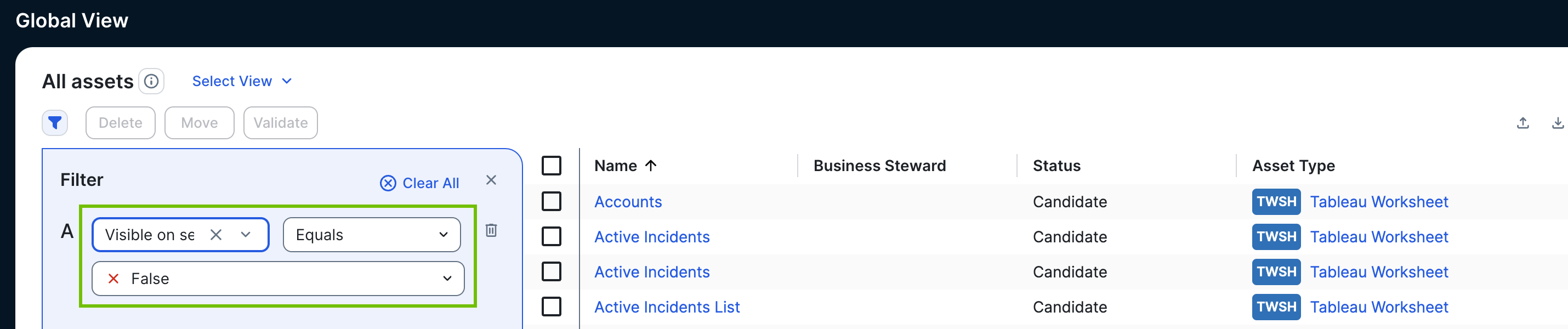
To find the assets in Collibra that represent hidden dashboards and worksheets in Tableau, open an appropriate asset view and configure a filter as shown in the following image.