If you integrated Databricks Unity Catalog, you had created a Databricks Workspace connection. You can use the Databricks Workspace connection when you add a technical lineage for Databricks Unity Catalog. If you registered your Databricks file system by using the JDBC connection instead, use this information to create a Databricks connection.
Prerequisites
- You have added a vault to your Edge site.Note Vaults are not supported on Collibra Cloud sites.
- If your data source connection requires a file from your vault, the file must be encoded into Base64 and stored as a regular secret in your vault.
Steps
- Open a site.
-
On the main toolbar, click
 →
→
 Settings.
The Settings page opens. -
In the tab pane, click Edge.
The Sites tab opens and shows a table with an overview of your sites. - In the site overview, click the name of a site.
The site page appears.
-
On the main toolbar, click
-
In the Connections section, click Create Connection and select Databricks Workspace in the Create Connection dialog box.
The Create Connection dialog box for Databricks Workspace opens. - Enter the required information.
Field Description Required Name The name of the Edge or Collibra Cloud site connection for Databricks.
 Yes
YesDescription The description of the connection.
 No
No
Vault The vault where you store your data source values. No
Workspace URL Enter the URL of any Databricks workspace connected to Unity Catalog that you want to integrate.
To retrieve the URL, log into Databricks and copy the URL. For example:https://123.cloud.databricks.com.How to use your vault...To use your vault, do the following:- In the Value Type field, select Vault Key.
- Enter the query value to identify the secret in your vault.Example
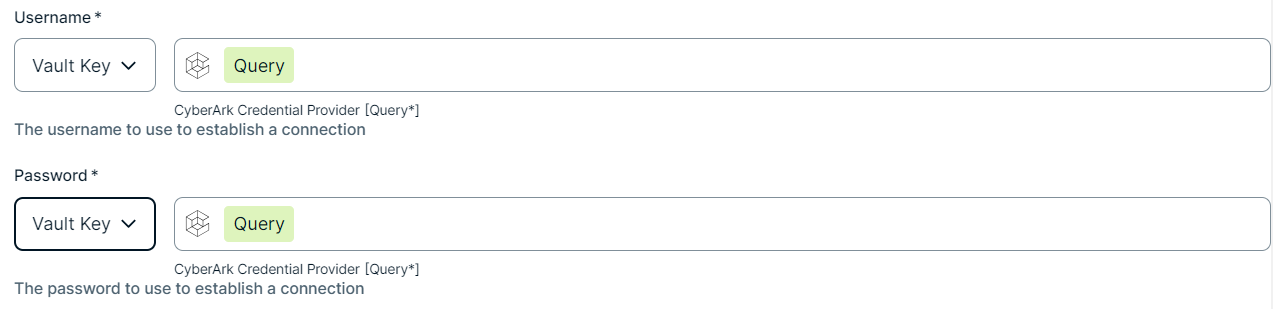 Note The Query must be a string containing the properties required to identify the secret. Each property must be separated by a semicolon (;). For example: Safe=<SafeName>;Folder=<FolderName>;Object=<ObjectName>
If a property is a folder with sub-folders, use a backslash (\) to define the folder path. For example: Folder=Root\Top Secrets\More Secrets
For more information about query formats and supported properties, go to the CyberArk Credential Provider documentation.
To use your vault, do the following:- In the Value Type field, select Vault Key.
- Enter the required information:
- Secret Engine Type
- Select one of the following:
- Key Value
- Database
- Engine Path
- The engine path to your vault where the value is stored.
- Secret Path
- The secret path to your vault where the value is stored.
- Field
- If your Secret Engine Type is Key Value, enter the name of the field to your vault where the value is stored.
- Role
- If your Secret Engine Type is Database, enter the role specified in the Database engine.
Example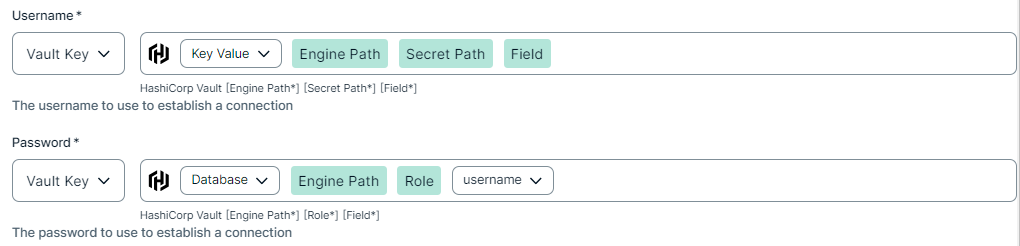
To use your vault, do the following:- In the Value Type field, select Vault Key.
- Enter the required information:
- Vault Name
- The name of your Azure Key Vault in your Azure Key Vault service where the value is stored.
- Secret Name
- The name of the secret in your vault where the value is stored.
Example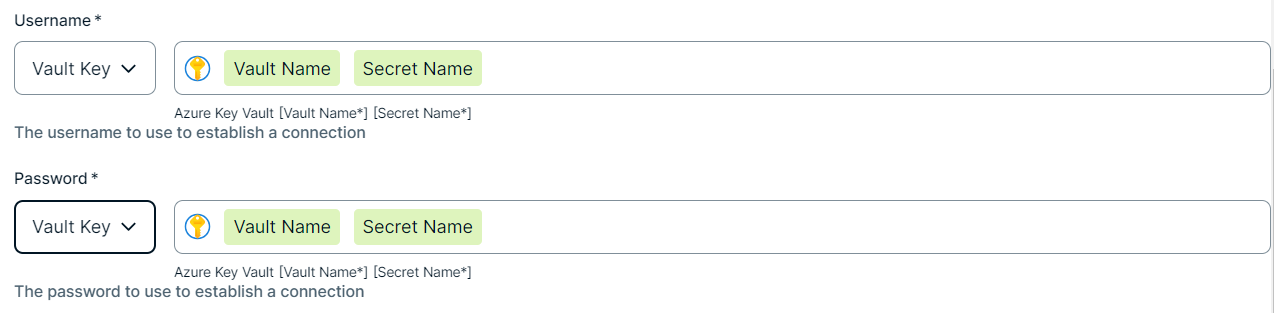
To use your vault, do the following:- In the Value Type field, select Vault Key.
- Enter the required information:
- Secret Name
- The name of the secret in your vault where the value is stored.
- Field
- If the secret stored in your AWS Secrets Manager is a JSON value, for example
{"pass1": "my-password", "pass2": "my-password2"}, then you need to specify the Field to point to the exact JSON value that should be used. For example,Secret Name: edge-db-customer; Field: pass.Note If the secret stored in your AWS Secrets Manager is a plain string value, for examplemy-password, then you do not need to specify the Field.
Example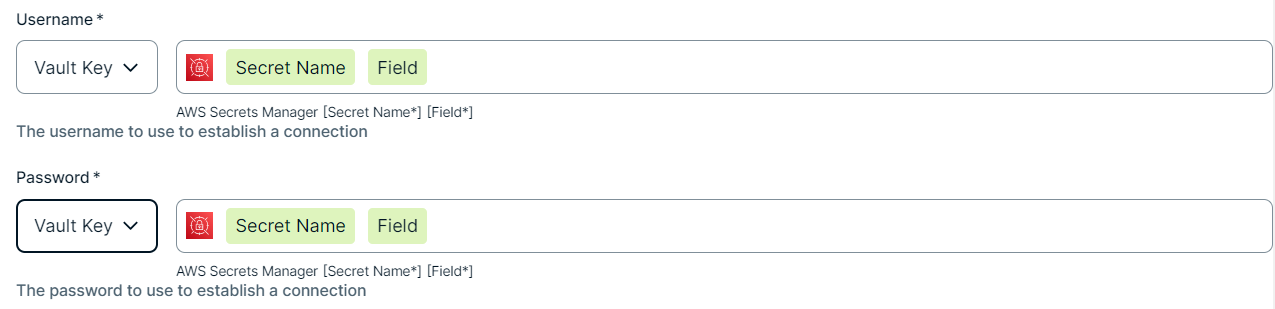
To use your vault, do the following:- In the Value Type field, select Vault Key.
- Enter the name of the secret in your vault where the value is stored.
Example
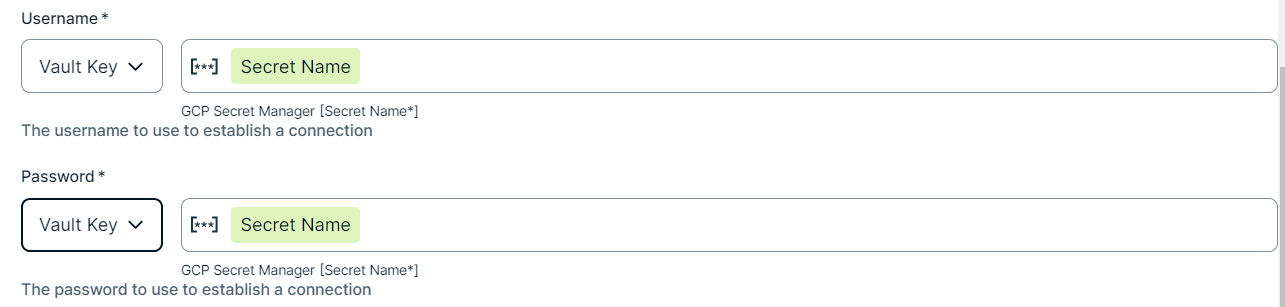
Yes
Authentication TypeSelect the type of authentication that you want to apply. You can select any of the following values:
- Personal Access Token
- OAuth
For information on OAuth-based authentication in Databricks Unity Catalog, go to the Databricks documentation. - Microsoft Entra ID
For information, go to Microsoft Entra service principal authentication in the Azure Databricks documentation. The Databricks Workspace connection supports the Microsoft Entra ID authentication type for the public Azure Cloud only. Azure sovereign clouds, including Azure China, Azure US Government, and Azure Germany, are currently not supported.
Yes
Access Token The security token that was generated in Databricks for the workspace. The access token must be a personal access token (PAT).
It is possible to generate a PAT for service principals. For information on the service principal token, go to the Databricks documentation.Note Ensure that your Databricks access token has been granted the required permissions in your Databricks environment.
How to use your vault...To use your vault, do the following:- In the Value Type field, select Vault Key.
- Enter the query value to identify the secret in your vault.ExampleNote The Query must be a string containing the properties required to identify the secret. Each property must be separated by a semicolon (;). For example: Safe=<SafeName>;Folder=<FolderName>;Object=<ObjectName>
If a property is a folder with sub-folders, use a backslash (\) to define the folder path. For example: Folder=Root\Top Secrets\More Secrets
For more information about query formats and supported properties, go to the CyberArk Credential Provider documentation.
To use your vault, do the following:- In the Value Type field, select Vault Key.
- Enter the required information:
- Secret Engine Type
- Select one of the following:
- Key Value
- Database
- Engine Path
- The engine path to your vault where the value is stored.
- Secret Path
- The secret path to your vault where the value is stored.
- Field
- If your Secret Engine Type is Key Value, enter the name of the field to your vault where the value is stored.
- Role
- If your Secret Engine Type is Database, enter the role specified in the Database engine.
Example
To use your vault, do the following:- In the Value Type field, select Vault Key.
- Enter the required information:
- Vault Name
- The name of your Azure Key Vault in your Azure Key Vault service where the value is stored.
- Secret Name
- The name of the secret in your vault where the value is stored.
Example
To use your vault, do the following:- In the Value Type field, select Vault Key.
- Enter the required information:
- Secret Name
- The name of the secret in your vault where the value is stored.
- Field
- If the secret stored in your AWS Secrets Manager is a JSON value, for example
{"pass1": "my-password", "pass2": "my-password2"}, then you need to specify the Field to point to the exact JSON value that should be used. For example,Secret Name: edge-db-customer; Field: pass.Note If the secret stored in your AWS Secrets Manager is a plain string value, for examplemy-password, then you do not need to specify the Field.
Example
To use your vault, do the following:- In the Value Type field, select Vault Key.
- Enter the name of the secret in your vault where the value is stored.
Example
Yes, if you select
Personal Access Tokenas the authentication type.Client IDThe client ID for OAuth-based authentication in Databricks, or the client ID of the Microsoft Entra ID service principal.
For information on OAuth-based authentication in Databricks Unity Catalog, go to the Databricks documentation.
For information on the Microsoft Entra ID service principal, go to Microsoft Entra service principal authentication in the Azure Databricks documentation.
Note Ensure that your Databricks OAuth client or Microsoft Entra ID service principal has been granted the required permissions in your Databricks environment.
Yes, if you select
OAuthorMicrosoft Entra IDas the authentication type.Client SecretThe client secret generated for the OAuth-based authentication on Databricks, or the client secret of the Microsoft Entra ID service principal.
Yes, if you selectOAuthorMicrosoft Entra IDas the authentication type.Tenant ID The Directory (tenant) ID for the related application registered in Microsoft Entra ID.
For information, go to Microsoft Entra service principal authentication in the Azure Databricks documentation.
Yes, if you select Microsoft Entra IDas the authentication type. - Click Create.
The connection is added to the Edge or Collibra Cloud site.
Add the Technical Lineage for Databricks Unity Catalog capability to your Edge or Collibra Cloud site.