The AWS SageMaker AI integration of Collibra Platform uses the following asset types. The asset types are available out of the box in Collibra.
Important The functions of AWS SageMaker AI integration is limited if you do not enable AI governance. When enabled, you can add custom attributes or relations, such as AI Model Version, to the AWS SageMaker AI Model Version asset.
Tip
| Asset type | Description |
|---|---|
|
AI Base Model
|
Represents foundational business concepts that define the model’s purpose and governing principles in your Amazon SageMaker workspace. |
|
AWS SageMaker AI Model Version
|
A subtype of AI Model Version that represents AI model versions in Amazon SageMaker. |
|
AI Model Deployment
|
The operational instance where a model version is assigned computational resources to execute and generate real-time outputs. |
|
AI Endpoint
|
The access point for external systems that provides a consistent interface while allowing for the seamless exchange of underlying deployments. |
|
AI Monitor
|
The configuration of automated tracking parameters and alerting thresholds used to observe a deployment’s real-world performance and detect deviations from expected behavior. |
|
File
|
Represents the S3 endpoint output paths Amazon SageMaker workspace. You can ingest this data during the integration by selecting Yes in the Ingest deployment output field. |
|
Storage Container
|
Represents the S3 endpoint output paths Amazon SageMaker workspace. You can ingest this data during the integration by selecting Yes in the Ingest deployment output field. |
AWS SageMaker AI diagram view
For information on the data that is integrated from AWS SageMaker AI, go to Integrated AWS SageMaker AI data.
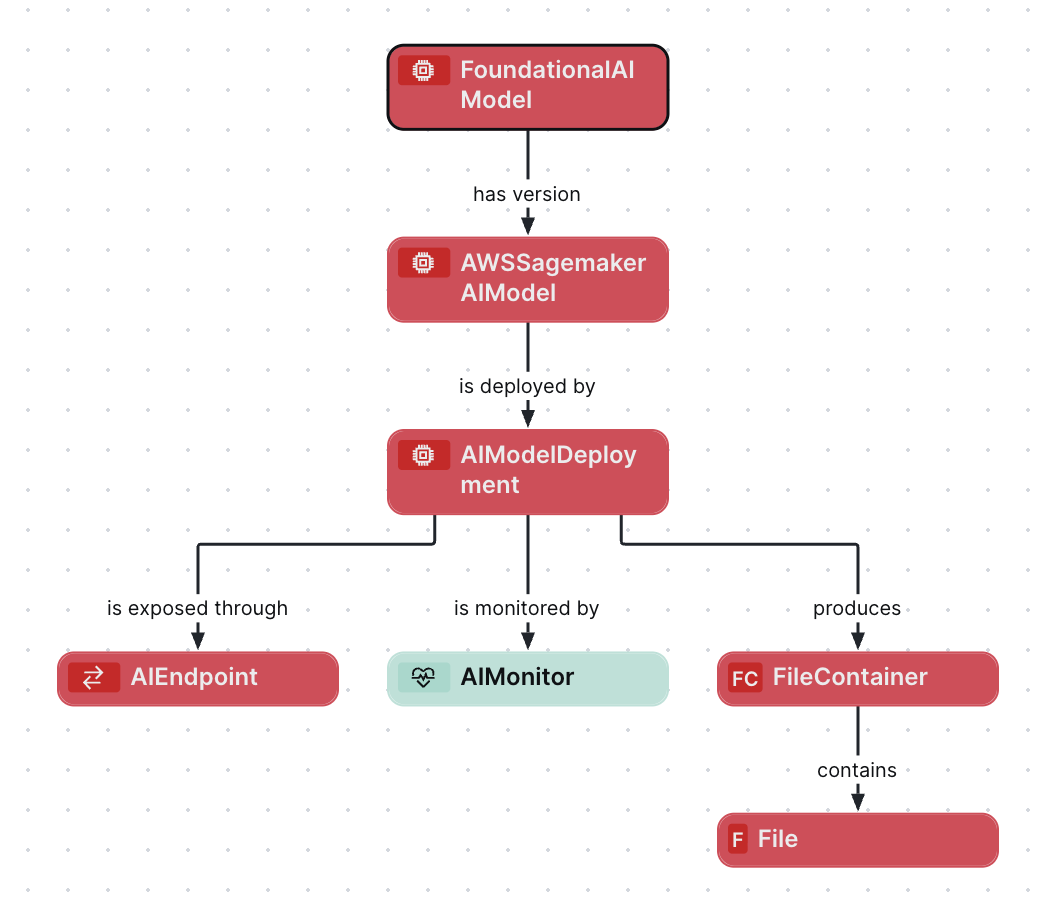
Steps
- Open the asset page.
- Click the
Diagram tab.
The diagram is shown in the default diagram view. - Click
 to add a new view.
 - Select the Text option below the diagram view name.
The diagram view text editor is shown. - Copy the code from the Show JSON code section below and paste it in the diagram view text editor.
- Click Save.
- Edit the name and description of the diagram view as needed.
Show JSON code
Copy
{
  "nodes": [
    {
      "id": "FoundationalAIModel",
      "type": {
        "id": "00000000-0000-0000-0000-000000031422"
      }
    },
    {
      "id": "AWSSagemakerAIModel",
      "type": {
        "id": "00000000-0000-0000-0000-000000031406"
      }
    },
    {
      "id": "AIModelDeployment",
      "type": {
        "id": "00000000-0000-0000-0000-000000031500"
      }
    },
    {
      "id": "AIEndpoint",
      "type": {
        "id": "00000000-0000-0000-0000-000000031501"
      }
    },
    {
      "id": "AIMonitor",
      "type": {
        "id": "00000000-0000-0000-0000-000000031502"
      }
    },
    {
      "id": "FileContainer",
      "type": {
        "id": "00000000-0000-0000-0001-002900000002"
      }
    },
    {
      "id": "File",
      "type": {
        "id": "00000000-0000-0000-0000-000000031304"
      }
    }
  ],
  "edges": [
    {
      "from": "FoundationalAIModel",
      "to": "AWSSagemakerAIModel",
      "label": "",
      "style": "arrow",
      "type": {
        "id": "00000000-0000-0000-0000-000000077000"
      },
      "roleDirection": true
    },
    {
      "from": "AWSSagemakerAIModel",
      "to": "AIModelDeployment",
      "label": "",
      "style": "arrow",
      "type": {
        "id": "00000000-0000-0000-0000-000000077001"
      },
      "roleDirection": true
    },
    {
      "from": "AIModelDeployment",
      "to": "AIEndpoint",
      "label": "",
      "style": "arrow",
      "type": {
        "id": "00000000-0000-0000-0000-000000077006"
      },
      "roleDirection": true
    },
    {
      "from": "AIModelDeployment",
      "to": "AIMonitor",
      "label": "",
      "style": "arrow",
      "type": {
        "id": "00000000-0000-0000-0000-000000077007"
      },
      "roleDirection": true
    },
    {
      "from": "AIModelDeployment",
      "to": "FileContainer",
      "label": "",
      "style": "arrow",
      "type": {
        "id": "00000000-0000-0000-0000-000000077004"
      },
      "roleDirection": true
    },
    {
      "from": "FileContainer",
      "to": "File",
      "label": "",
      "style": "arrow",
      "type": {
        "id": "00000000-0000-0000-0000-000000007060"
      },
      "roleDirection": true
    }
  ],
  "showOverview": false,
  "enableFilters": true,
  "showLabels": true,
  "showFields": true,
  "showLegend": true,
  "showPreview": true,
  "visitStrategy": "completeGraph",
  "layout": "HierarchyTopBottom",
  "maxNodeLabelLength": 50,
  "maxEdgeLabelLength": 30,
  "layoutOptions": {
    "compactGroups": false,
    "componentArrangementPolicy": "topmost",
    "edgeBends": true,
    "edgeBundling": true,
    "edgeToEdgeDistance": 5,
    "minimumLayerDistance": "auto",
    "nodeToEdgeDistance": 5,
    "orthogonalRouting": true,
    "preciseNodeHeightCalculation": true,
    "recursiveGroupLayering": true,
    "separateLayers": true,
    "webWorkers": true,
    "nodePlacer": {
      "barycenterMode": true,
      "breakLongSegments": true,
      "groupCompactionStrategy": "none",
      "nodeCompaction": false,
      "straightenEdges": true
    }
  }
}