In this example, you create a context specification for Data Product assets and map its fields to the name, the description, and the related measures of a data product. Then you test the context specification on a real data product and download its governed context as a YAML file.
Scenario
Your organization's AI team is building an assistant that answers questions about sales performance. To give trustworthy answers, the assistant needs the governed definitions and calculation rules of the measures behind the Sales Analytics data product.
In this example, you create one context specification that the team can run on any Data Product asset. For each data product, the output contains its name, its description, and the full details of every measure that's related to it.
Prerequisites
- The Governed Context Compiler is switched on in your environment. It's on by default, and you can check its status on the In preview settings page.
- You have a global role with the Product Rights > Guided Stewardship global permission.
- You have a resource role with the Asset > Add resource permission on the New Context Specifications domain, where Collibra saves Context Specification assets.
- You have a Data Product asset in your Collibra environment. This example uses a data product named Sales Analytics and relates to Measure assets via the Data Product relates to Measure relation type. Any data product in your Collibra environment that meets this requirement works. You don't need to create a new one.
1. Create a context specification
Create the context specification that defines how Collibra reads Data Product assets and shapes the output.
- On the main menu, click Stewardship.
- In the Semantic Layer section, click Context specifications.
The Context specifications page appears, with all context specifications in your environment. - Click Create context specification.
The Create context specification dialog box appears.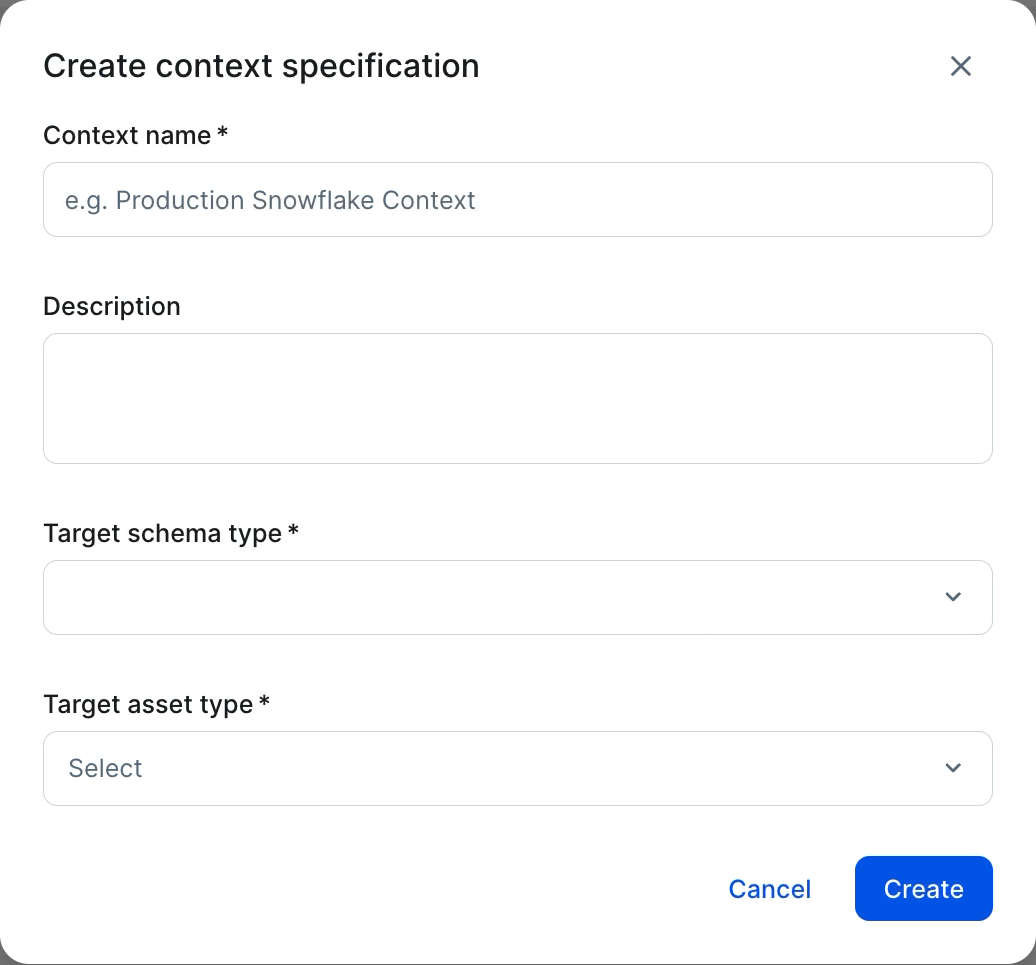
- Enter the required information.
Field Description Context name A unique name for the context specification, up to 255 characters.
Enter Data Product with metrics.
Description Optional. A short description that appears in the list of context specifications.
For this example, you can leave the field empty.
Target schema type The structure of the output. You can't edit the target schema type after you create the context specification.
Select Custom Schema, because you define the output structure yourself.
Target asset type The asset type that the context specification applies to. The context specification reads from assets of this type, and it's available for download on the asset page of every asset of this type and of its child asset types.
Start typing and select Data Product.
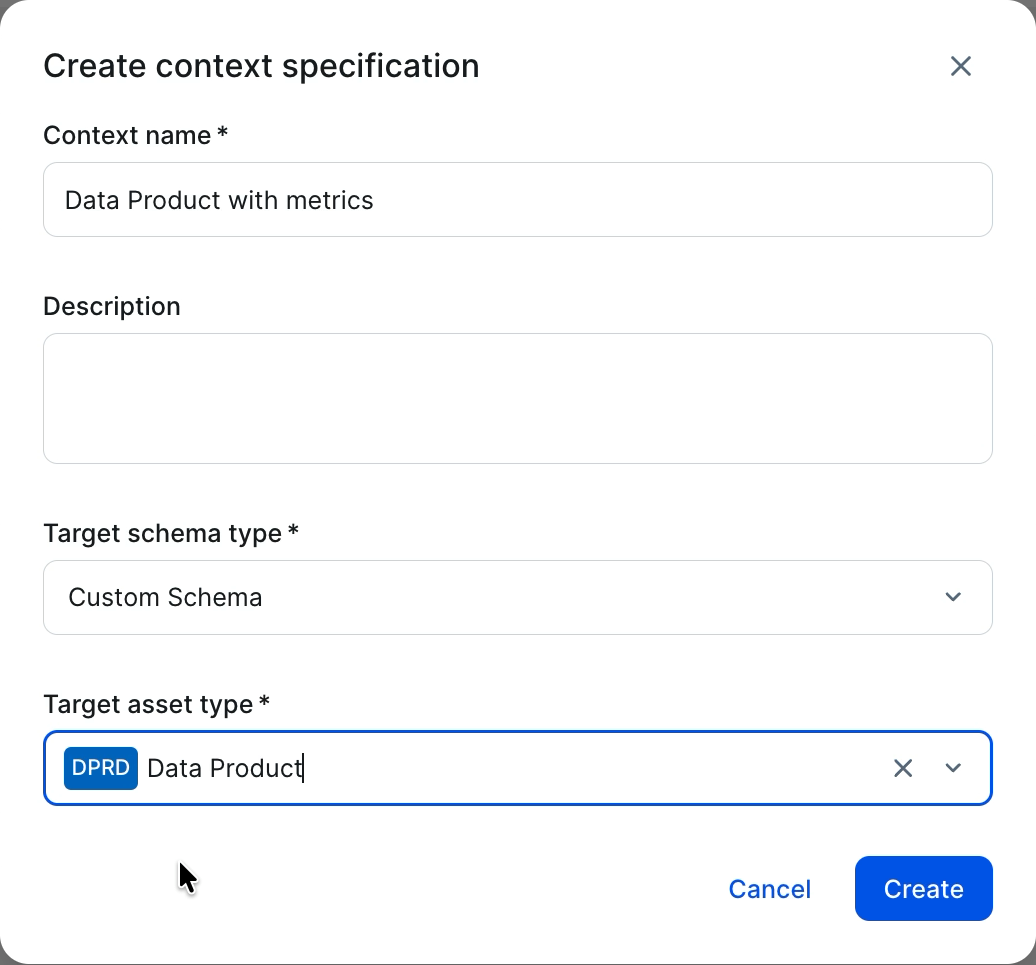
- Click Create.
The new Context Specification asset is created in the New Context Specifications domain. Its asset page opens on the Specification tab. The schema tree on the left is empty, because you selected Custom Schema.
2. Add the output fields
The schema tree defines the structure of the output. In this example, the output has three fields: name, description, and metrics.
- In the schema tree, click Add field.
- Enter name, and then click
 .
The field is added to the schema tree. - Repeat steps 1 and 2 to add the description and metrics fields.
A red error icon appears next to each field, because the fields don't have a mapping yet.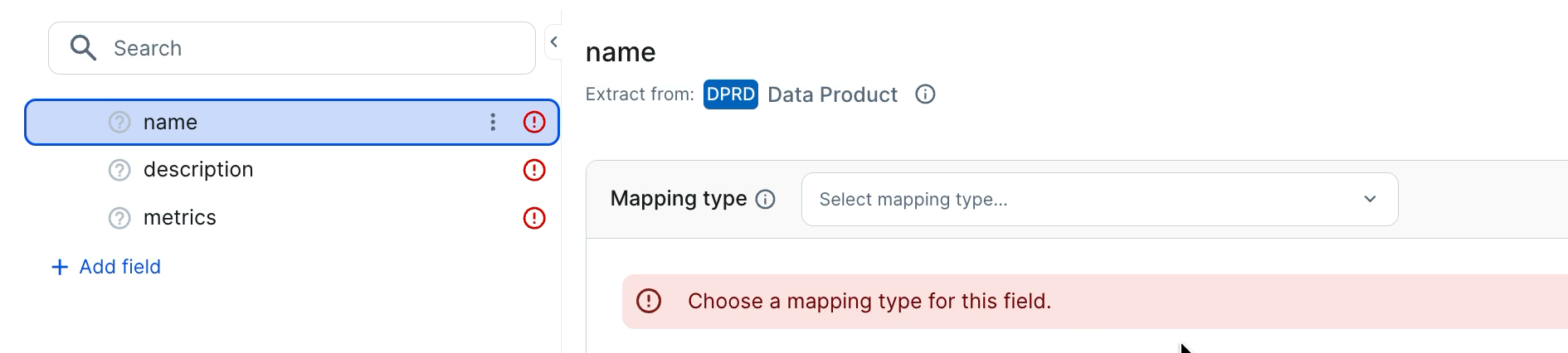
3. Map the name field
Each field gets its value from exactly one mapping type. A property mapping reads a built-in field of the asset, such as its name or status, so it fits the name of the data product.
- In the schema tree, select name.
The mapping builder shows the field. Extract from shows Data Product, the target asset type. - In the Mapping type drop-down list, select Property.
- In the Property drop-down list, select Display Name.
A green check mark appears next to the field. Collibra saves your edits automatically.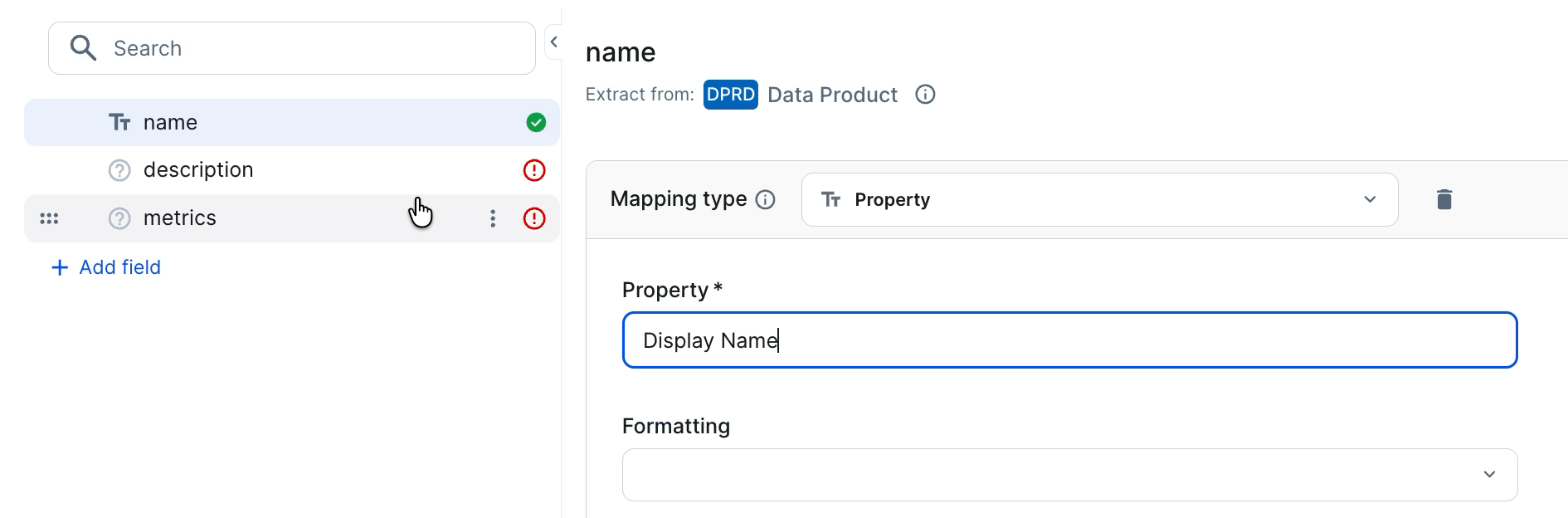
4. Map the description field
The description of a data product is an attribute, so use an attribute mapping. An attribute mapping reads one attribute of the asset.
- In the schema tree, select description.
- In the Mapping type drop-down list, select Attribute.
The list groups the mapping types into Values, which produce a value, and Structure, which shapes the output.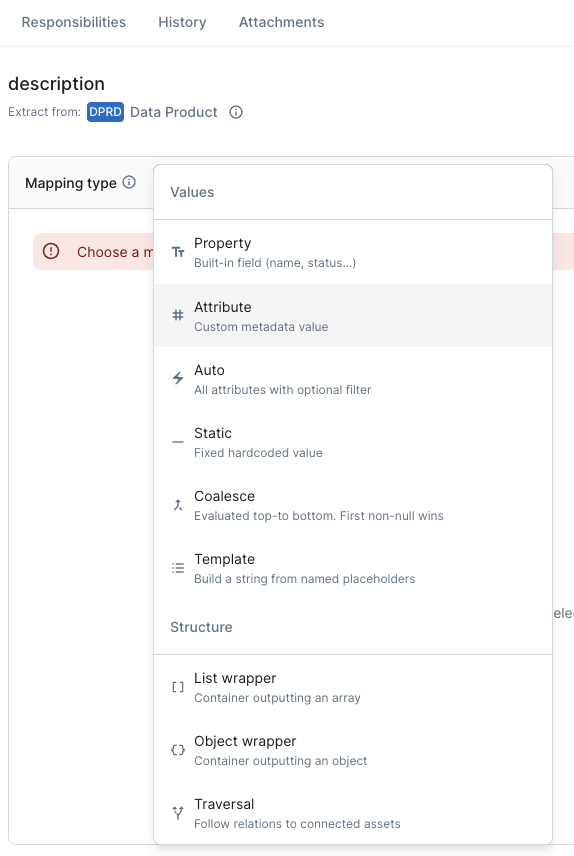
- In the Attribute type drop-down list, select Description.
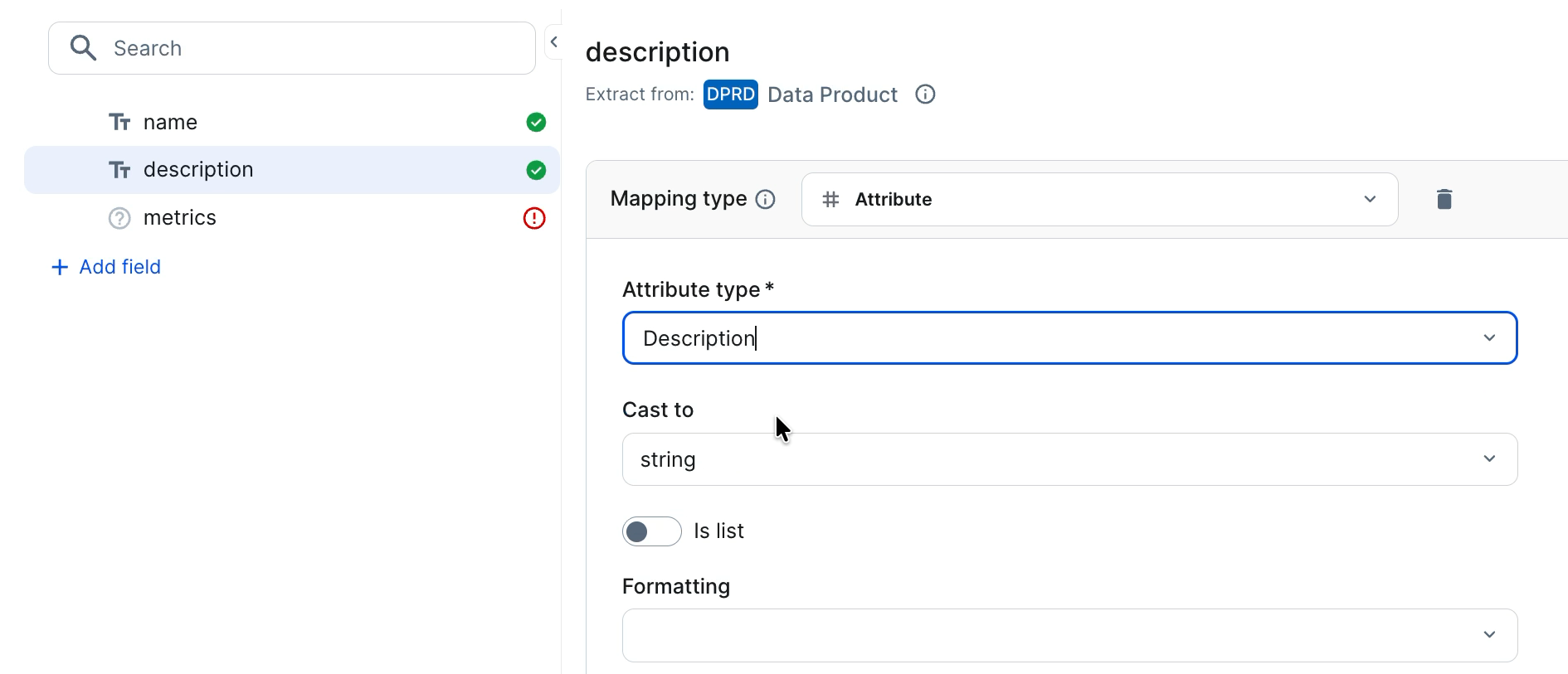
Leave the other options as they are. Cast to stays string, and Is list stays switched off, because a data product has one description.
5. Map the metrics field to related measures
The measures of a data product are separate Measure assets. To include them, use a traversal mapping. A traversal follows a relation from the data product to the related assets, and then reads values from those assets.
- In the schema tree, select metrics.
- In the Mapping type drop-down list, select Traversal.
- In the Select relation drop-down list, start typing relates to, and then select Data Product relates to Measure.
The list shows only the relation types that are valid for the current asset type.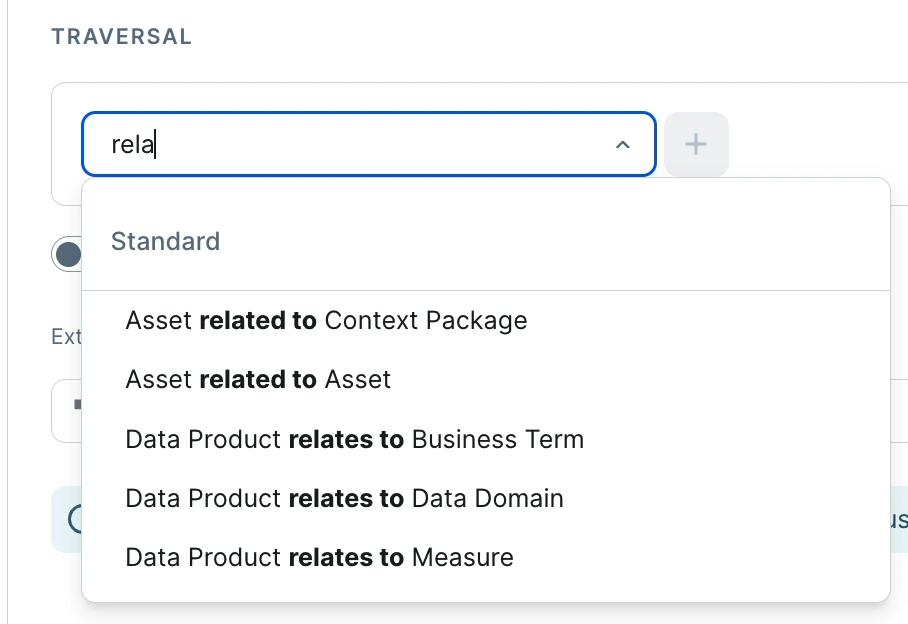
Extract from shows Measure. - Switch on Is list.
A data product can relate to many measures. If you leave Is list switched off, the output contains only one of them. - In the Extract from drop-down list, select Auto instead of the default, Nested.
The properties, attributes, and relations child fields are added under metrics in the schema tree. By default, each child field includes all of the properties, attributes, or relations of each measure.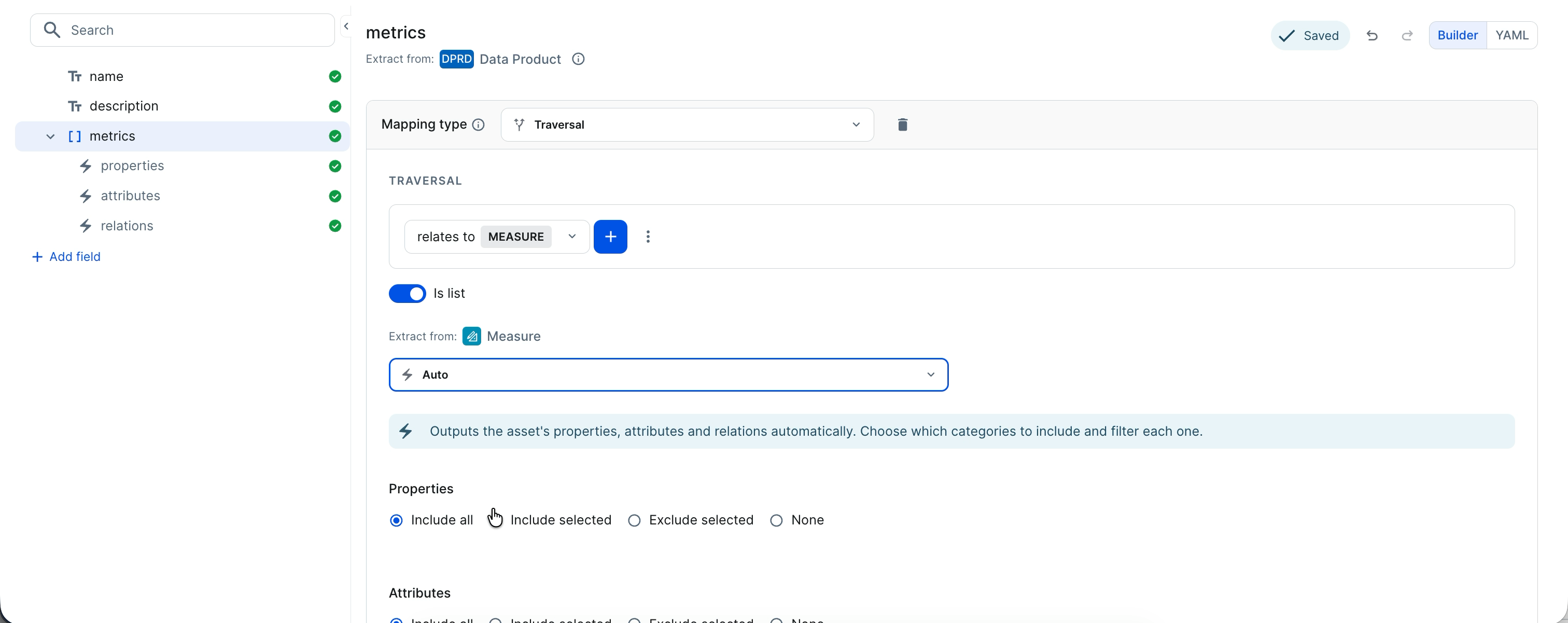 Note Auto is the fastest way to include everything about the related assets. To control the output more precisely, select Include selected or Exclude selected for each category. To map the child fields yourself, for example to include only the Definition attribute, keep the default, Nested.
All three fields now have a green check mark.
6. Test the context specification
Before the AI team relies on the output, test the context specification on a real data product. Collibra doesn't save the test output, so you can test as often as you need.
- In the title bar of the asset page, click Test.
The Test sidebar opens. - In the drop-down list, search for and select Sales Analytics, or the data product that you chose in the prerequisites.
Collibra runs the context specification on the data product and shows the YAML output.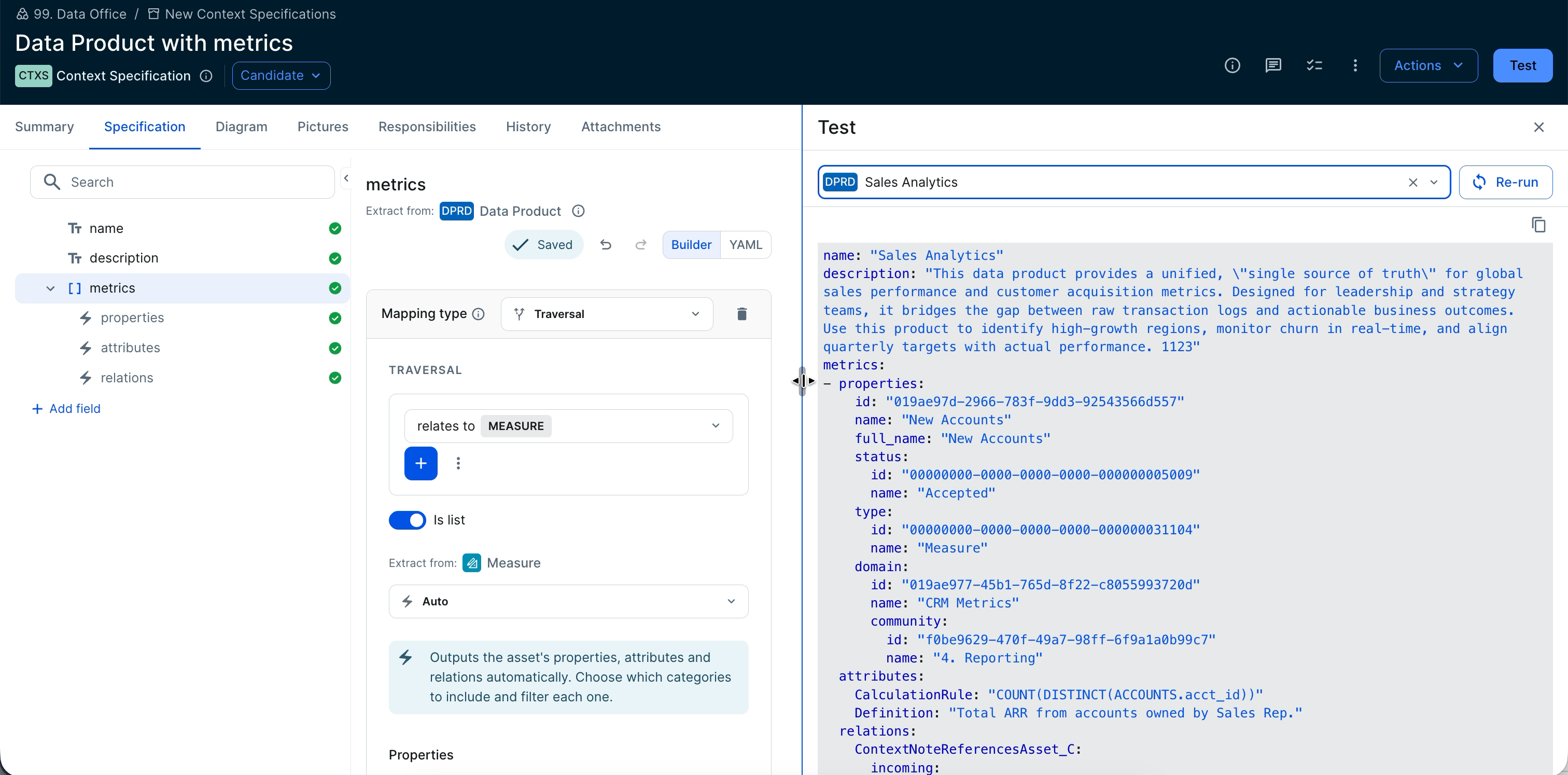
The metrics list contains one item for each related Measure asset. Each item also includes the domain, community, and relations of the measure. The following shortened excerpt shows one item:
Copy- properties:
id: "019b6fe6-4305-701b-9374-5f97be68c868"
name: "Total ARR from Healthcare"
full_name: "Total ARR from Healthcare"
status:
id: "00000000-0000-0000-0000-000000005009"
name: "Accepted"
type:
id: "00000000-0000-0000-0000-000000031104"
name: "Measure"
domain:
id: "019ae977-45b1-765d-8f22-c8055993720d"
name: "CRM Metrics"
community:
id: "f0be9629-470f-49a7-98ff-6f9a1a0b99c7"
name: "4. Reporting"
attributes:
CalculationRule: "SUM(CASE WHEN ACCOUNTS.INDSTRY = 'HC' THEN ACCOUNTS.ANN_REV END)"
Definition: "Total ARR generated from Healthcare customers"
UnitOfMeasure_C: "$"
relations:
ContextNoteReferencesAsset_C:
incoming:
- id: "019eff0a-e993-70f1-9a09-0b058f2ea5e3"
name: "Accounts & Account Revenue Playbook"
type: "ContextNote_C"
- id: "019f1cb2-53b4-7085-b544-3186eac1a845"
name: "Healthcare ARR Segmentation Playbook"
type: "ContextNote_C"
DataProductRelatesToMeasure:
incoming:
- id: "019c89da-2fb1-73a0-b82d-d301b88f8964"
name: "Sales Analytics"
type: "DataProduct"
MeasureIsCalculatedUsingDataElement:
outgoing:
- id: "019b08aa-99bf-7e64-98ef-95968cde385e"
name: "Annual Revenue"
type: "DataAttribute"
- id: "019b08aa-a2dd-7f1f-b3ad-eedc73202bcd"
name: "Industry"
type: "DataAttribute" - Optionally, to copy the output, click
 .
- Optionally, after you edit the mapping, click Re-run to generate the output again for the same data product.
7. Download the context of the data product
Because you selected Data Product as the target asset type, the context specification is now available on the asset page of every Data Product asset in your environment. It doesn't appear on assets of other types, such as the Measure assets in the output. The AI team can get the context of any data product without opening the context specification.
- Open the asset page of the Sales Analytics data product, or of any other Data Product asset.
- Click Actions, and then click Download context.
The Download context dialog box appears. - In the Context specification drop-down list, select Data Product with metrics. The list shows only the context specifications for the Data Product asset type and its parent asset types.
Collibra generates the output and shows a read-only preview. - Copy or download the output:
- To copy the output, for example to paste it into an AI conversation, click .
- To download the output as a YAML file, click Download. The file name is the name of the context specification, with special characters replaced by underscores.
- To copy the output, for example to paste it into an AI conversation, click
- Click Close.
The output always reflects the current state of the data product and its measures in Collibra. If a data steward updates the definition of a measure, the next download includes the update, with no edit to the context specification.