The Google Knowledge Catalog (formerly Dataplex Universal Catalog) integration uses a specific subset of asset types. These are available out of the box. For more information on asset attributes or metadata synchronized per asset type, go to Integrated Knowledge Catalog data.
Important
| Asset type | Description |
|---|---|
|
Database
|
Database assets in Collibra represent projects in Google BigQuery. |
|
Schema
|
A schema is the highest level of physical structure in a Database. It defines the structure of the tables and columns in the database. Schema assets in Collibra represent datasets in Google BigQuery. |
|
Table
|
An implementation of data entities in columns and rows, in a given database system. It is the basic structure of a relational database. Table assets in Collibra represent Entries in Knowledge Catalog. |
|
Database View
|
A Database View is a virtual table based on the result-set of an SQL statement. Database View assets in Collibra represent Views in Knowledge Catalog. |
|
Column
|
An atomic unit of data that can be stored in a database table. Column assets in Collibra represent Aspects for a table Entry in Knowledge Catalog. |
|
GCP Data Product
|
A GCP Data Product is a curated, governed data offering in Google Cloud Platform, exposing data assets through defined output ports for discovery and consumption. Only ingested when the Data Products (In Preview) tab is enabled. |
|
Data Product Port
|
Defines the interface through which a data product interacts with the broader ecosystem. A data product can feature multiple ports, each categorized based on its relation to the data product. Only ingested when the Data Products (In Preview) tab is enabled. |
Knowledge Catalog diagram view
For information on the data that is integrated from Knowledge Catalog, go to Integrated Google Knowledge Catalog data.
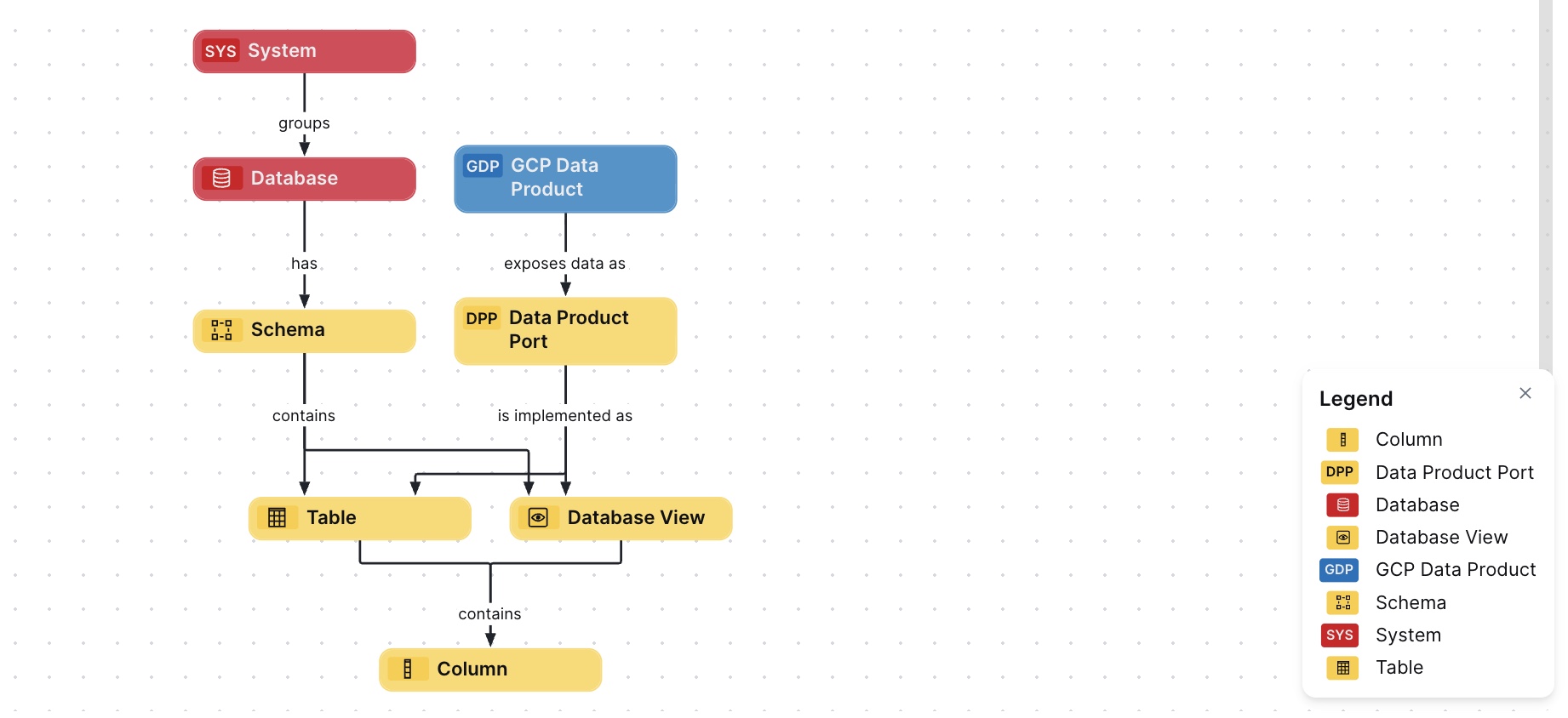
Steps
- Open the asset page.
- Click the
Diagram tab.
The diagram is shown in the default diagram view. - Click
 to add a new view.
 - Select the Text option below the diagram view name.
The diagram view text editor is shown. - Copy the code from the Show JSON code section below and paste it in the diagram view text editor.
- Click Save.
- Edit the name and description of the diagram view as needed.
{
  "nodes": [
    {
      "id": "System",
      "type": {
        "id": "00000000-0000-0000-0000-000000031302"
      }
    },
    {
      "id": "Database",
      "type": {
        "id": "00000000-0000-0000-0000-000000031006"
      }
    },
    {
      "id": "Schema",
      "type": {
        "id": "00000000-0000-0000-0001-000400000002"
      }
    },
    {
      "id": "Table",
      "type": {
        "id": "00000000-0000-0000-0000-000000031007"
      }
    },
    {
      "id": "Database View",
      "type": {
        "id": "00000000-0000-0000-0001-000400000009"
      }
    },
    {
      "id": "Column",
      "type": {
        "id": "00000000-0000-0000-0000-000000031008"
      }
    },
    {
      "id": "GCP Data Product",
      "type": {
        "id": "00000000-0000-0000-0000-000000031417"
      }
    },
    {
      "id": "Data Product Port",
      "type": {
        "id": "00000000-0000-0000-0000-000000050004"
      }
    }
  ],
  "edges": [
    {
      "from": "System",
      "to": "Database",
      "label": "",
      "style": "arrow",
      "type": {
        "id": "00000000-0000-0000-0000-000000007054"
      },
      "roleDirection": true
    },
    {
      "from": "Database",
      "to": "Schema",
      "label": "",
      "style": "arrow",
      "type": {
        "id": "00000000-0000-0000-0000-000000007024"
      },
      "roleDirection": true
    },
    {
      "from": "Schema",
      "to": "Table",
      "label": "",
      "style": "arrow",
      "type": {
        "id": "00000000-0000-0000-0000-000000007043"
      },
      "roleDirection": true
    },
    {
      "from": "Schema",
      "to": "Database View",
      "label": "",
      "style": "arrow",
      "type": {
        "id": "00000000-0000-0000-0000-000000007043"
      },
      "roleDirection": true
    },
    {
      "from": "Table",
      "to": "Column",
      "label": "",
      "style": "arrow",
      "type": {
        "id": "00000000-0000-0000-0000-000000007042"
      },
      "roleDirection": false
    },
    {
      "from": "Database View",
      "to": "Column",
      "label": "",
      "style": "arrow",
      "type": {
        "id": "00000000-0000-0000-0000-000000007042"
      },
      "roleDirection": false
    },
    {
      "from": "GCP Data Product",
      "to": "Data Product Port",
      "label": "exposes data as",
      "style": "arrow",
      "type": {
        "id": "00000000-0000-0000-0000-000000050040"
      },
      "roleDirection": true
    },
    {
      "from": "Data Product Port",
      "to": "Table",
      "label": "is implemented as",
      "style": "arrow",
      "type": {
        "id": "00000000-0000-0000-0000-000000050042"
      },
      "roleDirection": true
    },
    {
      "from": "Data Product Port",
      "to": "Database View",
      "label": "is implemented as",
      "style": "arrow",
      "type": {
        "id": "00000000-0000-0000-0000-000000050042"
      },
      "roleDirection": true
    }
  ],
  "showOverview": false,
  "enableFilters": true,
  "showLabels": true,
  "showFields": true,
  "showLegend": true,
  "showPreview": true,
  "visitStrategy": "directed",
  "layout": "HierarchyTopBottom",
  "maxNodeLabelLength": 50,
  "maxEdgeLabelLength": 30,
  "layoutOptions": {
    "compactGroups": false,
    "componentArrangementPolicy": "topmost",
    "edgeBends": true,
    "edgeBundling": true,
    "edgeToEdgeDistance": 5,
    "minimumLayerDistance": "auto",
    "nodeToEdgeDistance": 5,
    "orthogonalRouting": true,
    "preciseNodeHeightCalculation": true,
    "recursiveGroupLayering": true,
    "separateLayers": true,
    "webWorkers": true,
    "nodePlacer": {
      "barycenterMode": true,
      "breakLongSegments": true,
      "groupCompactionStrategy": "none",
      "nodeCompaction": false,
      "straightenEdges": true
    }
  }
}