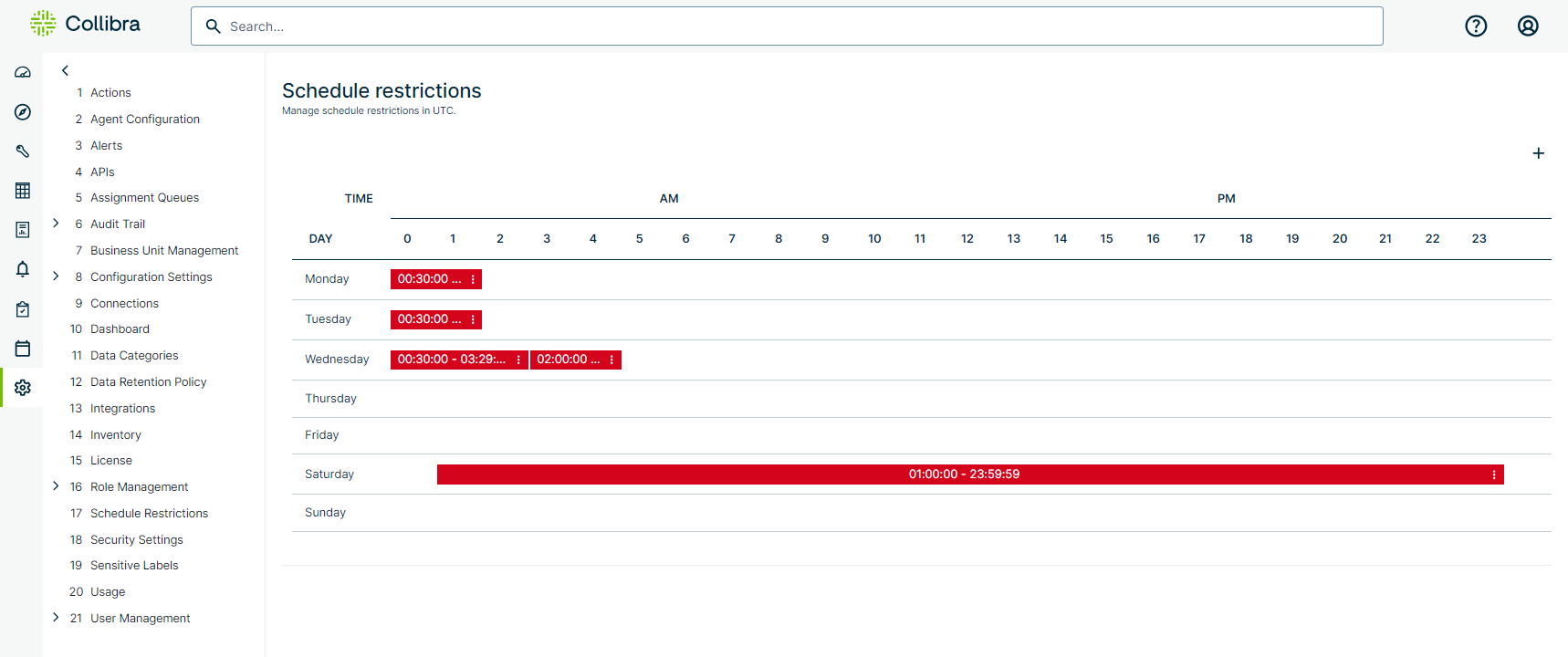
Schedule Restrictions lets administrators prohibit DQ Jobs from running on certain days or during specific time frames. Limiting job scheduling to certain days can be especially helpful for ensuring the freshness of data and reducing operational costs when running jobs during off-peak times. If a user attempts to schedule a job during a restricted time period, an error message displays preventing the user from scheduling.
Note All times on the Schedule Restrictions page reflect the UTC timezone.
In Standalone deployments of Collibra DQ, you can enable the Job Scheduler by setting the environment variable SCHEDULE_ENABLED=TRUE in the owl-env.sh file. This is enabled out-of-the-box, so if you need to turn the Job Scheduler off, you can set the value to FALSE instead.
In Cloud Native deployments of Collibra DQ, the Web ConfigMap contains the SCHEDULE_ENABLED=true variable.
Add a schedule restriction
-
Sign in to Data Quality & Observability (self-hosted) and click
 in the left navigation pane.
 - Click Admin Console and then click Schedule Restrictions.
- On the right side of the page, click
 .
. - From the Add schedule restriction dialog, use the dropdown menus to select a day of the week to restrict and a range of times.
- Click Submit.
The restricted day and times appear on the Schedule Restrictions page. To edit a restricted time, click the and update the day or range of times.