Note This topic is specific to the Usage Analytics dashboard that is in the latest UI.
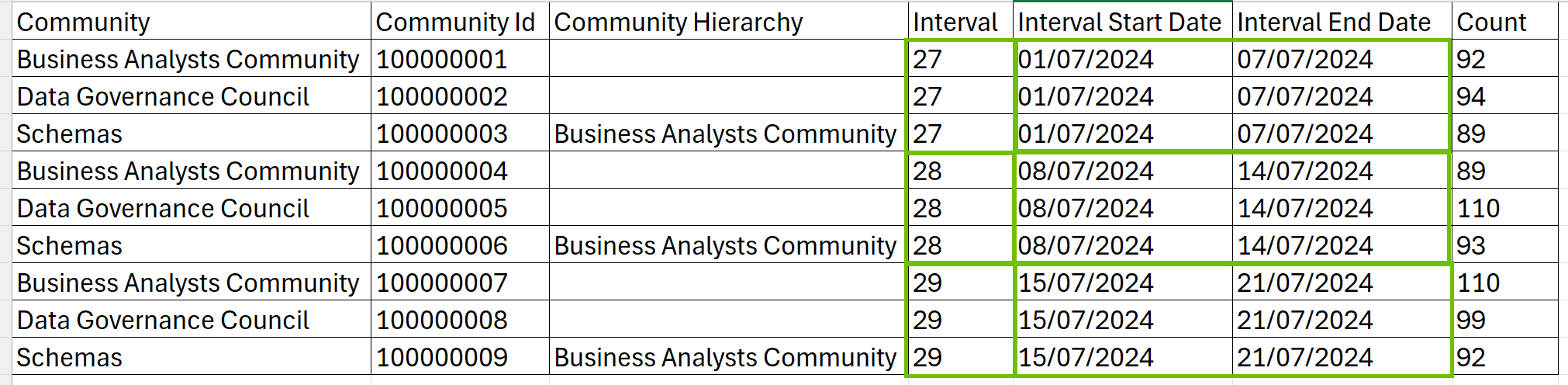
The Usage Analytics dashboard allows you to download the metrics from certain sections as comma-separated values (CSV) files. CSV files contain detailed data at a more granular level, and they are grouped based on intervals. In the case of the Users tab, the downloaded CSV files also contain the names of the users. The user names, however, are shown to you only if you have the Insights > View Usage Analytics reports global permission.
Steps
- Open the new Usage Analytics dashboard.
- Click the Usage or Users tab.
- On the chart whose data you want to download, click
 → Download CSV.
The data is downloaded as a CSV file on your computer.
Downloaded data
The following table shows which sections can be downloaded as CSV files and what data is included in the CSV files.
| Section | Downloaded data |
|---|---|
| Usage → Asset Visits |
The downloaded file contains the following columns:
|
| Usage → Community Visits | The downloaded file contains the same columns as those in the Asset Visits file, except for the columns related to assets and domains. |
| Usage → Domain Visits | The downloaded file contains the same columns as those in the Asset Visits file, except for the columns related to assets. |
| Usage → Diagram Visits |
The downloaded file contains the same columns as those in the Asset Visits file, and it also contains Diagram and Diagram ID. |
| Usage → Dashboard Visits |
The downloaded file contains the same columns as those in the Asset Visits file, except for the columns related to resources. It also contains Dashboard and Dashboard ID. |
| Users → Usage Rate |
The downloaded file contains the following columns:
|
| Users → User Retention |
The downloaded file contains the same columns as those in the Usage Rate file, except for Usage Rate and Usage Days. It also contains the Category column, which indicates if the user is retained, returning, or acquired. For more information, go to User retention. |
| Users → Active Users |
The downloaded file contains the same columns as those in the User Retention file, and it also contains the following columns:
|
| Users → Inactive Users | The downloaded file contains the same columns as those in the Active Users file, except for the columns related to visits and sessions. |