Important If the latest user interface (beta) is active, you can no longer use this feature to update Collibra-provided platform text. You can, however, still use it to update and translate custom text, such as workflow text and email templates, to the four supported languages.
You can edit or translate the interface text of the Collibra Data Intelligence Platform to meet your company's needs.
You can work directly in the editor of Collibra, or you can copy the translation messages to a text file. You can then send the file to qualified translators, who probably don't have the required permissions to work in Collibra.
Tip You can download files containing the translation of the Collibra interface into French, German and Spanish from the Downloads page of the Collibra website.
- Note
- Message keys are not always backwards compatible with other Collibra versions. When you upgrade to a newer version, there might be new keys, renamed keys or keys that have been deleted.
- From version 2022.11 onwards, Collibra takes the default language of your browser into account to select the interface text language of some sections. Collibra now also has translations of some interface text available out of the box. Consequently, you can no longer edit that interface text, nor translate it into unsupported languages. This includes the interface text of Usage Analytics, Data Marketplace and the Homepage.
Prerequisites
- You have a global role that has the System administration global permission.
Steps
-
On the main toolbar, click
 , and then click
 Settings.
The Collibra settings page opens. - Click General.
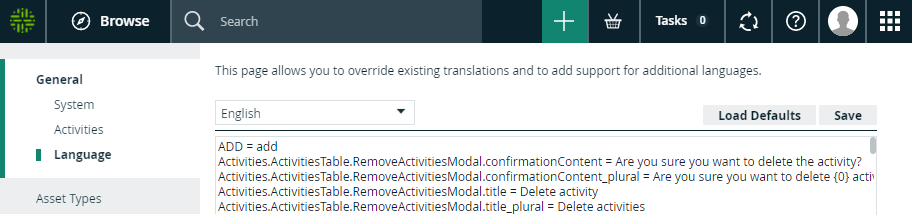
- In the tab pane, click Language.
- At the top of the editor, choose the interface language.Note Languages that contain previously edited text are shown at the top of the drop-down menu.
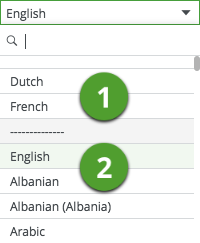
If you chose a previously edited language ( ), the editor contains the list of translation messages.
If you chose a new language ( ), click Load Defaults to fill the editor with the default English UI text.
Warning Clicking Load Defaults multiple times inserts multiple copies of the interface text, so only click it once. - Edit or translate the interface text, or paste the content from your translation file.
- Click Save.
Reset interface text
To restore defaults from the language settings page you will need to override your changes with the default interface text.
-
On the main toolbar, click
, and then click
Settings.
The Collibra settings page opens. - Click General.
- In the tab pane, click Language.
- Click Load Defaults.
- Click Save.
What's next?
You can choose the interface language in your account settings.