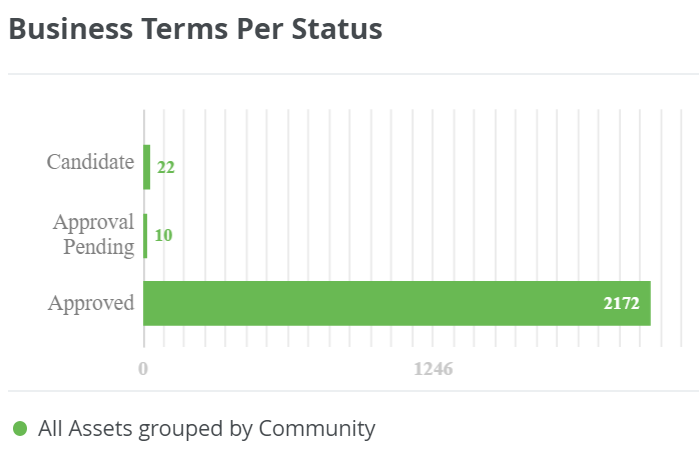
The Bar Chart widget enables you to show advanced metrics as a bar chart on a dashboard.
Important
In Collibra 2024.02, we've launched a new user interface (UI) in beta for Collibra Data Intelligence Platform! You can learn more about this latest UI in the UI overview.
Use the following options to see the documentation in the latest UI or in the previous, classic UI:
Before you begin
- To manage your own dashboard: You have a global role that has the Manage Your Own Views, Dashboards, Search Filters global permission.
- To manage another user's dashboard: You have a global role that has the Manage Shared Views, Dashboards, Search Filters global permission.
Steps
- Open the widget for configuration:
- Open the dashboard for which you want to configure the widget.
- Click
 →
→ - If needed, drag the widget
- On the widget, click
 → Configure
 - On the Graph
- In the Bar Chart Configuration wizard, click the type of data you want to use.
- Assets: If you want to show metric information about assets.
- Tasks: If you want to show metric information about tasks.
- In the By field, select how you want to group the data.
Note If you group the data by Attribute Value, you can select only Boolean or Selection characteristic types.
This setting defines how the bars in the bar chart, also known as groups, are constructed. Depending on what you select, additional fields are shown. - Optional: To add a set of filtered data:
- Click Add Data Set.
- In the Filter Label field, which is a required field, enter a label name for the bar chart legend.
Example: Business terms - In the Color field, select the checkbox, drag the bottom pointer to the required color, and then drag the top pointer to the required color tone.
- If you do not want to add a filter, select the Don't filter... checkbox. Otherwise, add a filter.
Example: Asset Type equals Business Term. - Click Save.
- To add more filters, repeat steps a - Tip You can add up to 25 sets of filtered data.
- Click Next.
- In the Template Name field, enter a name to identify the template.
- Select how the you want the items in the bar chart to be sorted:
- Alphabetical.
- Numerical, meaning that the groups are sorted by their value (the length of the bar).
- Click
- On the Widget tab, enter the required information.
- On the widget, click Save.
- In the upper-right corner of the page, click