How to manually upgrade your Edge site
Important
In Collibra 2024.02, we've launched a new user interface (UI) in beta for Collibra Data Intelligence Cloud! You can learn more about this latest UI in the UI overview.
Use the following options to see the documentation in the latest UI or in the previous, classic UI:
You can either upgrade to the newest version by clicking Upgrade now on the Edge site page or manually select an available version by following the steps below:
- Open an Edge site.
-
On the main toolbar, click
 , and then click
 Settings.
The Collibra settings page opens. -
Click Edge.
The Edge sites overview opens. - Click the name of an Edge site in the Edge site overview.
The Edge site page opens.
-
On the main toolbar, click
-
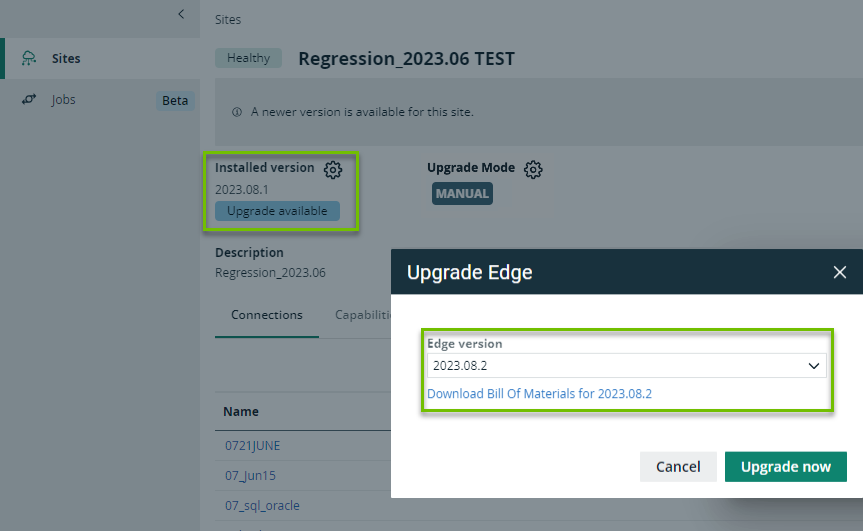
 next to Installed version.
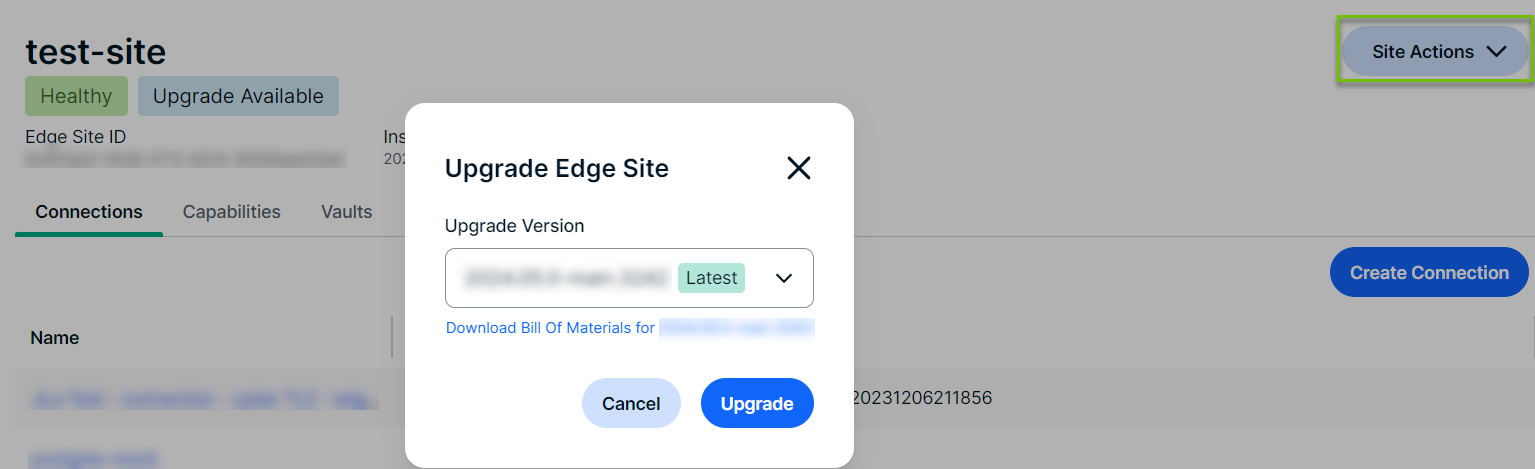
The Upgrade Edge Site dialog box appears. - Open the drop-down list to review available Edge site versions.
- Select the version from the drop-down list you want to review or upgrade to.
- Optional: Click the hyperlink to download the Software Bill of Materials.
- Click Upgrade
What's next?
- Review the Compatibility between Edge sites and Collibra Data Intelligence Cloud to know when you need to either reinstall your Edge site for an upgraded version of k3 or upgrade to the latest Edgesupported version of managed Kubernetes.
- Optionally, set up a private docker registry to easily incorporate Edge into your existing security procedures and perform your own security scans before upgrading to a new version of your Edge site.