Configure the Data Marketplace landing page
In Collibra 2024.02, we've launched a new user interface (UI) in beta for Collibra Data Intelligence Cloud! You can learn more about this latest UI in the UI overview.
Use the following options to see the documentation in the latest UI or in the previous, classic UI:
As an administrator, you can optimize the landing page. You can configure the quick links (1), the links to preconfigured filters (2), whether discovery data must be available (3), and the actions (4).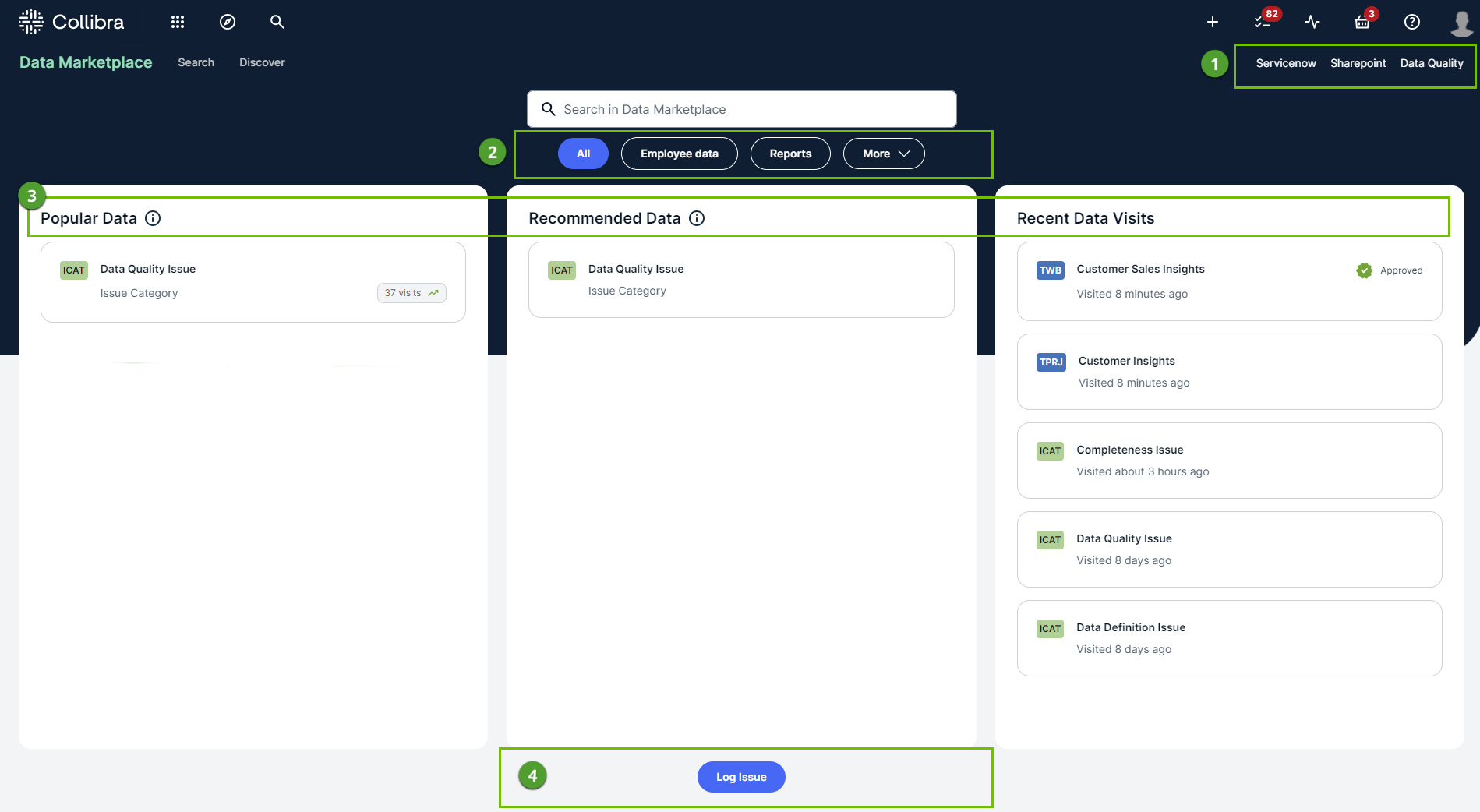
As an administrator, you can optimize the landing page. You can configure the introduction text (1), the quick links (2), the links to preconfigured filters (3), whether discovery data must be available (4), and the actions (5).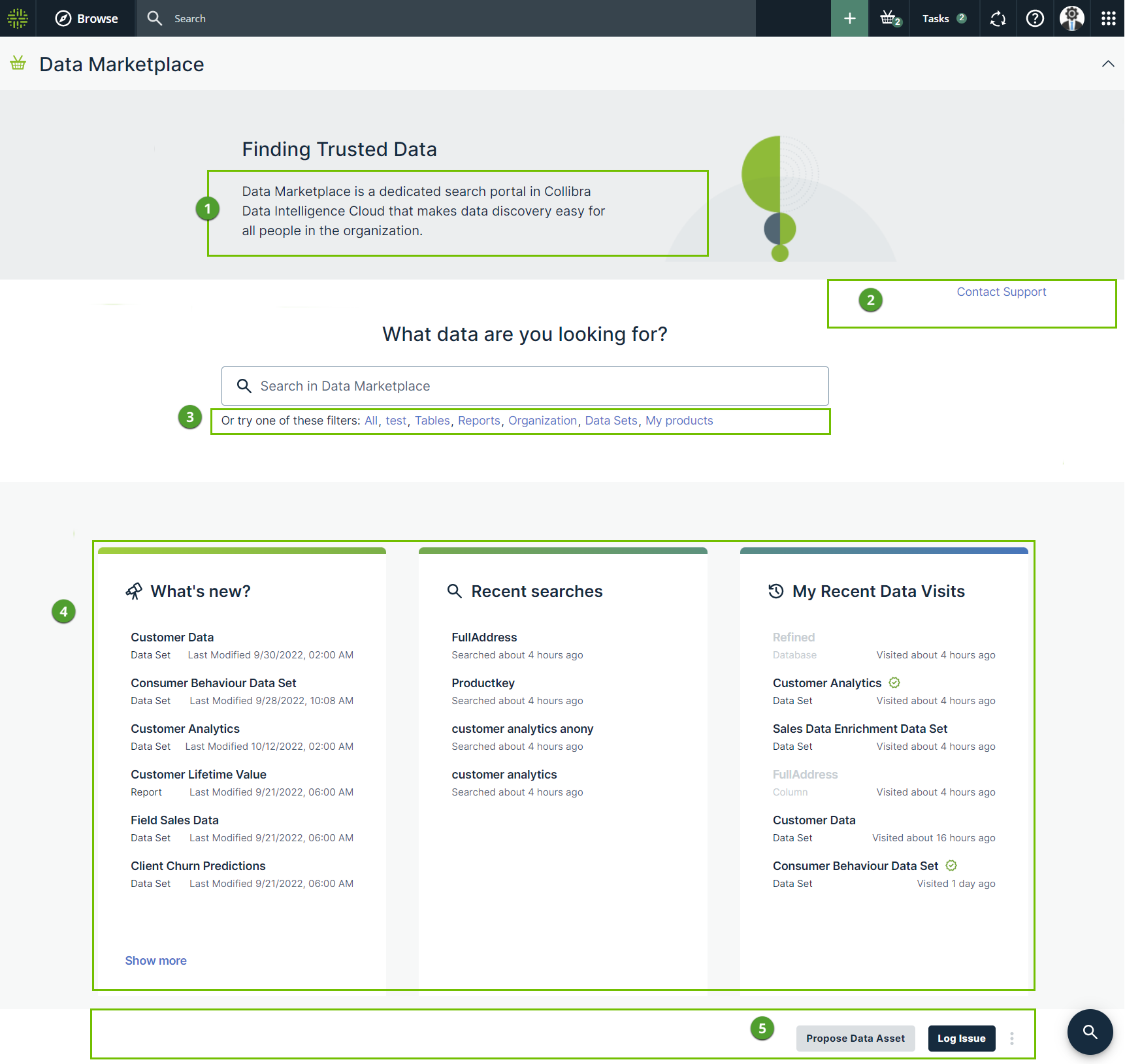
Before you begin
Required permissions
You are an administrator in Data Marketplace.Steps
-
On the main toolbar, click
 , and then click
 Settings.
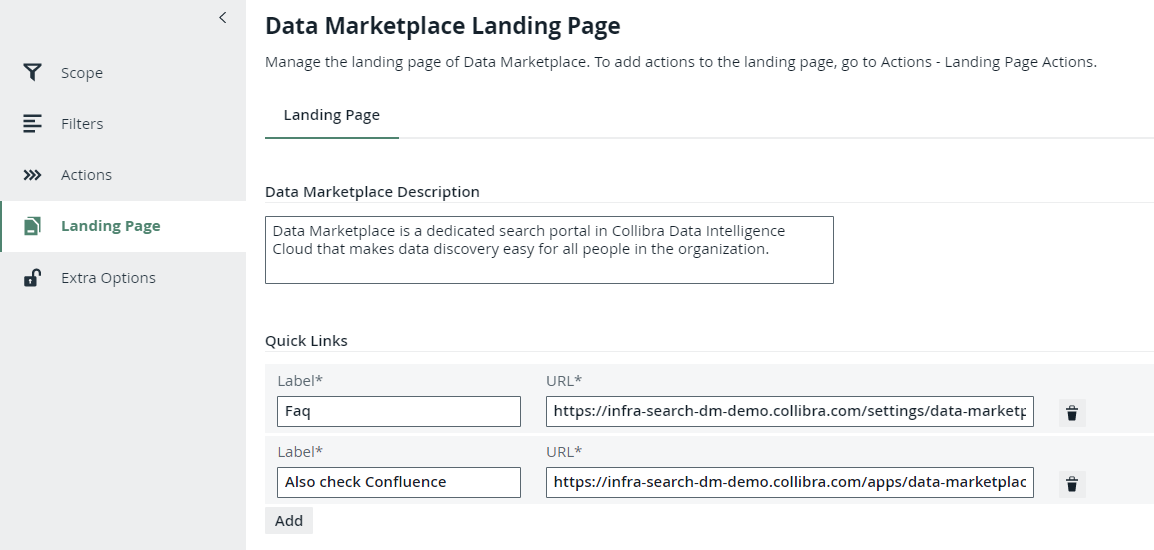
The Collibra settings page opens. - To change the introduction text or add links:
- To show Popular Data, Recent Data Visits, and Recommended Data instead of Recent searches, Recent data visits, and What's New on the landing page:
- In the Data Marketplace section, click Extra Options.
- Select the Show Data Discovery Modules checkbox.
- Click Save.
NoteSetting "Collect Application Usage Data" has an impact on the availability of popular and recommended data. This setting is enabled by default. Because this setting is not accessible in cloud environments, create a support ticket should you want to change this setting.
- To add preconfigured filters, go to Configure filter tabs.
- To add specific actions to the landing page, go to Make actions available in Data Marketplace.