You can create an information-rich dashboard by adding widgets to it.
Important
In Collibra 2024.02, we've launched a new user interface (UI) in beta for Collibra Data Intelligence Cloud! You can learn more about this latest UI in the UI overview.
Use the following options to see the documentation in the latest UI or in the previous, classic UI:
Before you begin
- To manage your own dashboard: You have a global role that has the Manage Your Own Views, Dashboards, Search Filters global permission.
- To manage another user's dashboard: You have a global role that has the Manage Shared Views, Dashboards, Search Filters global permission.
Steps
- Access the dashboard to which you want to add a widget.
- Click
 →
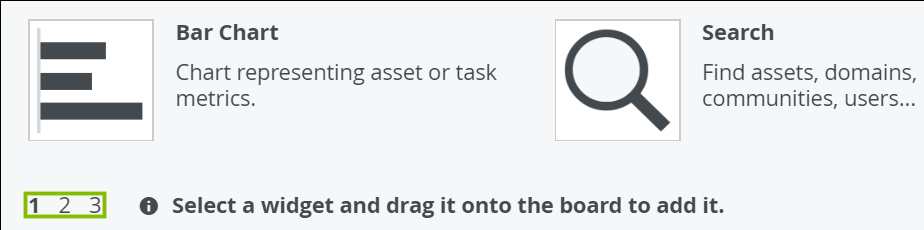
→ - Drag the required widget Tip You can browse through the widgets by using the page numbers.
 Tip You can vertically resize the Collibra Insights, Embedded Webpage, and Text widgets by using the bi-directional arrow located at the bottom of those widgets.
 - On the widget, click
 → Configure
 - Edit the widget as needed.
- Click Save.
- In the upper-right corner of the page, click