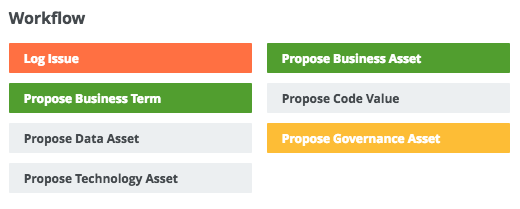
The Workflow widget enables you to start global workflows from the dashboard via buttons.
Important
In Collibra 2024.02, we've launched a new user interface (UI) in beta for Collibra Data Intelligence Cloud! You can learn more about this latest UI in the UI overview.
Use the following options to see the documentation in the latest UI or in the previous, classic UI:
Before you begin
- To manage your own dashboard: You have a global role that has the Manage Your Own Views, Dashboards, Search Filters global permission.
- To manage another user's dashboard: You have a global role that has the Manage Shared Views, Dashboards, Search Filters global permission.
Steps
- Open the widget for configuration:
- Open the dashboard for which you want to configure the widget.
- Click
 →
→ - If needed, drag the widget
- On the widget, click
 → Configure
 - On the
Field
Description Label for the button.
Global workflow that you want to start when the button is clicked. Color for the button, based on the type of workflow. The following values are available for selection:
- Default: Gray
- Danger: Red
- Info: Gray
- Success: Green
- Warning: Yellow
Note This field determines only the color of the button.
- On the Widget tab, enter the required information.
- Click Save.