The Most Viewed widget enables you to show on a dashboard the 10 most viewed assets from the last week, month, or year.
Important
In Collibra 2024.02, we've launched a new user interface (UI) in beta for Collibra Data Intelligence Cloud! You can learn more about this latest UI in the UI overview.
Use the following options to see the documentation in the latest UI or in the previous, classic UI:
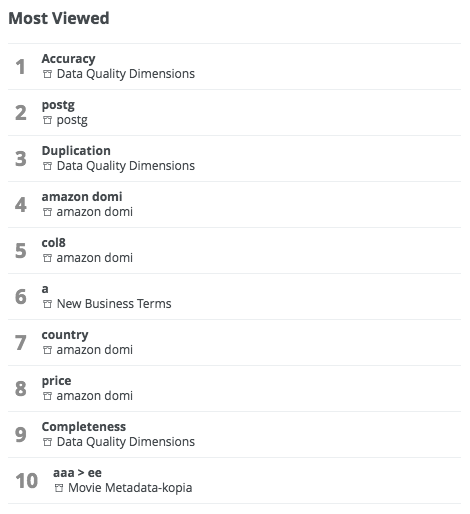
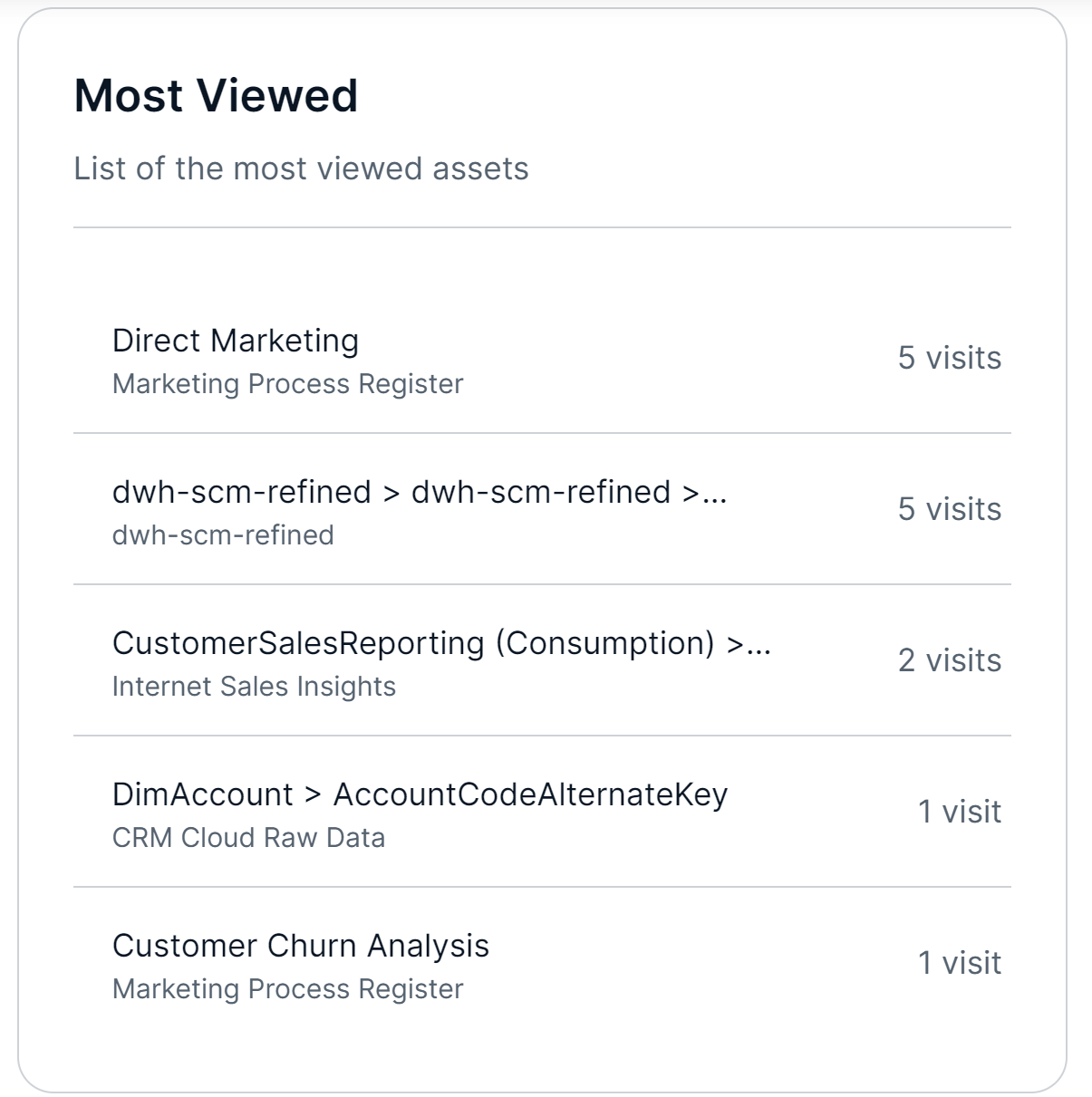
On the widget, the domain for each asset is shown under the asset name. You can:
- Click an asset name to go to that asset page.
- Click a domain name to go to that domain page.
Configure the Most Viewed widget
Before you begin
- To manage your own dashboard: You have a global role that has the Manage Your Own Views, Dashboards, Search Filters global permission.
- To manage another user's dashboard: You have a global role that has the Manage Shared Views, Dashboards, Search Filters global permission.
Steps
- Open the widget for configuration:
- Open the dashboard for which you want to configure the widget.
- Click
 →
→ - If needed, drag the widget
- On the widget, click
 → Configure
 - On the Range tab, select the time period for which you want to show the most viewed assets: last week, last month, or last year.
- On the Widget tab, enter the required information.
- On the widget, click Save.
- In the upper-right corner of the page, click