You can conduct assessments on the assets within your Collibra Data Intelligence Cloud environment.
Typically, you onboard an asset and then conduct an assessment on the asset. However, you can also conduct an assessment before onboarding an asset. This can be useful in guiding the onboarding process.
This topic describes how to conduct an assessment both with and without a specific asset.
In Collibra 2024.02, we've launched a new user interface (UI) in beta for Collibra Data Intelligence Cloud! You can learn more about this latest UI in the UI overview.
Use the following options to see the documentation in the latest UI or in the previous, classic UI:
- The Complete button is shown if the Governance checkbox is not selected. This means that no Assessment Review asset is created in your Collibra environment.
- The Submit button is shown if the Governance checkbox is selected. When you submit an assessment, an Assessment Review asset is created in your Collibra environment.
- The Complete button is shown if the Governance checkbox is not selected.
- The Submit for Review button is shown if the Governance checkbox is selected. When you submit an assessment, an Assessment Review asset is created in your Collibra environment.
Requirements and permissions
- You have a global role that has the Assessments global permission.
-
To submit an assessment for approval:
- You need a global role that has the Policy Manager global permission, because an Assessment Review asset is created when you submit an assessment.
- The Business Steward role must be assigned to the domain that you will select when submitting the assessment.
- You are assigned a responsibility with a resource role that has the Asset > Add and Attribute > Add resource permissions on the domain or its community.
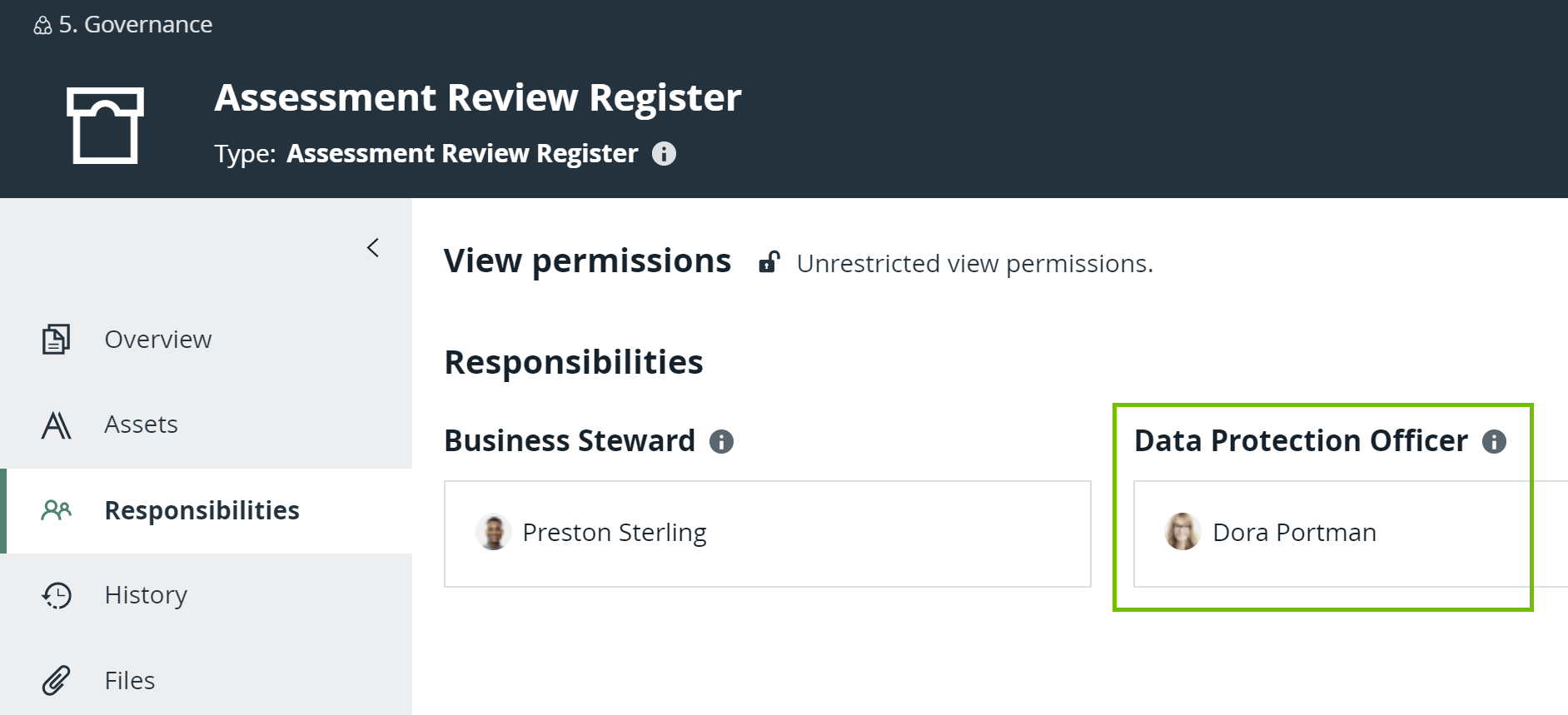
Example Dora Portman is going to submit an assessment. Dora has the Data Protection Officer resource role for the Assessments Review Register domain. The Data Protection Officer resource role gives her the permissions she needs to add assets and attributes in that specific domain..
- You are assigned a responsibility with a resource role that has the Asset > Add and Attribute > Add resource permissions on the domain or its community.
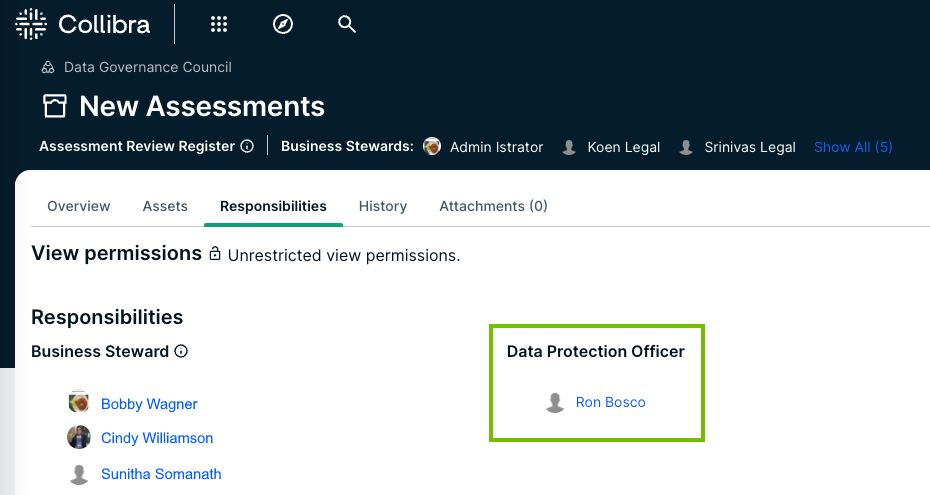
Example Ron Bosco is going to submit an assessment. Ron has the Data Protection Officer resource role for the New Assessments domain. The Data Protection Officer resource role gives him the permissions he needs to add assets and attributes in that specific domain.
Steps
- Open Assessments.
- Enter the required information.
Field Description Select Template Select the template that you want to use for your assessment.
Tip This field contains a list of published templates.
To conduct an assessment with a specific asset: Select <asset type> Select the asset that you want to assess.
Tip This field contains assets of a specified asset type. If an asset type has not been specified for the selected template, this field is empty.To conduct an assessment without a specific asset: <asset type> not yet available Select this checkbox. Describe what you want to assess Enter a description of what you want to assess. - Click Start.
- Respond to the assessment questions.
- On the Properties tab, set the assessment permissions:
- In the View Permissions subsection, select one of the following options:
- Everyone: The assessment will be visible to everyone.
- Only Owner and Assignees: The assessment will be visible to only you and the assignees that you select in the Assignees field.
- In the Permission to View subsection, select one of the following options:
- Everyone: The assessment will be visible to everyone.
- Only Owner and Assignees: The assessment will be visible to only the owner and the assignees that you select in the Assignees field.
- In the Edit Permissions subsection, in the Assignees field, select the names of the users to whom you want to provide the ability to view or edit the assessment.
Tip For more information about the permissions that the assignees have, go to Assessment permission details.
- In the Permission to Edit subsection:
- In the Owner field, select the name of the user to be the owner of the assessment.
- in the Assignees field, select the names of the users to whom you want to provide the ability to view or edit the assessment.
Tip For more information about the permissions that the assignees have, go to Assessment permission details.
- In the View Permissions subsection, select one of the following options:
- Do one of the following:
- Click Save draft.
-
Click Complete, and then, in the Complete assessment dialog box, click Confirm.
The status of the assessment shows Completed. Click Submit. Then, in the Submit assessment dialog box, select the domain in which you want the Assessment Review asset to be created, and then click Submit.
Tip In the Domain field on the Submit asssessment dialog box, only the domains of the Assessment Review Register domain type are shown.
The status of the assessment shows Submitted. Click View submission to view the Assessment Review asset.
- Click Save.
- Click Complete, and then, in the Complete This Assessment dialog box, click Complete.
The status of the assessment shows Completed. - Click Submit for Review. Then, in the Submit This Assessment dialog box, select the domain in which you want the Assessment Review asset to be created, and then click Submit.Tip In the Domain field on the Submit asssessment dialog box, only the domains of the Assessment Review Register domain type are shown.The status of the assessment shows Submitted for Review, and the Open the Review Asset button is shown to enable you to view the Assessment Review asset.
- Open Assessments.
- In the Conduct an Assessment section, enter the required information.
Field Description Assessment Template Select the template that you want to use for your assessment.
Tip This field contains a list of published templates.
Does the Asset Exist in Collibra? Important This field is shown only if a specific asset type is associated with the selected template. For more information, go to Asset type in a template.
To conduct an assessment with a specific asset:
- Click Yes.
- In the Asset field, select the asset.
To conduct an assessment without a specific asset:
- Click No.
- In the Assessment Name field, enter a name for the assessment you are conducting.
Assessment Name Important This field is shown only if no asset type is associated with the template. For more information, go to Asset type in a template.
Enter a name for the assessment you are conducting.
- Click Conduct Assessment.
- Respond to the assessment questions.
- On the Properties tab, set the assessment permissions:
- In the View Permissions subsection, select one of the following options:
- Everyone: The assessment will be visible to everyone.
- Only Owner and Assignees: The assessment will be visible to only you and the assignees that you select in the Assignees field.
- In the Permission to View subsection, select one of the following options:
- Everyone: The assessment will be visible to everyone.
- Only Owner and Assignees: The assessment will be visible to only the owner and the assignees that you select in the Assignees field.
- In the Edit Permissions subsection, in the Assignees field, select the names of the users to whom you want to provide the ability to view or edit the assessment.
Tip For more information about the permissions that the assignees have, go to Assessment permission details.
- In the Permission to Edit subsection:
- in the Assignees field, select the names of the users to whom you want to provide the ability to view or edit the assessment.
Tip For more information about the permissions that the assignees have, go to Assessment permission details.
- In the View Permissions subsection, select one of the following options:
- Do one of the following:
- Click Save draft.
-
Click Complete, and then, in the Complete assessment dialog box, click Confirm.
The status of the assessment shows Completed. Click Submit. Then, in the Submit assessment dialog box, select the domain in which you want the Assessment Review asset to be created, and then click Submit.
Tip In the Domain field on the Submit asssessment dialog box, only the domains of the Assessment Review Register domain type are shown.
The status of the assessment shows Submitted. Click View submission to view the Assessment Review asset.
- Click Save.
- Click Complete, and then, in the Complete This Assessment dialog box, click Complete.
The status of the assessment shows Completed. - Click Submit for Review. Then, in the Submit This Assessment dialog box, select the domain in which you want the Assessment Review asset to be created, and then click Submit.Tip In the Domain field on the Submit asssessment dialog box, only the domains of the Assessment Review Register domain type are shown.The status of the assessment shows Submitted for Review, and the Open the Review Asset button is shown to enable you to view the Assessment Review asset.