In Collibra 2024.02, we've launched a new user interface (UI) in beta for Collibra Data Intelligence Cloud! You can learn more about this latest UI in the UI overview.
Use the following options to see the documentation in the latest UI or in the previous, classic UI:
When you register a data source via Edge, you first choose the JDBC connection, and then add a database. You perform these steps on different steps:
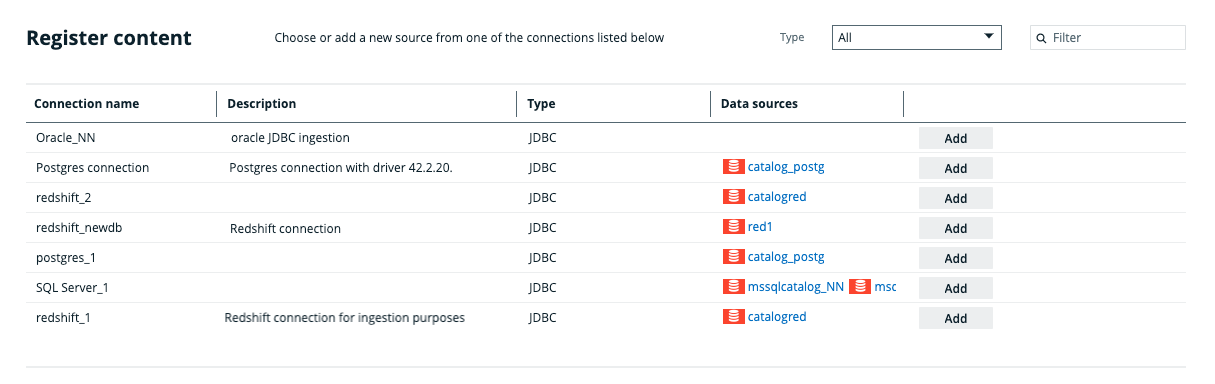
Register content page
Register Data Source page
The Register content page shows the data sources that are connected to Data Catalog via Edge. From this page, you can register the data sources to create assets that represent the content of these data sources.
The Register Data Source page shows the data sources that are connected to Data Catalog via Edge. From this page, you can register and integrate the data sources to create assets that represent the content of these data sources.
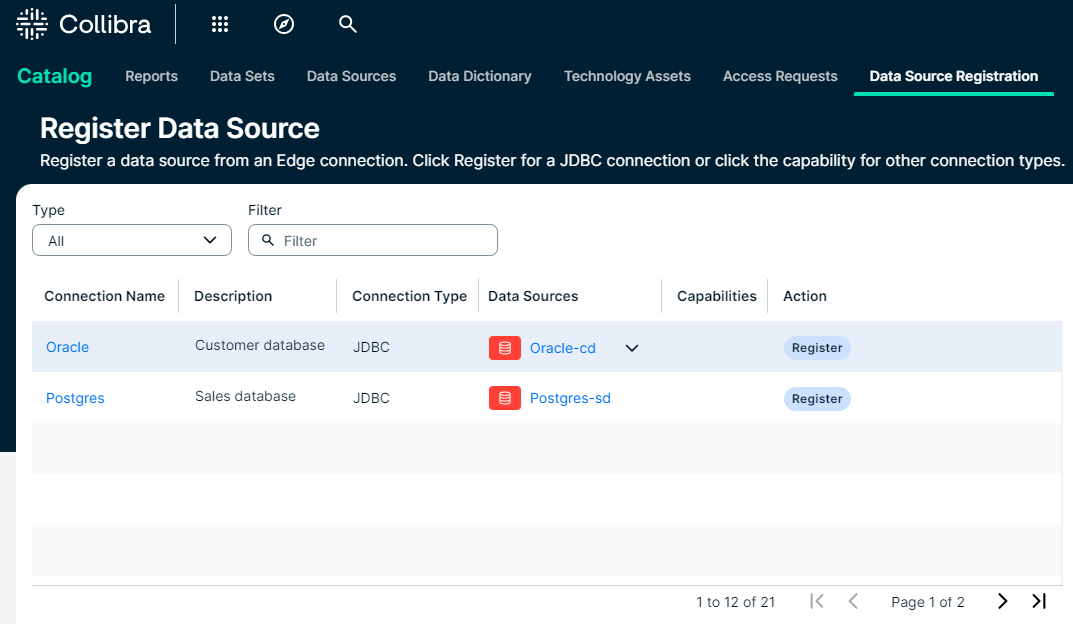
| Column | Description |
|---|---|
| Connection name | The name of the connection to the data source. |
| Description | The description of the connection to the data source. |
|
Type Connection Type |
The type of connection. For example, JDBC |
|
Data sources |
The name of the database that is already registered in Data Catalog. If the column is empty, the connection doesn't have a database yet. Tip If you click the name of the asset, you are automatically redirected to the Database asset page. If the name of the asset is grayed out, you don't have permission to go to the asset's page. |
| Capabilities | Click the capability to configure the integration connection. Click the capability for other integrations. |
|
Add Register |
Click the Add button to add the connection to a database and register the data source. Click Register to register the data source. Click Register for JDBC, S3, GCS, and ADLS integrations. All registered databases are listed in the Data Sources column. |
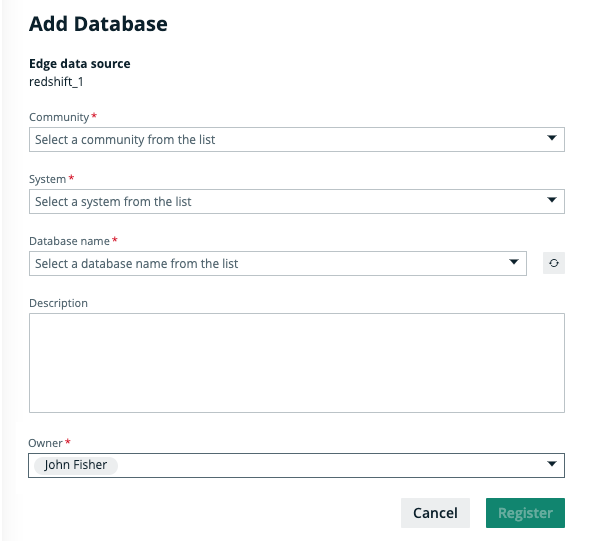
Add Database page
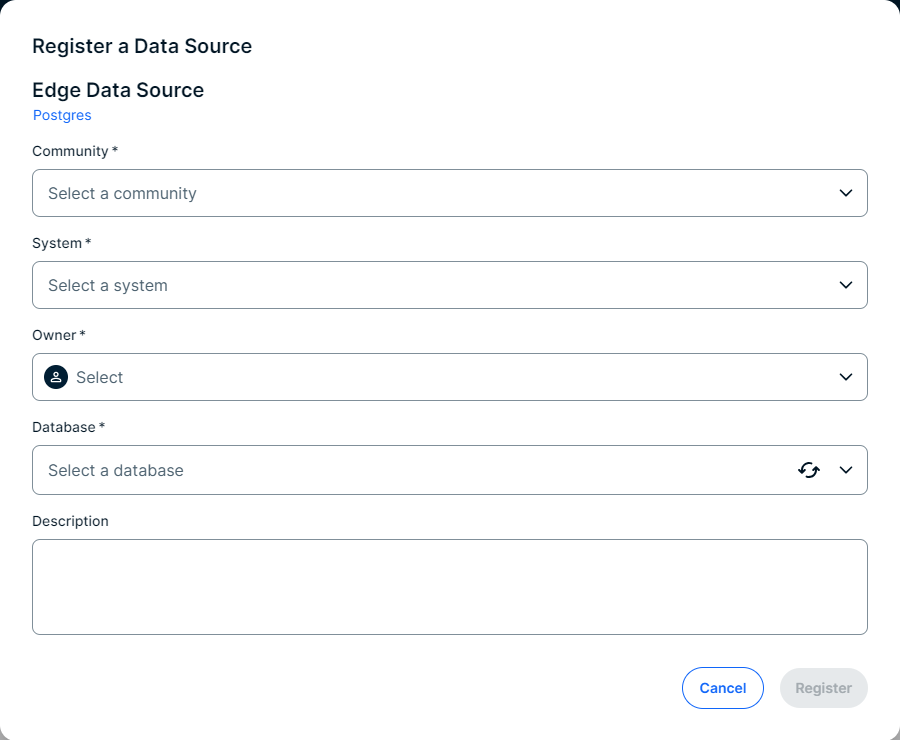
Register a Data Source dialog box
In the
| Field | Description |
|---|---|
| Community | The name of the parent community in which the assets will be created. |
|
System |
The name of the System asset. After you have registered the database, a relation of the type Technology Asset groups / is grouped by Technology Asset is created between this System asset and the newly created Database asset. Important
A Database asset should have only one relation of the type 'Technology asset groups / is grouped by Technology asset' to a System asset. |
|
Owner |
Tip By default, this field is called Owner, referencing the out-of-the-box Owner resource role. If you change the name of this out-of-the-box resource role, the updated name will be displayed instead. After the registration, a new domain and Database asset will be created specifically for this database in the community that you have specified. The user you select in this field will receive the responsibility for the domain. This ownership is then inherited by the Database asset. By default, the current user is selected. Note An owner must be associated with the Database asset for synchronizations to run. The owner can be changed later on, but should not be removed. |
|
Database |
The name of the database in the data source to which you created a JDBC connection. The drop-down menu automatically shows which databases exist in your data source. You can refresh the list by clicking The name will also be the name of the Database asset that is created as a result of registering the data source via Edge. Important
|
| Description |
A description of the data source. |
 next to the drop-down menu.