In Collibra 2024.02, we've launched a new user interface (UI) in beta for Collibra Data Intelligence Cloud! You can learn more about this latest UI in the UI overview.
Use the following options to see the documentation in the latest UI or in the previous, classic UI:
The Data Classification Dashboard shows the list of data classes in your Collibra environment and gives you more control and visibility on them.
To open the dashboard, go to Stewardship and click Data Classification.
Note The Classification > Data Classes > Read permission is not enforced yet to open the Data Classification page in Stewardship.
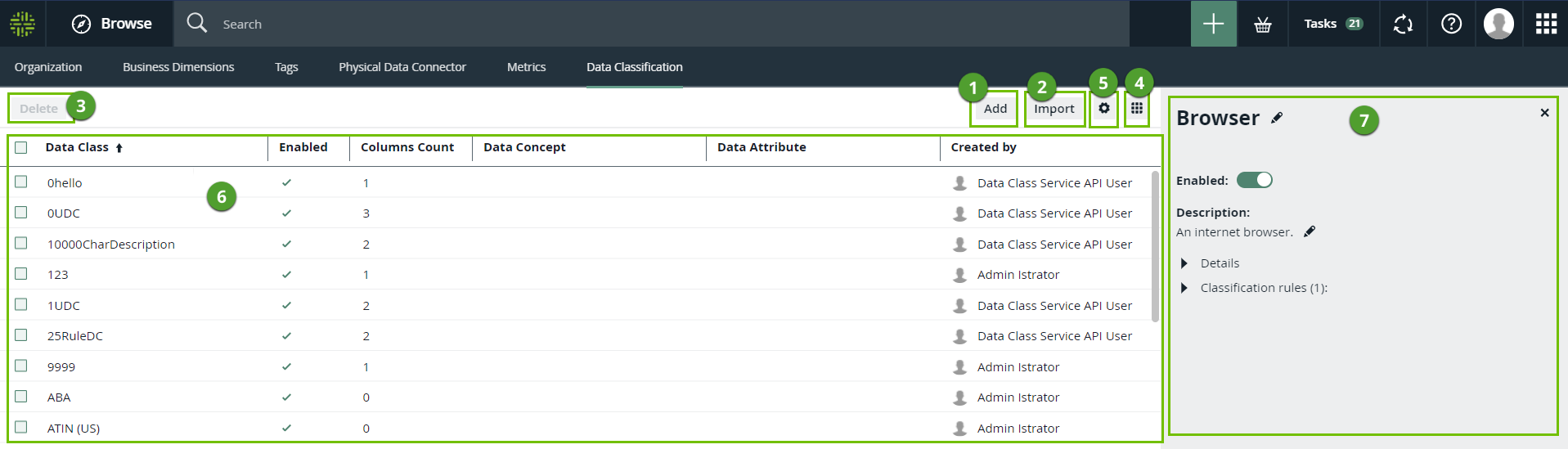
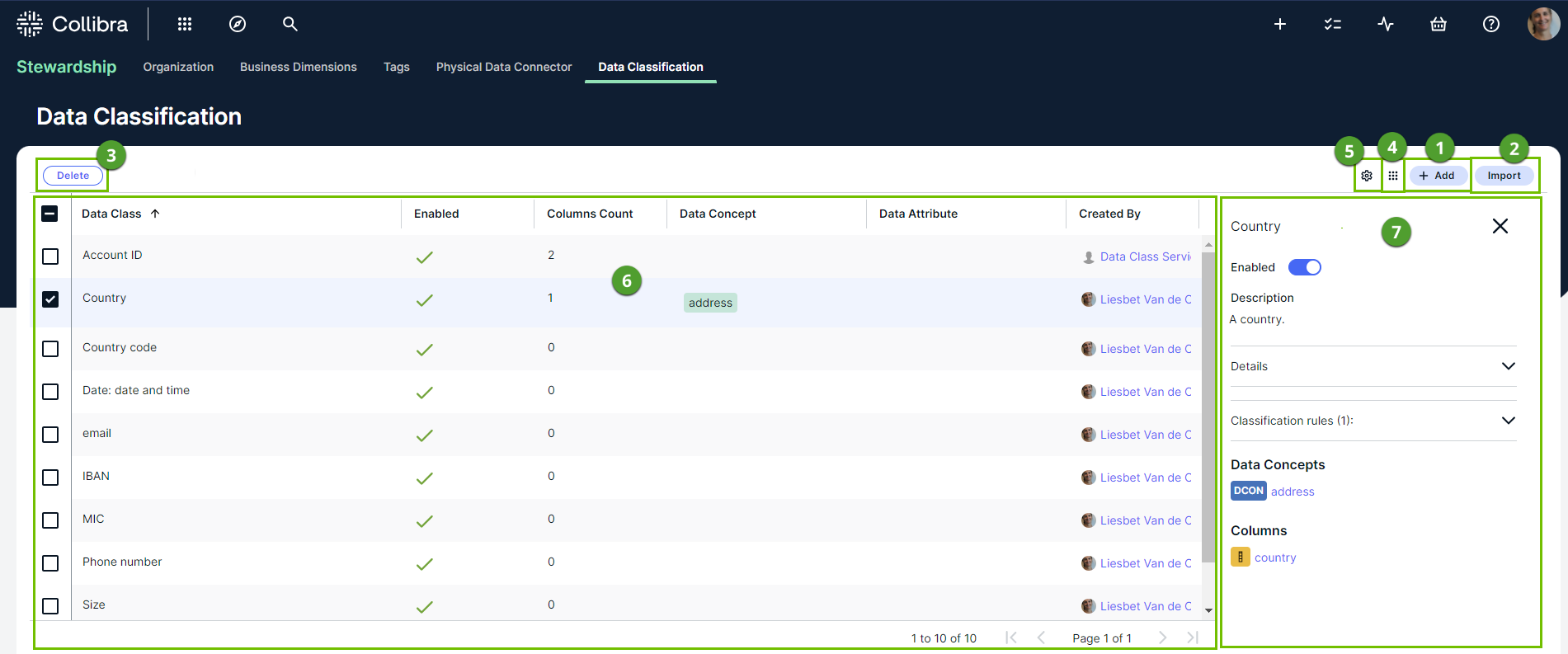
|
No. |
Name |
Description |
|---|---|---|
|
|
Add button |
A button to add data classes. |
|
|
Import button | A button to import out-of-the-box data classes. |
|
|
Delete button |
A button to delete one or more data classes. To keep the data classifications but remove the data class, you can disable the data class. |
|
|
Table menu ( |
The table menu contains buttons to manage the columns shown. |

|
Configuration menu | Option to define the classification thresholds for automatic acceptance and rejection of data classification suggestions. |
|
|
Table with all data classes |
A table that shows all the data classes that exist in your environment. Click anywhere is a row to view the details of a data class in an extra pane (7) and update it. |
|
Data Class
|
The data class name. |
|
|
Enabled
|
Indicates whether the data class will be taken into account for data classification. For more information go to About data classes. | |
|
Columns Count
|
The number of columns classified with the data class. |
|
|
Data Concept
|
The name of the associated Data Concept assets. It connects the data class to your business asset model. For more information, go to Connect data classes to data layers. |
|
|
Data Attribute
|
The name of the associated Data Attribute assets. It connects the data class to your logical data model. For more information, go to Connect data classes to data layers. |
|
|
Created By
|
The name of the user who created or imported the data class. | |
|
Created On
|
The date the data class was created. |
|
|
Last Modified By
|
The name of the user who made the last change. |
|
|
Last Modified On
|
The date the data class was last changed. |
|
|
User Defined
|
Indicates if the data class was automatically or manually created. In the new data classification method, this value is always True. |
|
|
|
Side pane |
The data class side pane provides the details of the data class. When you click the row of a data class in the Data Classification Dashboard, the data class information appears in the side pane. |
|
Data class name, details, and classification rules
|
The name of the selected data class. You can edit the name by For more information, go to configure a data class. |
|
|
Data Concepts
|
The list of data concepts that are associated with the data class. |
|
|
Data Attributes
|
The list of data attributes that are associated with the data class. |
|
|
Columns
|
The list of columns that are classified with the selected data class. When there are too many columns to show, you can follow a See all link. This opens a search results page with all corresponding columns. |


 )
)
