What can you configure?
- You can define who has access to Data Marketplace. Go to Data Marketplace permissions.
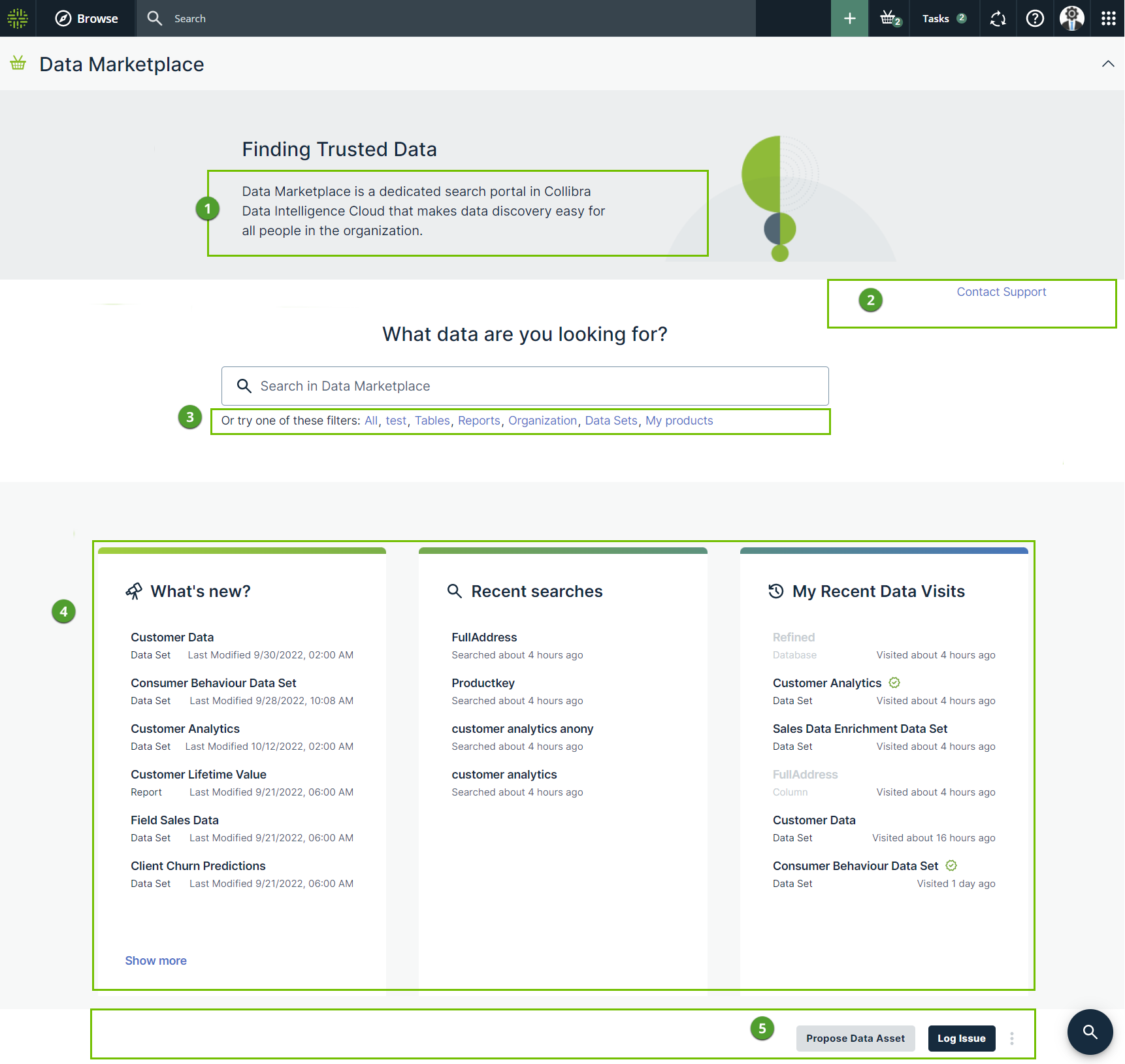
- In the Data Marketplace landing page, you can configure the introduction text (1), the quick links (2), the links to preconfigured filters (3), whether discovery data must be available (4), and the actions (5).
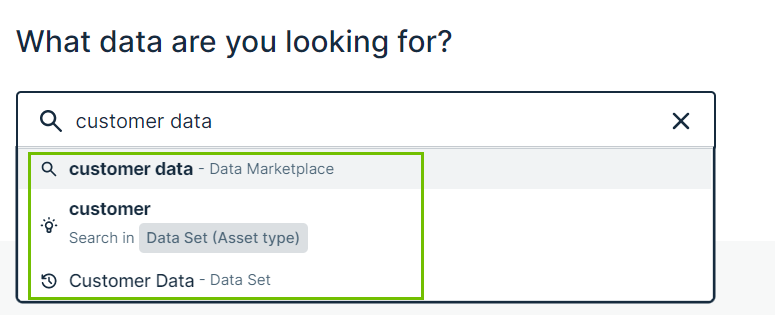
- You can define whether search suggestions are provided once people start searching for data.
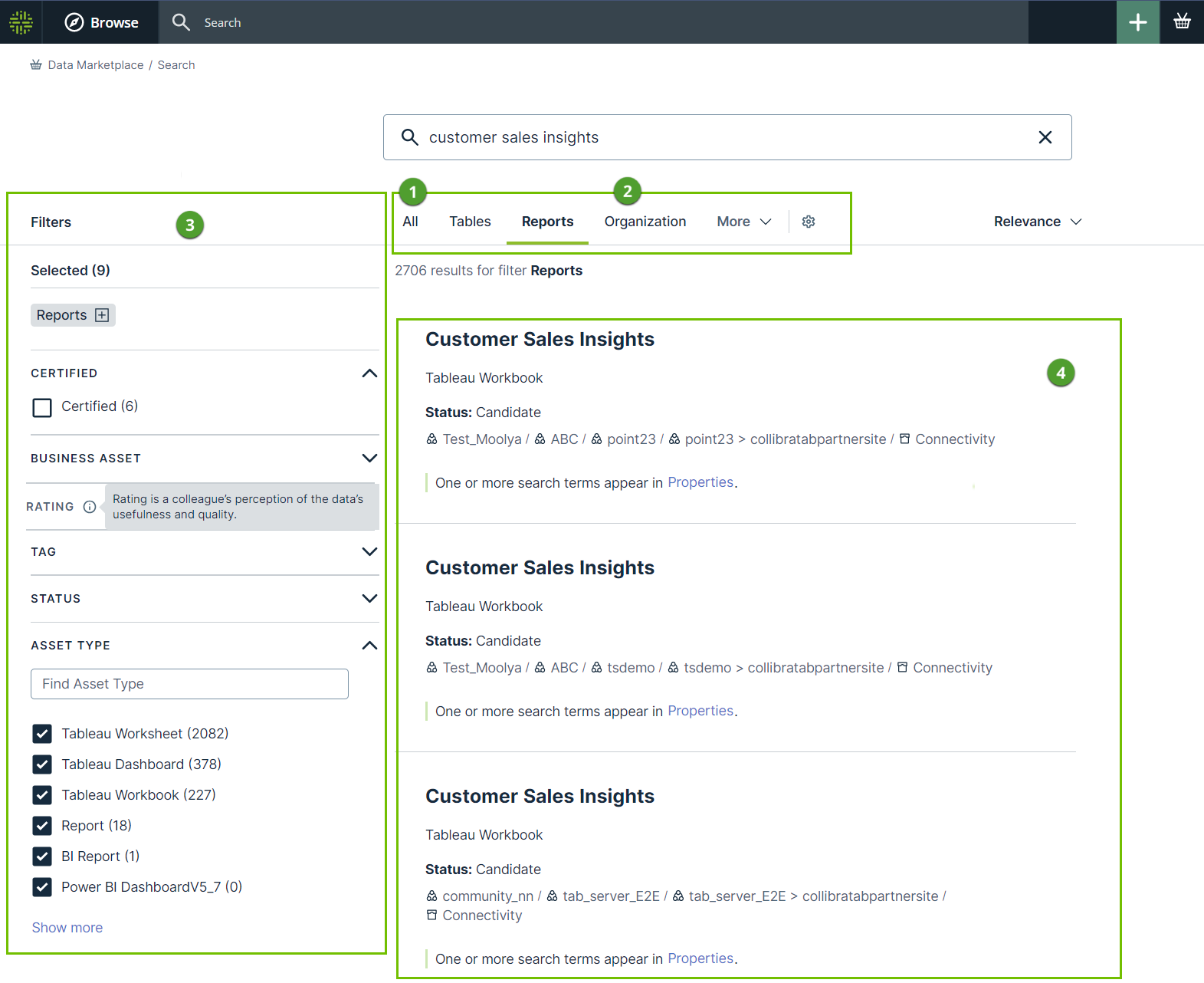
- You can configure the scope(1), filter tabs (2), filters (3) and search based on relations (4).
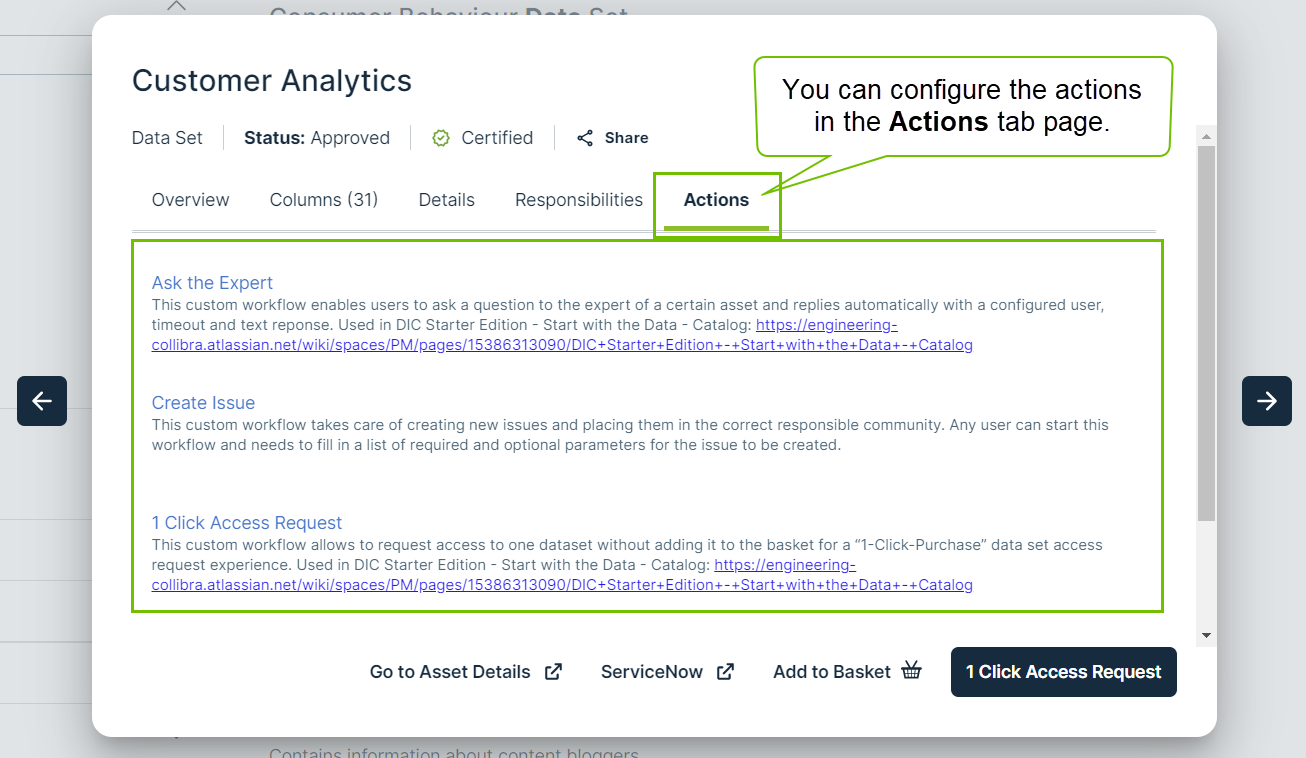
- You can configure the actions available in the asset preview.
To have the Add to Basket button available in Data Marketplace, you have to enable the shopping basket feature.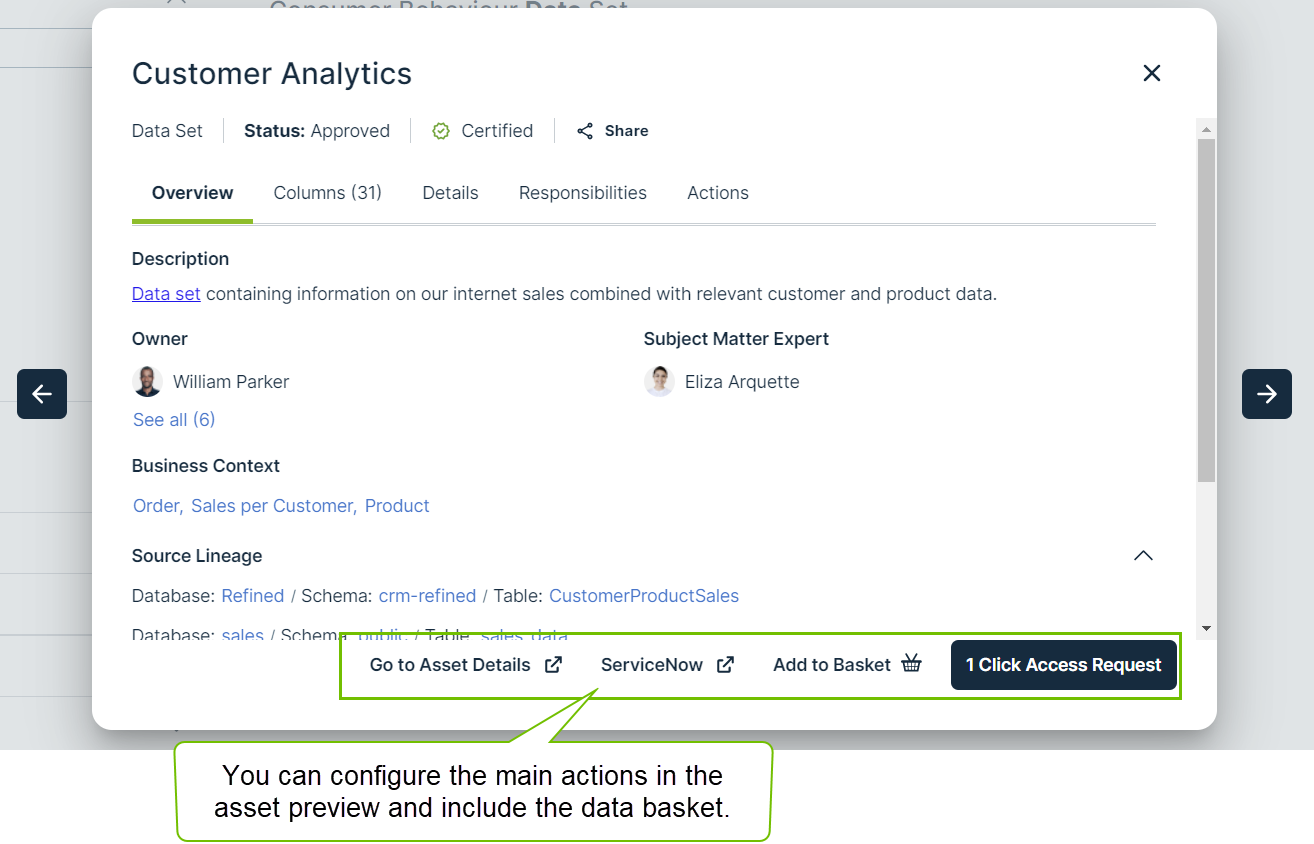
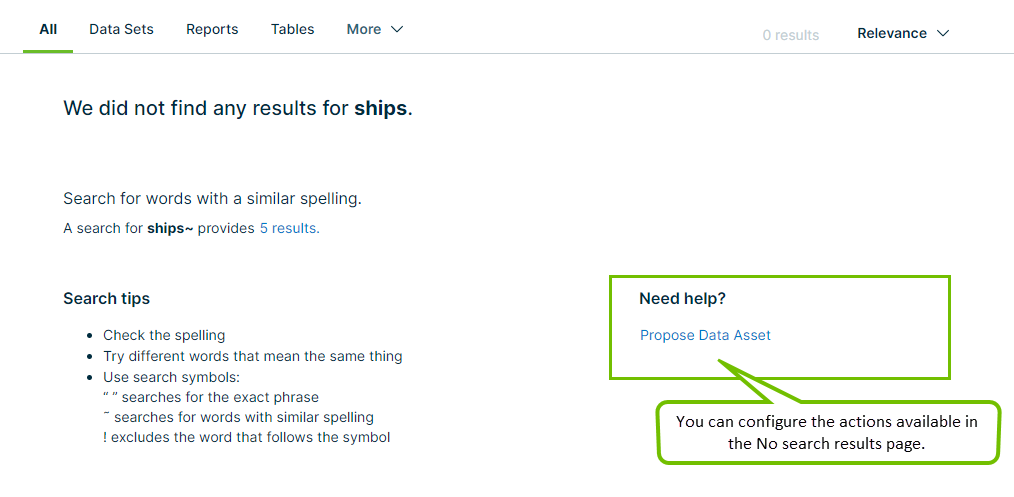
- You can configure the actions available in the Need help section in the search results page.
- You can define that you want to see similar data for Table assets (Beta).
- You can define who needs to receive email notifications about automatic updates to the Data Marketplace configuration.
How do you configure Data Marketplace?
| Step | Description | |
|---|---|---|
| 1 | Optionally, change the Data Marketplace scope. |
By default, Data Marketplace finds assets of all asset types, with any status, anywhere in your organizations. |
| 2 | Optionally, change the landing page. | You can change the introduction text of Data Marketplace, add up to three quick links to the landing page, and show discovery data. You can change the filters shown below the search field via the preconfigured filters. |
| 3 | Optionally, make actions available in Data Marketplace. |
By default, an asset can be shared with a colleague and can be opened in Collibra from the asset preview. |
| 4 | Optionally, enable additional features, such as search suggestions and email notifications. | You can activate search suggestions, define the user group that needs to receive email notifications about automatic updates to the Data Marketplace configuration, and so on. |
| 5 |
Optionally, configure the filters in Data Marketplace. |
By default, all out-of-the-box filters that apply to the search results are available to data consumers. You can choose the filters that must be available in the Filters pane and define tooltips for your data consumers. If needed, you can also create custom filters based on relations. Note If you want to search based on relations, make sure the Relation-based search setting has been enabled. |
| 6 | Optionally, configure the filter tabs in Data Marketplace |
By default, all out-of-the-box filter tabs are available in the search results and on the landing page. You can configure the filter tabs you need. |
| 8 | Optionally, optimize the search index. |
The Collibra search index settings have an impact on the Data Marketplace experience. You can use these settings to further optimize the experience. Note that changing these settings has an impact on Collibra as a whole, not only on Data Marketplace. For information on the Data Marketplace-specific settings such as relation-based search, go to Enable Data Marketplace in your environment. |