Validating an asset executes all validation rules assigned to the asset type. If an asset does not meet all validation rules, the asset is invalid.
You can see the validation result on:
- An asset page’s title bar.
- As a column, when viewing assets in table display mode.
- As a field, when viewing assets in tiles display mode.
- As an overlay in a traceability diagram.
After validation, the dgc.log file will also contain more extensive messages. For more information on how to configure validation logging, see Logging.
Note By default, validation is not automatically triggered when an asset is edited, so you have to revalidate it after editing an asset. However, you can create a workflow for this. To configure validation on certain events, see Getting started with workflows.
Prerequisites
There are three conditions that need to be met.
- You have a global role with the Reference Data Manager global permission, for example ReferenceData.
- The global permission applicable for the asset type.
- You have either of the following:
- You have a resource role with the Validation Execution resource permission, for example Community Manager.
- You have a global role that has the Manage all resources global permission.
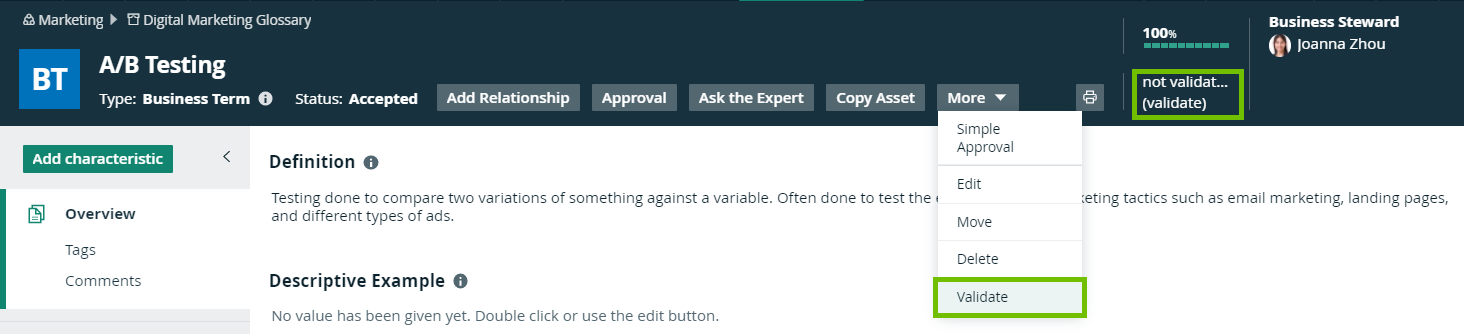
Validate an asset from the asset page
- Open an asset page.
- Click (validate).
Validate one or more assets from an asset table
- Open a set of assets in table display mode.
- Select checkboxes in front of the assets you want to validate.
- On the action toolbar, click Validate.
Validate one or more assets from a set of tiles
- Open a set of assets in tile display mode.
- Select the assets you want to validate.
- On the action toolbar, click Validate.