- Batch definition (Beta)
- Single-file definition
This section shows some examples of the metadata, assets and lineage JSON files specific to the custom technical lineage batch definition option.
__CUSTOM-LINEAGE__
    ├── metadata.json
    ├── assets.json
    ├── assets-2.json
    ├── lineage.json
    ├── lineage-2.json
Metadata JSON file
{
  "version": 3,
  "application_name": "custom lineage batch example",
  "asset_types": {
    "Column": {
      "uuid": "00000000-0000-0000-0000-000000031008"
    },
    "Table": {
      "uuid": "00000000-0000-0000-0000-000000031007"
    },
    "Database": {
      "uuid": "00000000-0000-0000-0000-000000031006"
    },
    "Schema": {
      "uuid": "00000000-0000-0000-0001-000400000002"
    },
    "File": {
      "uuid": "00000000-0000-0000-0000-000000031304"
    },
    "Directory": {
      "uuid": "00000000-0000-0000-0000-000000031303"
    },
    "GCS Bucket": {
      "uuid": "00000000-0000-0000-0001-002700000002"
    },
    "GCS File System": {
      "uuid": "00000000-0000-0000-0001-002700000001"
    }
  }
}
Assets JSON file
Important If you define the System asset in your lineage.json file, the useCollibraSystemName property in your lineage harvester configuration file must be set to true; otherwise, relations will not be created between the relevant assets in Collibra and stitching will fail.
- Don't use asset files for the traditional (System) > Database > Schema > Table > Column asset types and hierarchy. In that case, the full name is automatically, correctly constructed. You only need to use asset files to specify assets that are not part of that traditional asset hierarchy.
- Don't use asset files if you use
propsin your lineage files to define the assets specified there.
First off, let's examine why you don't need to use the props property for the traditional database > schema > table > column hierarchy. Let's say you have an assets file in which you define a leaf kind of asset:
{
  "nodes": [{
    "name": "Snowflake",
    "type": "System"
  }, {
    "name": "DB1",
    "type": "Database"
  }, {
    "name": "PUBLIC",
    "type": "Schema"
  }],
  "parent": {
    "name": "T1",
    "type": "Table"
  },
  "leaf": {
    "name": "COL1",
    "type": "Column"
  }
}
In this case, the full name of the leaf asset (in this case a Column asset) is automatically and correctly constructed as: "snowflake>DB1>PUBLIC>T1>COL1". In fact, for the traditional database type of hierarchy, you don't even need to use asset files, much less the props property.
However, for the following custom hierarchy, you can use the props property to specify the correct full name of the leaf asset, in this case a File asset.
{
"nodes": [{
  "name": "gcs",
  "type": "GCS File System"
}, {
  "name": "bucket1",
  "type": "GCS Bucket"
}, {
  "name": "/",
  "type": "Directory"
}],
"parent": {
  "name": "examples",
  "type": "Directory"
},
"leaf": {
  "name": "data.xls",
  "type": "File"
},
"props": {
  "fullname": "gcs > bucket1/examples/data.xls",
  "domain_id": "<domain in which the file asset resides>"
}
If you don't provide the full name of the leaf asset, it will be constructed using the default traditional formatting (system) > database > schema > table > column. The result would be the full name: "gcs > bucket1 > / > examples > data.xls". However, this is not the correct construction for File assets. The full name provided in the example above ensures the correct construction, so that stitching is achieved.
[{
    "nodes": [{
      "name": "gcs",
      "type": "GCS File System"
    }],
    "props": {
      "fullname": "gcs",
      "domain_id": "<domain in which the file asset resides>"
    }
  }, {
    "nodes": [{
      "name": "gcs",
      "type": "GCS File System"
    }, {
      "name": "bucket1",
      "type": "GCS Bucket"
    }],
    "props": {
      "fullname": "gcs > bucket1",
      "domain_id": "<domain in which the file asset resides>"
    }
  }, {
    "nodes": [{
      "name": "gcs",
      "type": "GCS File System"
    }, {
      "name": "bucket1",
      "type": "GCS Bucket"
    }, {
      "name": "/",
      "type": "Directory"
    }],
    "props": {
      "fullname": "gcs > bucket1/",
      "domain_id": "<domain in which the file asset resides>"
    }
  }, {
    "nodes": [{
      "name": "gcs",
      "type": "GCS File System"
    }, {
      "name": "bucket1",
      "type": "GCS Bucket"
    }, {
      "name": "/",
      "type": "Directory"
    }],
    "parent": {
      "name": "examples",
      "type": "Directory"
    },
    "props": {
      "fullname": "gcs > bucket1/examples",
      "domain_id": "<domain in which the file asset resides>"
    }
  },
  {
    "nodes": [{
      "name": "gcs",
      "type": "GCS File System"
    }, {
      "name": "bucket1",
      "type": "GCS Bucket"
    }, {
      "name": "/",
      "type": "Directory"
    }],
    "parent": {
      "name": "examples",
      "type": "Directory"
    },
    "leaf": {
      "name": "data.csv",
      "type": "File"
    },
    "props": {
      "fullname": "gcs > bucket1/examples/data.csv",
      "domain_id": "<domain in which the file asset resides>"
    }
  }
]
Lineage JSON file
First off, let's examine why you don't need to use the props property for the traditional database > schema > table > column hierarchy. Let's say you have an assets file in which you define a leaf kind of asset:
{
  "nodes": [{
    "name": "Snowflake",
    "type": "System"
  }, {
    "name": "DB1",
    "type": "Database"
  }, {
    "name": "PUBLIC",
    "type": "Schema"
  }],
  "parent": {
    "name": "T1",
    "type": "Table"
  },
  "leaf": {
    "name": "COL1",
    "type": "Column"
  }
}
In this case, the full name of the leaf asset (in this case a Column asset) is automatically and correctly constructed as: "snowflake>DB1>PUBLIC>T1>COL1". In fact, for the traditional database type of hierarchy, you don't even need to use asset files, much less the props property.
However, for the following custom hierarchy, you can use the props property to specify the correct full name of the leaf asset, in this case a File asset.
{
"nodes": [{
  "name": "gcs",
  "type": "GCS File System"
}, {
  "name": "bucket1",
  "type": "GCS Bucket"
}, {
  "name": "/",
  "type": "Directory"
}],
"parent": {
  "name": "examples",
  "type": "Directory"
},
"leaf": {
  "name": "data.xls",
  "type": "File"
},
"props": {
  "fullname": "gcs > bucket1/examples/data.xls",
  "domain_id": "<domain in which the file asset resides>"
}
If you don't provide the full name of the leaf asset, it will be constructed using the default traditional formatting (system) > database > schema > table > column. The result would be the full name: "gcs > bucket1 > / > examples > data.xls". However, this is not the correct construction for File assets. The full name provided in the example above ensures the correct construction, so that stitching is achieved.
[{
    "src": {
      "nodes": [{
        "name": "snowflake",
        "type": "System"
      }, {
        "name": "DB1",
        "type": "Database"
      }, {
        "name": "PUBLIC",
        "type": "Schema"
      }],
      "parent": {
        "name": "T1",
        "type": "Table"
      },
      "leaf": {
        "name": "col1",
        "type": "Column"
      }
    },
    "trg": {
      "nodes": [{
        "name": "snowflake",
        "type": "System"
      }, {
        "name": "DB1",
        "type": "Database"
      }, {
        "name": "PUBLIC",
        "type": "Schema"
      }],
      "parent": {
        "name": "VIEW_1",
        "type": "Table"
      },
      "leaf": {
        "name": "col1",
        "type": "Column"
      }
    },
    "source_code": {
      "path": "source_codes/sc1.sql",
      "highlights": [{"start": 0, "len": 43}],
      "transformation_display_name": "view creation"
    }
  },
  {
    "src": {
      "nodes": [{
        "name": "gcs",
        "type": "GCS File System"
      }, {
        "name": "bucket1",
        "type": "GCS Bucket"
      }, {
        "name": "/",
        "type": "Directory"
      }],
      "parent": {
        "name": "examples",
        "type": "Directory"
      },
      "leaf": {
        "name": "data.csv",
        "type": "File"
      }
    },
    "trg": {
      "nodes": [{
        "name": "snowflake",
        "type": "System"
      }, {
        "name": "DB1",
        "type": "Database"
      }, {
        "name": "PUBLIC",
        "type": "Schema"
      }],
      "parent": {
        "name": "T1",
        "type": "Table"
      }
    }
  }
]
The following image shows the resulting technical lineage graph and source code. The graph shows the data flow from table T1 to table VIEW_1, as specified in the first combination of src and trg sections, respectively, in the lineage file.
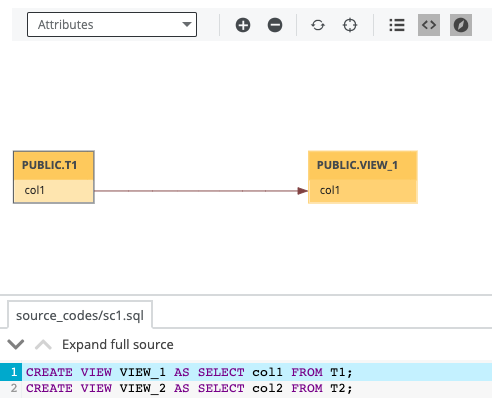
The following image shows the transformation view of the same technical lineage graph. The transformation has the display name "view creation", as specified in the transformation_display_name property, in the lineage file.

Finally, the following image shows the end-to-end lineage, including the stitched File asset and indirect lineage, where the target is the parent node, table T1.

Tip Keep in mind that if you want to include indirect dependencies in the lineage graph, you have to select the Show indirect dependencies option in the Technical lineage Settings tab pane.
This section shows some example lineage.json files for simple custom technical lineage and advanced custom technical lineage.
Each example can be used to generate technical lineage graphs in Collibra to represent the IOT_JSON and IOT_DEVICES_PER_COUNTRY tables with the following columns:
|
IOT_JSON |
IOT_DEVICES_PER_COUNTRY |
|---|---|
|
CCA3 |
COUNTRY |
|
DEVICE_ID |
NUMBER_DEVICES |
Example JSON file for a simple custom technical lineage
In the following example, the tree section defines the IOT_JSON and IOT_DEVICES_PER_COUNTRY tables and columns. The tables are in a schema named COLLIBRA. The COLLIBRA schema is in a database named COLLIBRA and a system named Databricks.
Important If you define the System asset in your lineage.json file, the useCollibraSystemName property in your lineage harvester configuration file must be set to true; otherwise, relations will not be created between the relevant assets in Collibra and stitching will fail.
To show the transformation code at the bottom of the technical lineage graph, specify the mapping and source_code properties in the lineages section.
{
  "version": "1.0",
  "tree": [
	{
	    "name": "Databricks",
           "type": "system",
	    "children": [
	       {
		   "name": "COLLIBRA",
		   "type": "database",
		   "children": [
       	      {
	                  "name": "COLLIBRA",
	                  "type": "schema",
	                  "children": [
		             {
		                 "name": "IOT_JSON",
		                 "type": "table",
		                 "leaves": [
		                    {
			                "name": "CCA3",
			                "type": "column"
			            },
			            {
			                "name": "DEVICE_ID",
			                "type": "column"
			            }
			         ]
		             },
		             {
		                 "name": "IOT_DEVICES_PER_COUNTRY",
			         "type": "table",
			         "leaves": [
			            {
			                 "name": "COUNTRY",
			                 "type": "column"
			            },
			            {
			                "name": "NUMBER_DEVICES",
			                "type": "column"
			            }
			        ]
	                    }
		        ]
		    }
	          ]
	       }
           ]
       }
  ],
  "lineages": [
	 {
         "src_path": [
	     {
	         "system": "Databricks"
	     },
	     {
	         "database": "COLLIBRA"
            },
	     {
	         "schema": "COLLIBRA"
	     },
	     {
	         "table": "IOT_JSON"
	     },
	     {
	         "column": "CCA3"
	     }
	  ],
	  "trg_path": [
	     {
	         "system": "Databricks"
	     },
	     {
	         "database": "COLLIBRA"
	     },
	     {
	         "schema": "COLLIBRA"
	     },
	     {
	         "table": "IOT_DEVICES_PER_COUNTRY"
	     },
	     {
	         "column": "COUNTRY"
	     }
	  ],
	  "mapping": "dev_no_bat_per_country_view",
	  "source_code": "INSERT INTO ... SELECT CCA3 AS COUNTRY...FROM IOT_JSON"
 	 }
  ]
}
Example JSON file for an advanced custom technical lineage
In the following example, the tree section defines the IOT_JSON and IOT_DEVICES_PER_COUNTRY tables and columns. The tables are in a schema named COLLIBRA. The COLLIBRA schema is in a database named COLLIBRA and a system named Databricks.If you define the System asset in your lineage.json file, the useCollibraSystemName property in your lineage harvester configuration file must be set to true; otherwise, relations will not be created between the relevant assets in Collibra and stitching will fail.
{
  "version": "1.0",
  "tree": [
     {
         "name": "Databricks",
	  "type": "system",
	  "children": [
	     {
	         "name": "COLLIBRA",
	         "type": "database",
	         "children": [
                   {
	                "name": "COLLIBRA",
	                "type": "schema",
	                "children": [
	                   {
		               "name": "IOT_JSON",
		               "type": "table",
		               "leaves": [
		                  {
		                      "name": "CCA3",
			              "type": "column"
			          },
			          {
			              "name": "DEVICE_ID",
			              "type": "column"
			          }
			       ]
			   },
			   {
			       "name": "IOT_DEVICES_PER_COUNTRY",
			       "type": "table",
			       "leaves": [
			          {
			              "name": "COUNTRY",
			              "type": "column"
			          },
			          {
			              "name": "NUMBER_DEVICES",
			              "type": "column"
			          }
		              ]
                         }
                     ]
                  }
               ]
            }
         ]
      }
  ],
  "lineages": [
     {
         "src_path": [
	     {
                "system": "Databricks"
            },
	     {
	         "database": "COLLIBRA"
	     },
	     {
	         "schema": "COLLIBRA"
	     },
	     {
	         "table": "IOT_JSON"
	     },
	     {
	         "column": "CCA3"
	     }
	  ],
	  "trg_path": [
	     {
	         "system": "Databricks"
	     },
	     {
	         "database": "COLLIBRA"
	     },
	     {
	         "schema": "COLLIBRA"
	     },
	     {
	         "table": "IOT_DEVICES_PER_COUNTRY"
	     },
	     {
	         "column": "COUNTRY"
	     }
	 ],
	 "mapping_ref":
	    {
	        "source_code": "transforms.sql",
	        "mapping": "dev_no_bat_per_country_view",
	        "codebase_pos": [
	           {
	              "pos_start": 71, "pos_len": 69
	           }
               ]
           }
      }
  ],
  "codebase_files":
    {
       "transforms.sql":
	   {
	       "mapping_refs":
	          {
	              "dev_no_bat_per_country_view":
	          {
	              "pos_start": 0,
	              "pos_len": 246
	          }
	       }
	   }
    }
  }
Example technical lineage graphs
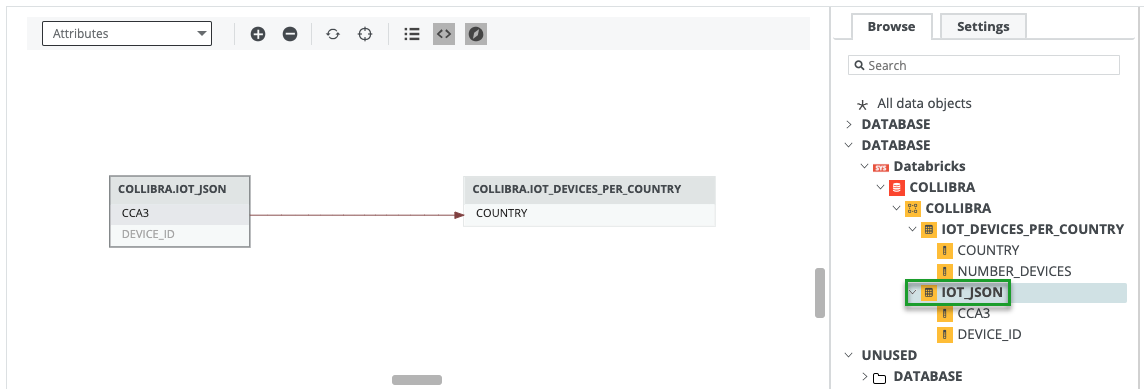
Both example lineage.json files generate the following technical lineage graph, which contains 2 nodes and 1 edge.
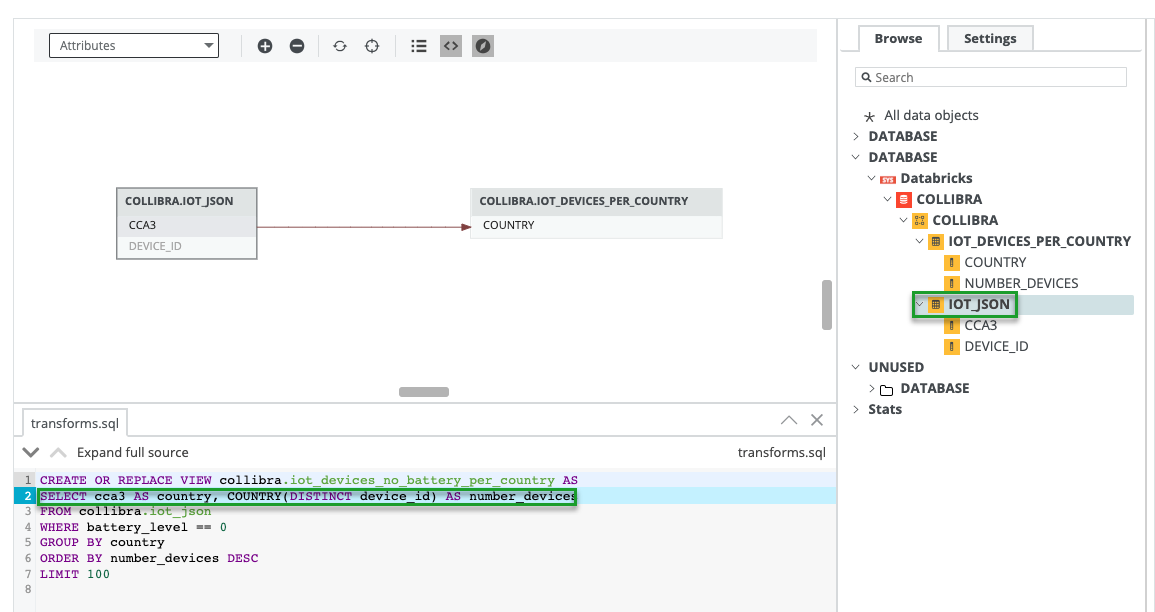
The following technical lineage graph is generated by using the example lineage.json file for an advanced custom technical lineage. The bottom part shows the transformation code that generated the data flow.
In the lineages section, the pos_start property is specified with 71 and the pos_len property is specified with 69. The specifications indicate that the transformation code that starts at position 71 and the following 69 characters are highlighted in blue. Line 2 in the technical lineage graph contains the highlighted transformation code.