The Search page contains the following sections.
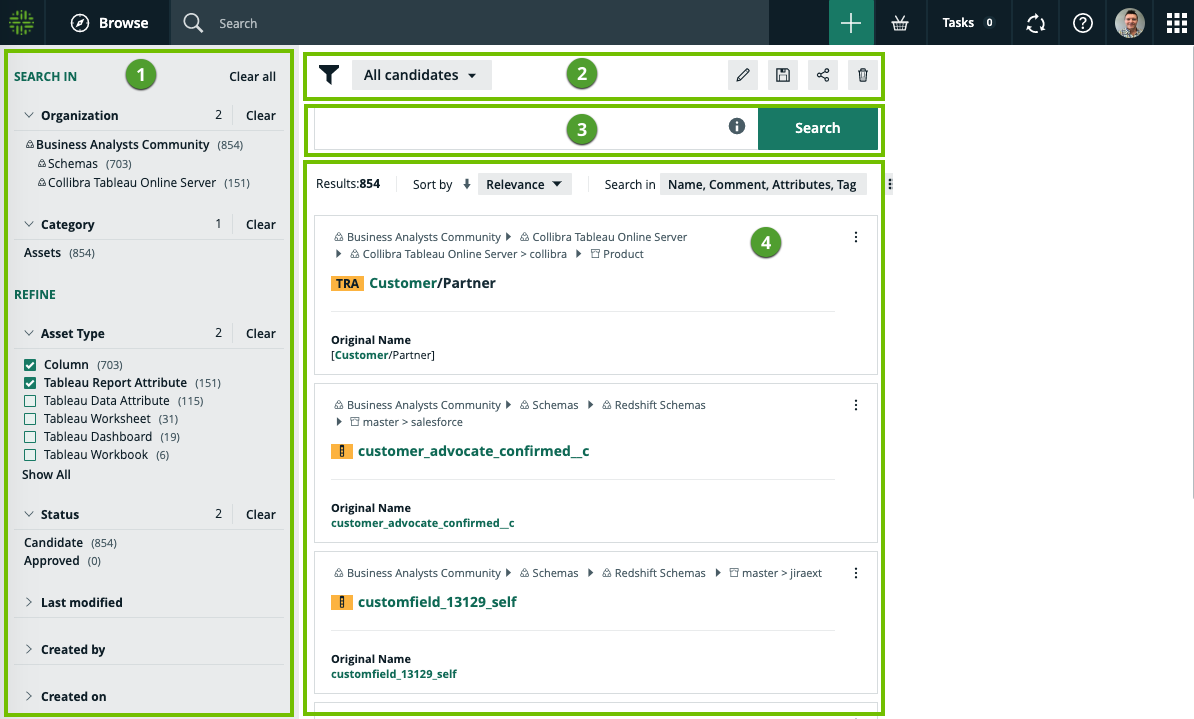
| No. | Section | Description |
|---|---|---|
| 1 | Facet pane |
A dynamically generated collection of facets that allows you to:
Note The facet pane is shown only if your search produces results. |
|
2 |
Search filters |
A drop-down list of all your saved search filters, with the name of the currently applied filter shown. By default, no search filter is applied. The following icons are available:
|
| 3 | Search input field |
Shows your search text. You can edit your search text here. For examples of how wildcards and symbols work in your search text, click |
| 4 | Search results |
Shows the following:
Tip
Note If the text in a field is long, the text is shortened when shown in the search results. For example, in the following image, the highlighted definition in the search result shows only a part of the full definition.
|
 :
:  :
:  :
:  :
:  .
. to:
to:  to show the workflows that are available for the asset.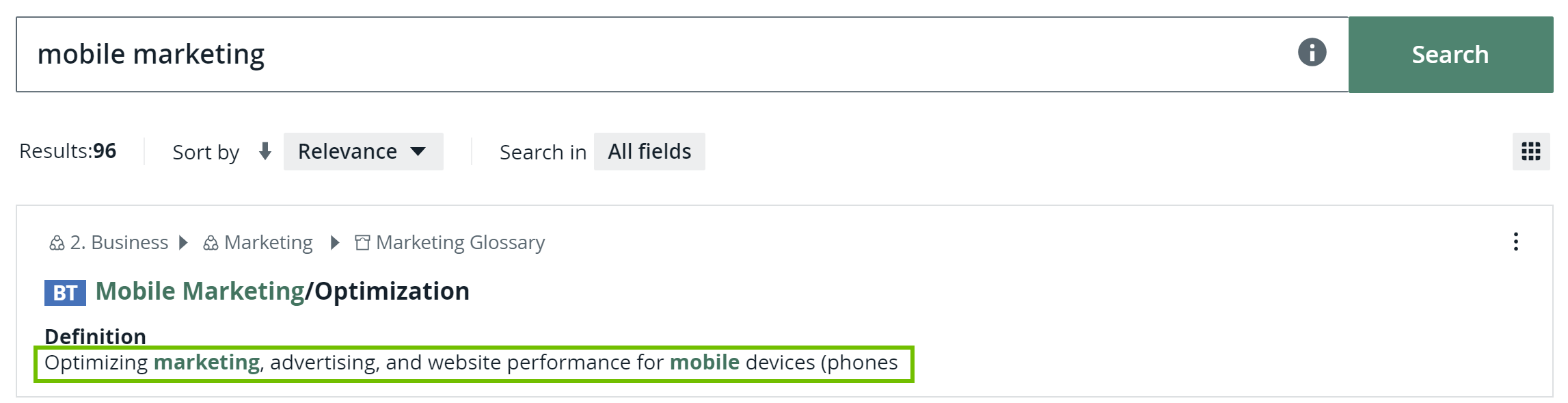
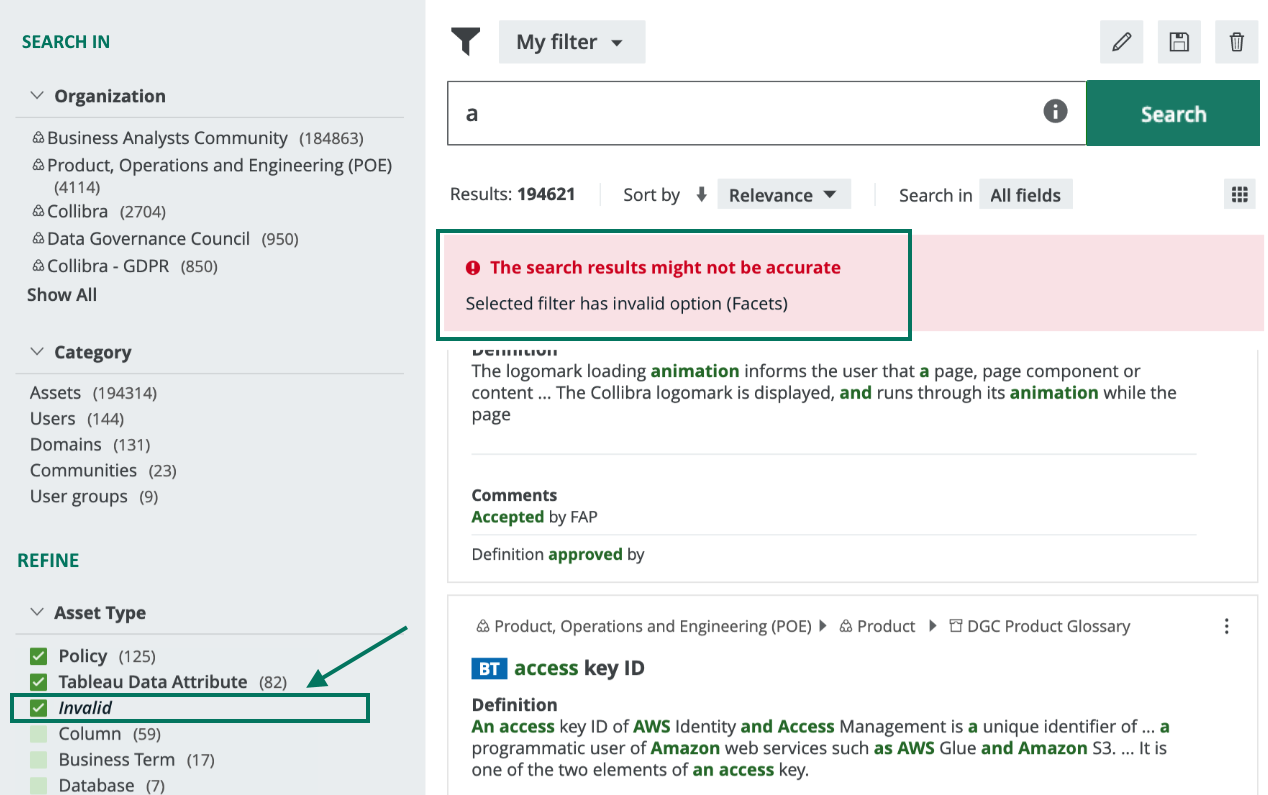
Note It is possible that you or another user created a search filter that includes a field or facet that no longer exists in your Collibra environment. When this happens, the unavailable field or facet is highlighted to enable you to identify and remove it from the search filter. Unavailable fields and facets are ignored in search queries.