This topic describes how to set up Protect and establish a connection between your data source and Protect.
The information in this topic varies depending on the data source that you select.
Data source
Before you begin
- Download the JDBC driver for Amazon Athena.
- Create a JDBC connection from your Edge site to Amazon Athena. Tip When creating the connection, in the Connection provider field, select Generic JDBC connection.
- Add the Catalog JDBC ingestion capability to the Edge site.
Tip
When adding the capability:
- In the Capability template field, select Catalog JDBC Ingestion.
- In the JDBC Connection field, select the connection that you created in Step 2.
- Register and synchronize the data source.
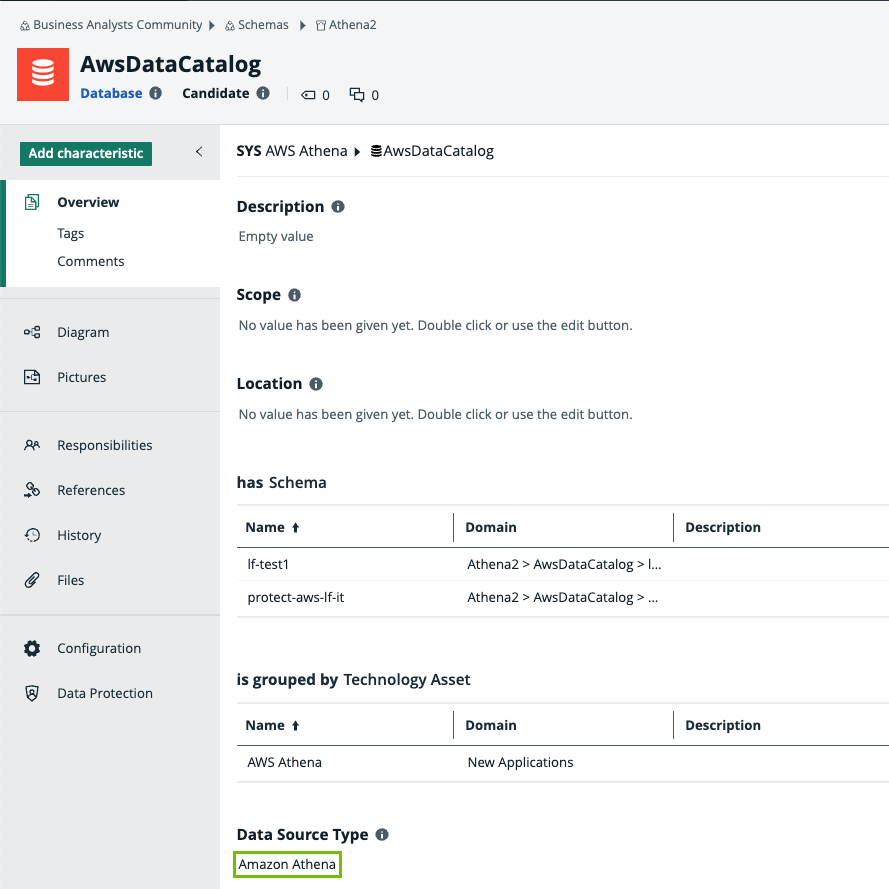
- Download the JDBC driver for Google BigQuery.
- Create a JDBC connection from your Edge site to Google BigQuery. Tip When creating the connection, in the Connection provider field, select Generic JDBC connection.
- Add the Catalog JDBC ingestion capability to the Edge site.
Tip
When adding the capability:
- In the Capability template field, select Catalog JDBC Ingestion.
- In the JDBC Connection field, select the connection that you created in Step 2.
- Register and synchronize the data source.
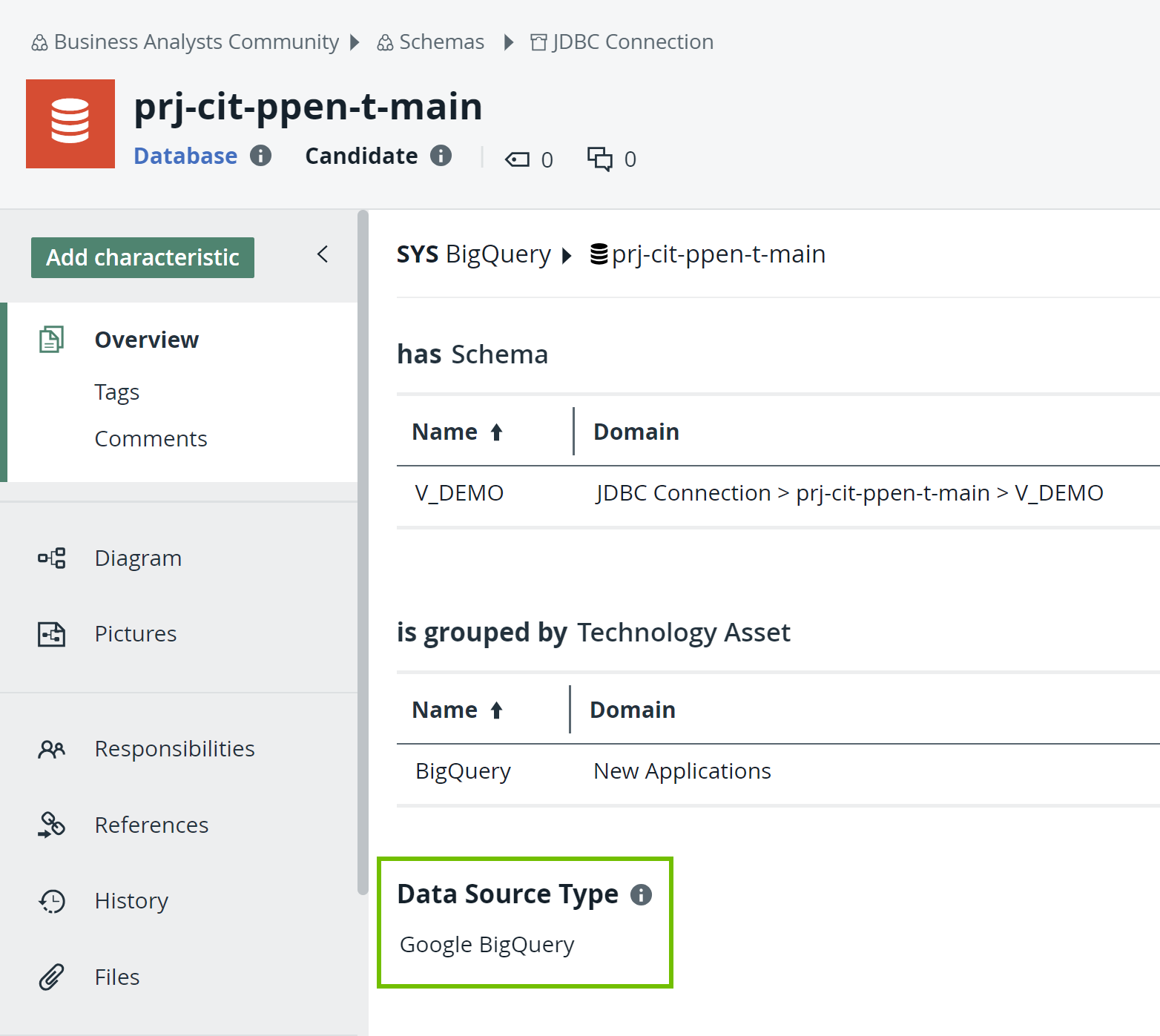
Watch a video
- Download the JDBC driver for Snowflake.
- Create a JDBC connection from your Edge site to Snowflake. Tip When creating the connection, in the Connection provider field, select Username/Password JDBC connection.
- Add the Catalog JDBC ingestion capability to the Edge site.
Tip
When adding the capability:
- In the Capability template field, select Catalog JDBC Ingestion.
- In the JDBC Connection field, select the connection that you created in Step 2.
- Register and synchronize the data source.
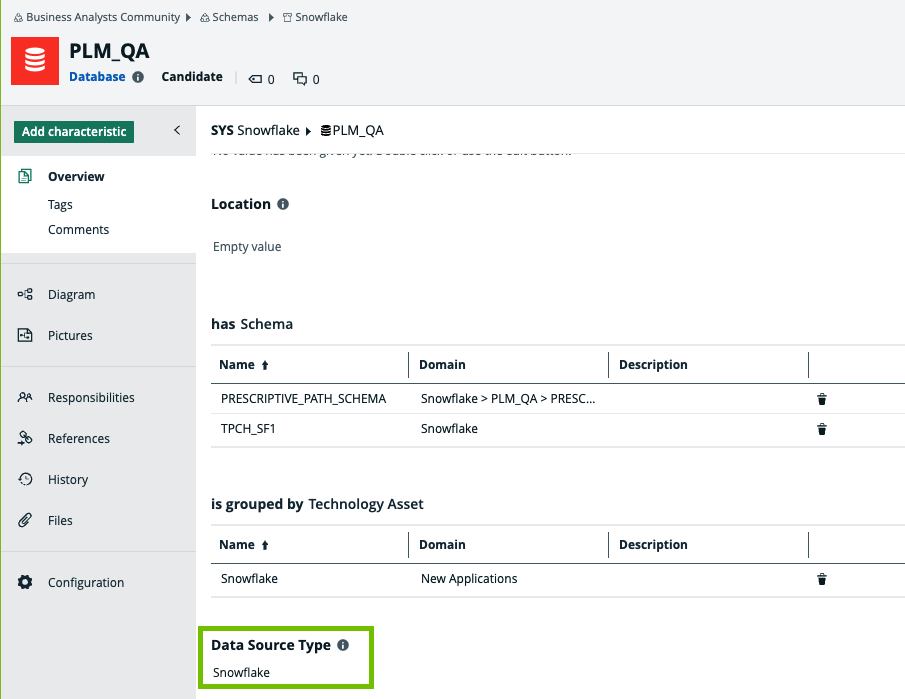
Steps
- Contact Collibra Support or your representative to enable Protect on your Collibra environment.
- Ensure that the Protect global roles and global permissions are correctly set.
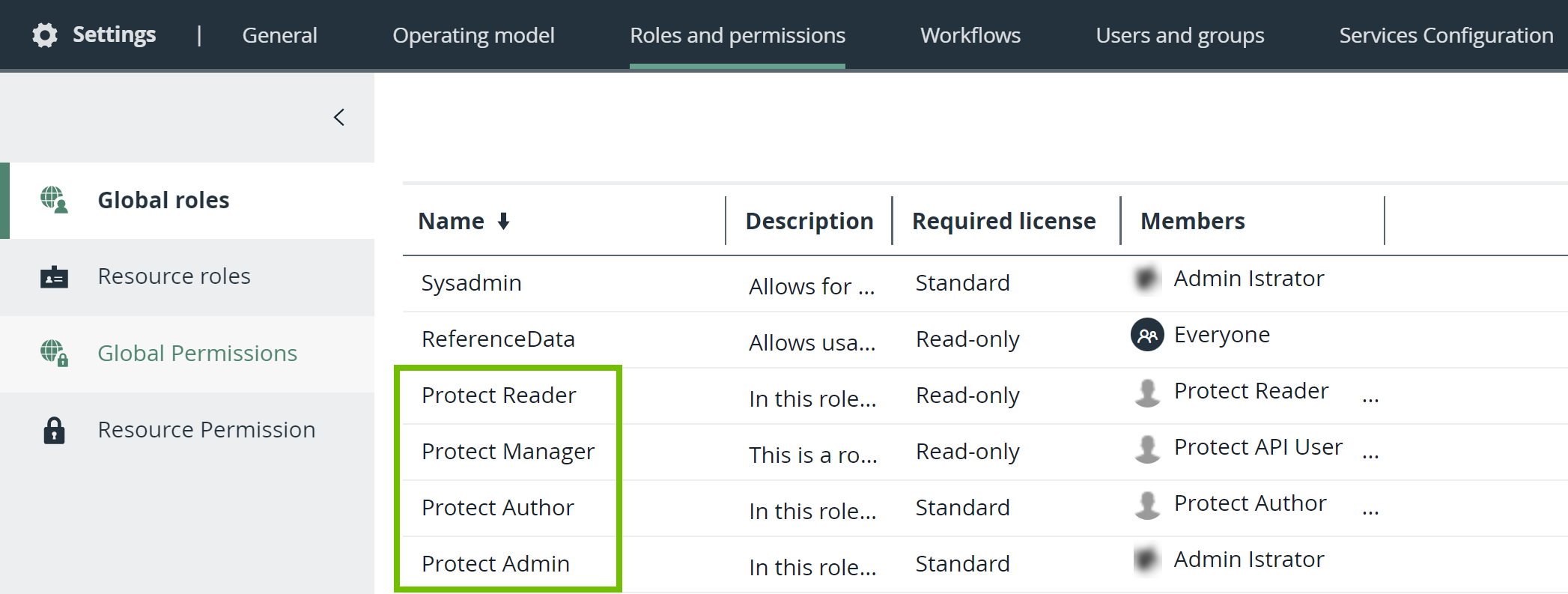
- Create Tip
- When creating the connection, in the Connection provider field, select AWS connection.
- Ensure that the user associated with the
- Add the Protect for AWS Lake Formation capability to the Edge site.
Tip
- When adding the capability:
- In the Capability template field, select Collibra Protect for AWS Lake Formation.
- In the Connection field, select the connection that you created in Step 3.
- Do not add more than one Protect for AWS Lake Formation capability to the Edge site.
- When adding the capability:
Protect is set up. On the main menu, if you click  , Protect is shown.
Note Apart from the JDBC connection created for the Catalog ingestion, Protect for BigQuery requires an extra connection, which is the GCP connection. The GCP connection is necessary because Protect requires access to certain GCP APIs that cannot be reached through the JDBC connection alone. The GCP connection ensures that data protection is enforced.
- Contact Collibra Support or your representative to enable Protect on your Collibra environment.
- Ensure that the Protect global roles and global permissions are correctly set.
- Create Tip
- When creating the connection, in the Connection provider field, select GCP connection.
- Ensure that the user associated with the
- Add the Protect for BigQuery capability to the Edge site.
Tip
- When adding the capability:
- In the Capability template field, select Collibra Protect for Google BigQuery.
- In the Connection field, select the connection that you created in Step 3.
- Do not add more than one Protect for BigQuery capability to the Edge site.
- If the version of the capability is 1.97.1, then ensure that the JSON content in the GCP Service Account field in the GCP connection you created is Base64 encoded. You can find the version of the capability in the Version column on the Capabilities tab.
- When adding the capability:
Protect is set up. On the main menu, if you click , Protect is shown.
Watch a video
- Contact Collibra Support or your representative to enable Protect on your Collibra environment.
- Ensure that the Protect global roles and global permissions are correctly set.
- Create Tip
- When creating the connection, in the Connection provider field, select Username/Password JDBC connection.
- Ensure that the user associated with the
- Add the Protect for Snowflake capability to the Edge site.
Tip
- When adding the capability:
- In the Capability template field, select Collibra Protect for Snowflake.
- In the Connection field, select the connection that you created in Step 3.
- Do not add more than one Protect for Snowflake capability to the Edge site.
- When adding the capability:
Protect is set up. On the main menu, if you click , Protect is shown.