You can enable manual upgrade for new Edge sites or change existing sites to manual upgrade mode. This mode allows you to control when, and to which version, you upgrade your Edge sites to. You can also review the Software Bill of Materials, which outlines what is included in the upgrade, before upgrading your Edge sites.
New Edge sites
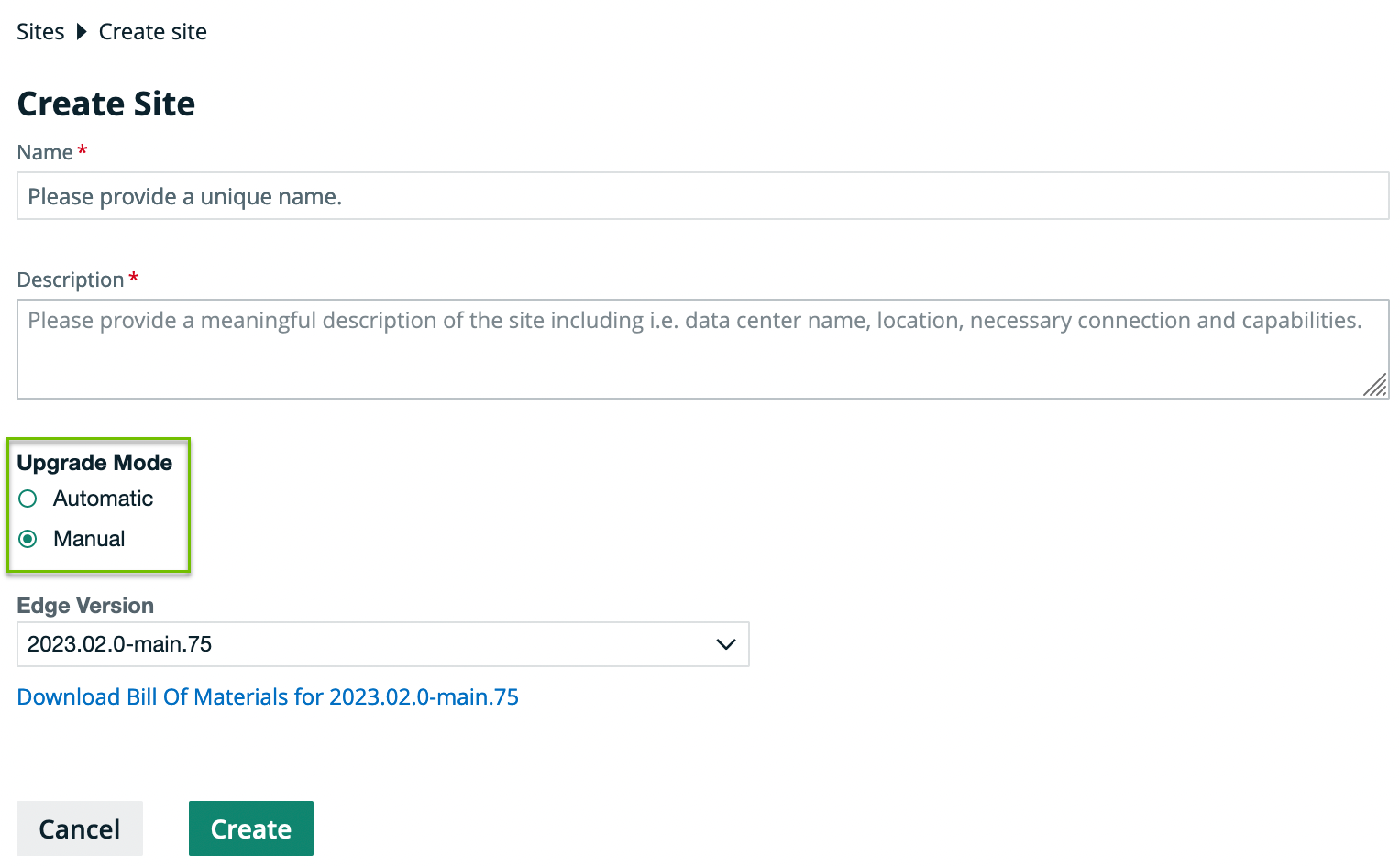
When creating a new Edge site, select Manual under the Upgrade Mode and click Create.
Existing Edge sites
You can change the upgrade method to manual for existing Edge sites by following the steps below:
- Open an Edge site.
-
On the main menu, click
 , and then click
 Settings.
The Collibra settings page opens. -
Click Edge.
The Edge sites overview opens. - Click the name of an Edge site in the Edge site overview.
The Edge site page opens.
-
On the main menu, click
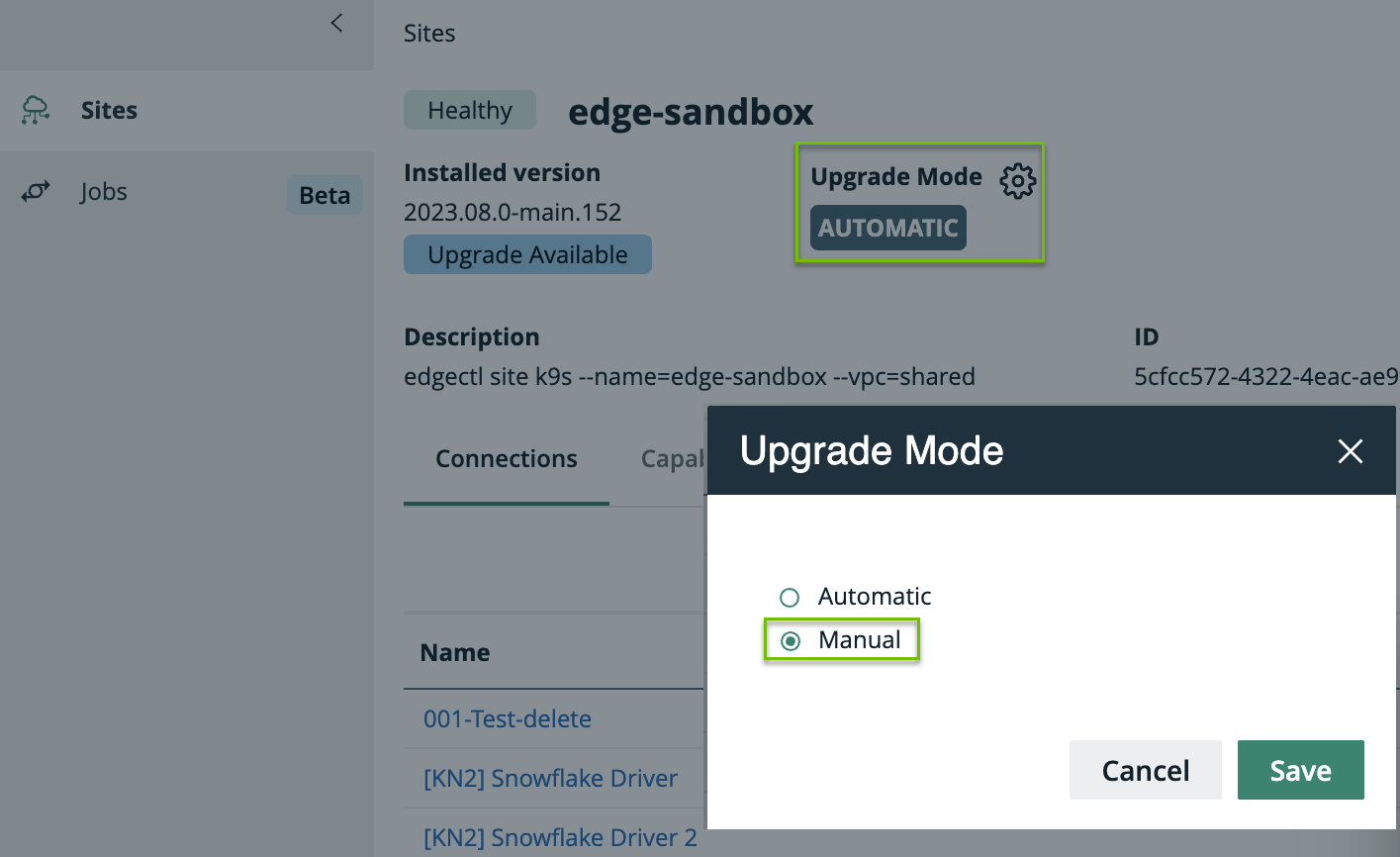
- Click next to Upgrade method.
The Upgrade Mode dialog box appears. - Select Manual.
- Click Save.
Your Edge site will no longer automatically upgrade to the newest available version.
What's next?
- Learn how to manually upgrade your Edge site when a new version becomes available.
- Review the Compatibility between Edge sites and Collibra Data Intelligence Cloud to know when you need to either reinstall your Edge site for an upgraded version of k3 or upgrade to the latest version of EKS.
- Optionally, set up a private docker registry to easily incorporate Edge into your existing security procedures and perform your own security scans before upgrading to a new version of Edge site.