You can enable automatic upgrade for new and existing Edge sites that use the manual upgrade mode. This mode automatically upgrades your Edge site whenever a new version has been detected.
New Edge sites
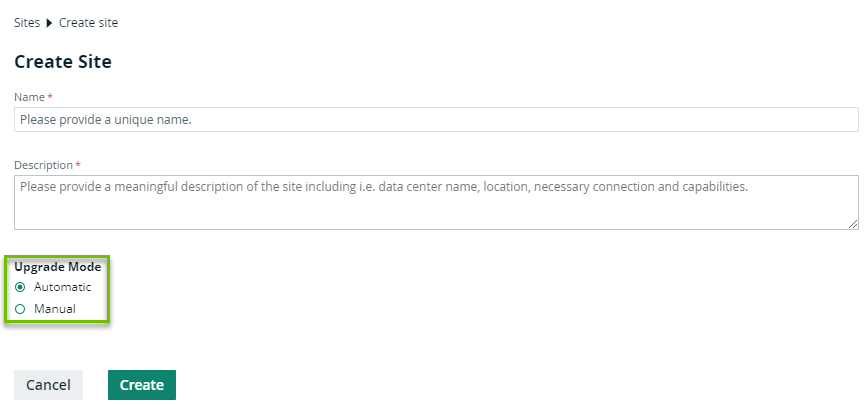
Automatic upgrades are enabled by default for all new Edge sites. When you are creating a new Edge site, ensure Automatic is selected before you click the Create button.
Existing Edge sites
You can change the upgrade mode of existing Edge sites to automatic by following the steps below:
- Open an Edge site.
-
On the main menu, click
 , and then click
 Settings.
The Collibra settings page opens. -
Click Edge.
The Edge sites overview opens. - Click the name of an Edge site in the Edge site overview.
The Edge site page opens.
-
On the main menu, click
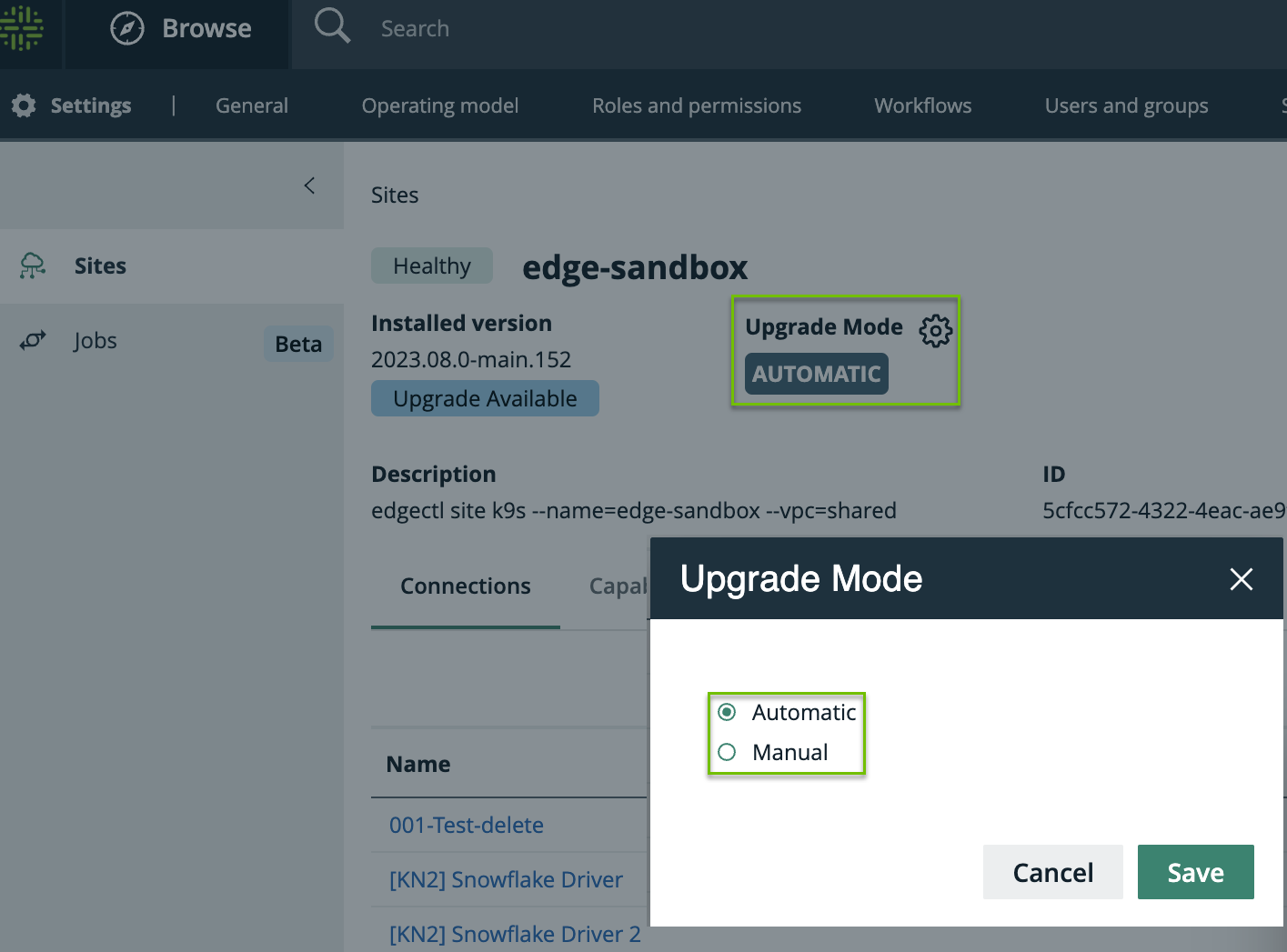
- Click next to Upgrade Mode.
The Upgrade Mode dialog box appears. - Select Automatic.
- Click Save.
What's next?
Review the compatibility table to know when you need to either reinstall your Edge site for an upgraded version of k3 or upgrade to the latest version of EKS.