If the out-of-the-box relation-based filters and relation-based search don't match the organization 's needs, you can create a new relation index.
Newly created relation indexes are automatically used in the relation-based search if this feature is enabled.
To use a relation index as a filter in the Filters pane of Data Marketplace itself, you need to update the Filters settings.
- You cannot create more than 20 relation indexes in Data Marketplace
- You cannot use special characters, such as /, ?, @, [, }, <, >, in the relation index name.
- You cannot add more than four relations to one relation path.
- You can include the following attribute types in a relation path: Text, Selection, Multiple Selection, Numbers, and Boolean (True/False). The attribute types Date and Script are not supported.
- You cannot use relation types with special characters, such as /, ?, @, [, }, <, >, in the relation type name.
- Complex relations are not supported as custom relation paths.
- We recommend that you don't create relation indexes with identical relation paths. If they both show up as filters in the Filters pane, it will be confusing to your users. Currently, we don't prevent that you create identical relation indexes.
- Also check Relation-based search limitations and Data Marketplace limitations and guidelines.
Before you begin
Make sure you identified the relation-paths that you want to use. For information on how to construct relation paths, go to About relation indexes.
Required permissions
You are an administrator in Data Marketplace.Steps
-
On the main menu, click
 , and then click
 Settings.
The Collibra settings page opens. - In the Data Marketplace section, click Filters.
- Click Manage Relation-Based Filters.
The Manage Relation Indexes page opens. It provides an overview of all relation indexes in the environment.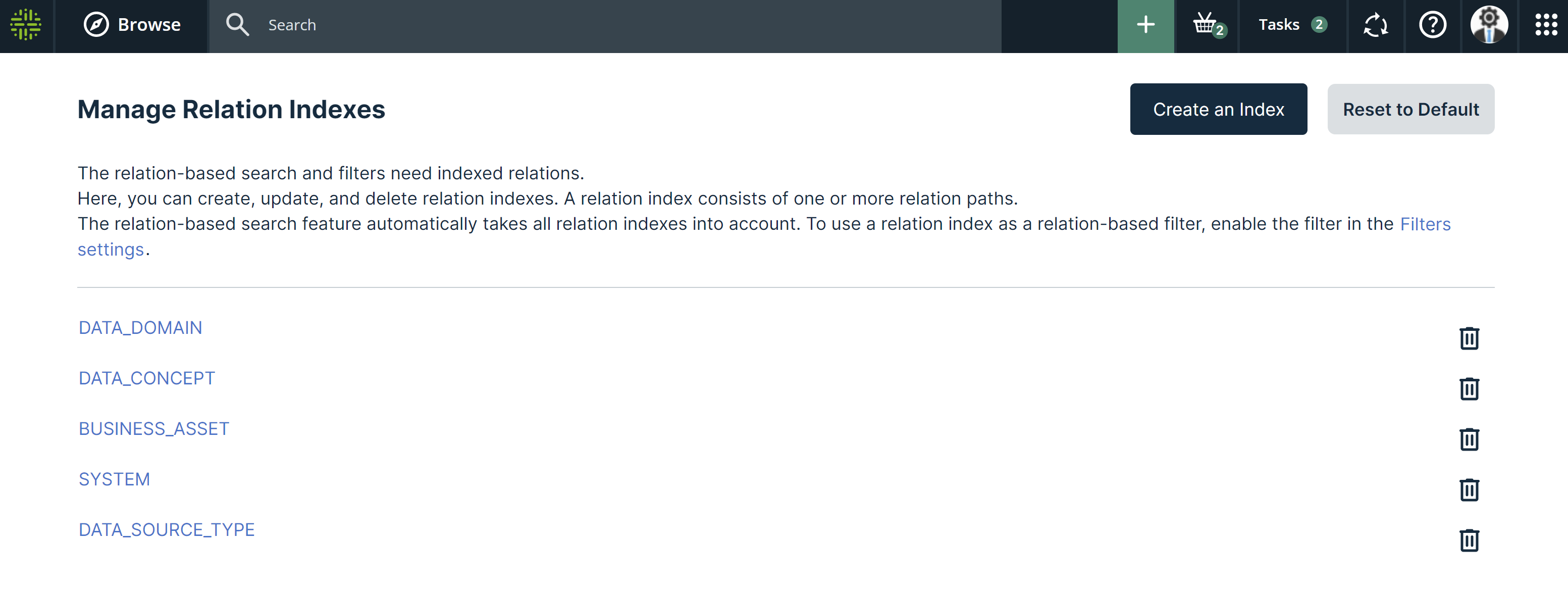
- Click Create an Index.
The Create an Index page opens. - Enter the name of the filter.
- Provide a clear and meaningful name because this name can be visible in the Filters pane in Data Marketplace.
- A _ (underscore) or a space in the name will translate in a space in the Filters pane.
Important- Once the relation index is saved, you cannot change its name.
- You cannot use special characters, such as /, ?, @, [, }, <, >, in the relation index name.
- Specify the relation path.
- Click
 and select the first asset type in your relation path.
 - For each relation you want to add, click
 and select the relation (relation type and target asset type) you need.
The relation is added as an indent to the previous one.
In the Preview, you get an overview of possible results for this index when it is applied as a filter to your data.Important- You cannot add more than four relations to one relation path.
- You cannot use relation types with special characters, such as /, ?, @, [, }, <, >, in the relation type name.
- If the end of your relation path is an attribute type, in the last relation click
 and select the attribute type you want to link to.
You can select the following attribute types in a relation path: Text, Selection, Multiple Selection, Numbers, and Boolean (True/False). The attribute types Date and Script are not supported.Note If the attribute type included in the relation index has a cardinality higher than 1, we only show the first alphabetically sorted occurrence of the attribute as a filter option in the Data Marketplace Filters pane. This limitation applies to Selection, Multiple Selection, Numbers, and Text. For an example, go to Relation-based search limitations.
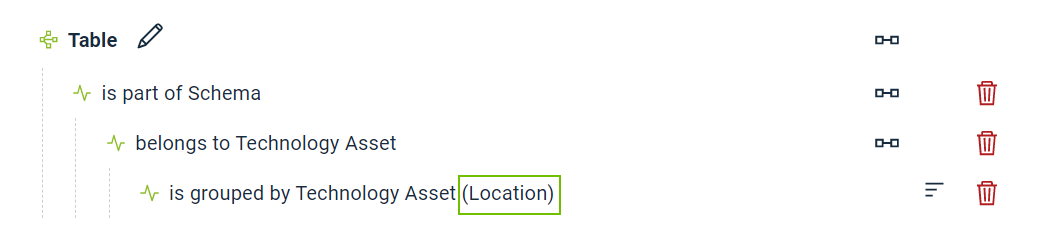
The attribute type is added between brackets next to the asset type.
- Click
- If required, click
 to add another relation path.
 - Click Create Index.
The relation index is created.
Data Marketplace starts indexing the relations. This can take some time.
The new relation index is used to relation-based search if this feature is enabled. - If required, make the relation index visible as a filter in the Filters pane of Data Marketplace via the Filters settings.
For a full example, go to Example: Create a relation index.