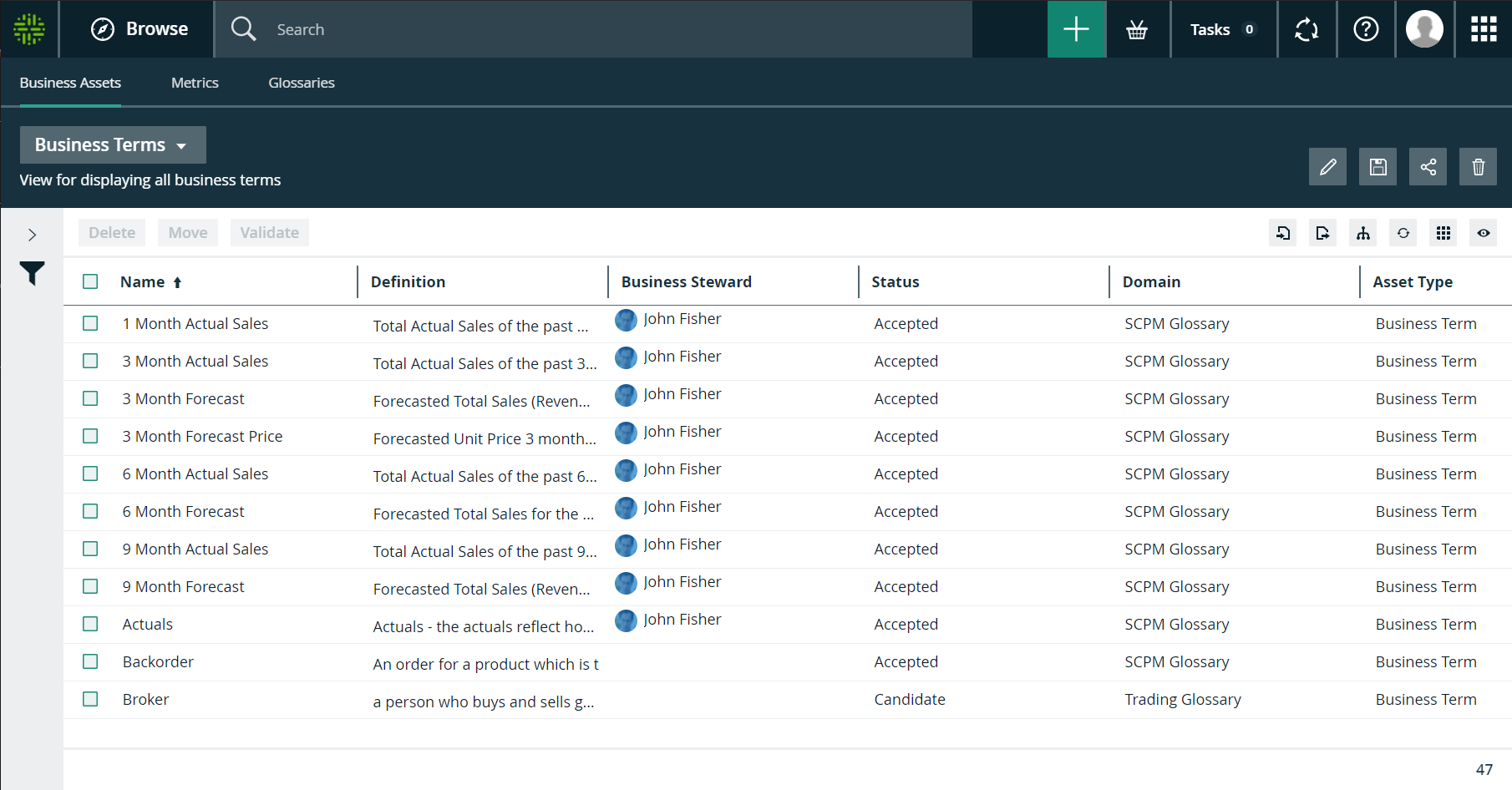
A view defines a table or set of tiles by storing the following data:
- The display mode, to specify whether assets are shown in a table or as tiles.
- Filters, to specify which assets are displayed.
- Applied sorting, to specify the order of the assets.
- Visible columns (for tables) or fields (for tiles), to specify which information about assets is displayed.
- Hierarchy, to display, optionally, a hierarchy of assets instead of a flat list (not applicable in tile display mode).
Tip You can create as many views as you want without causing problems for Collibra's performance.
A view is also the basis for Importing and exporting.
Example of a view in table display mode:
Example of a view in tile display mode:

When you view a table or set of tiles for the first time, you are using the Collibra DGC default view, unless somebody already shared a custom view as default with you.
Each view has a unique URL. You can use this URL to open the view directly, without having to navigate to the location. For example, you can embed the view URL in a text widget on a dashboard, in an email and so on. You can simply copy the URL from the address bar and paste it where needed.
View types
Collibra offers different types of views:
- Dashboards
- Search filters
- Diagram views
- Relation views on an asset page
- Asset views, for example in a domain or community, in the global view and in application views.
Asset views are available in the following applications:
|
Application |
Tabs with a view selector |
|---|---|
|
|
|
|
|
|
|
|
|
Business Dimensions |
|
|
Governance Assets |