Requesting access to data
You can request access to data by adding the relevant data sets or reports to your Data Basket, also called shopping cart, and checking out your Data Basket.
Adding data sets or reports to the Data Basket
You can add data sets or reports to the Data Basket by clicking Add to Data Basket. This button appears:
- When you have selected one or more assets of the type Data Set, Report, or one of their child asset types in Data Catalog.
- On Data Set asset pages, Report asset pages and asset pages of child asset types of Data Set and Report.
When you click Add to Data Basket:
- All data sets and reports you selected are shown in the Data Basket.
- A Data Usage asset is created.
About the Data Usage asset
The Data Usage asset is created in the Data Usages domain.
The name of the Data Usage asset is "USER_BASKET_" followed by the UUID of the user.
The Data Usage asset page shows all of the important information related to the access request, including:
- The data sets or reports to which access is requested.
- The purpose for requesting access to the data.
- The access start date and end date.
Tip The Data Usages domain is a hidden domain in the Business Analysts Community. This means it doesn't appear in the Collibra Browser, which helps to avoid it being inadvertently deleted. To view the Data Usages domain, go to the Access Requests page and click the name of a Data Usage asset. The Data Usages domain appears in the breadcrumb, on the Data Usage asset page.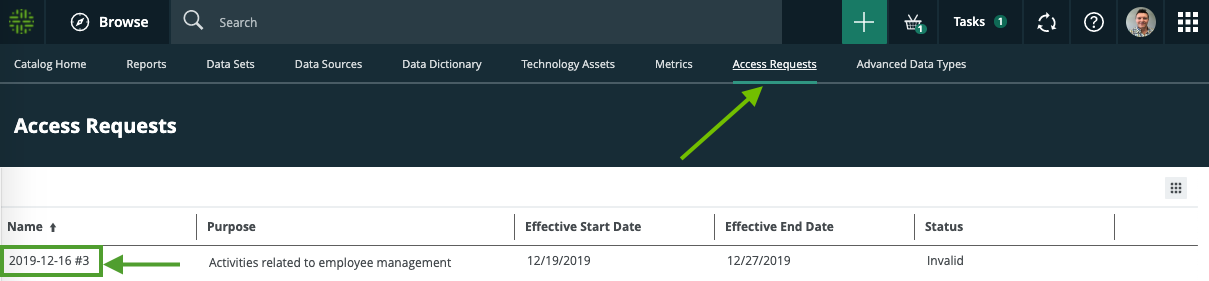
About the Data Basket
The Data Basket is a view that shows all data sets and reports you have selected, and to which you want access.
To access the Data Basket, click  .
.
You can remove data sets and reports from the Data Basket by clicking the relevant tiles, and then clicking Remove from data basket.

Checking out your Data Basket
When you are ready to check out, click Checkout Data Basket. This starts the out-of-the-box Request Assets Access workflow. The Request Assets Access workflow allows you to request access to assets that are referenced in your Data Basket. All data owners have to approve the request before you can access the assets. For more information about the workflow, go to Catalog Workflows.
Important
This workflow accepts by default only data sets that contain Column assets as data elements.
When you check out the Data Basket, the Data Usage asset is renamed in the format YYYY-MM-DD #X, where X is a sequential number, for example 2019-12-16 #3.