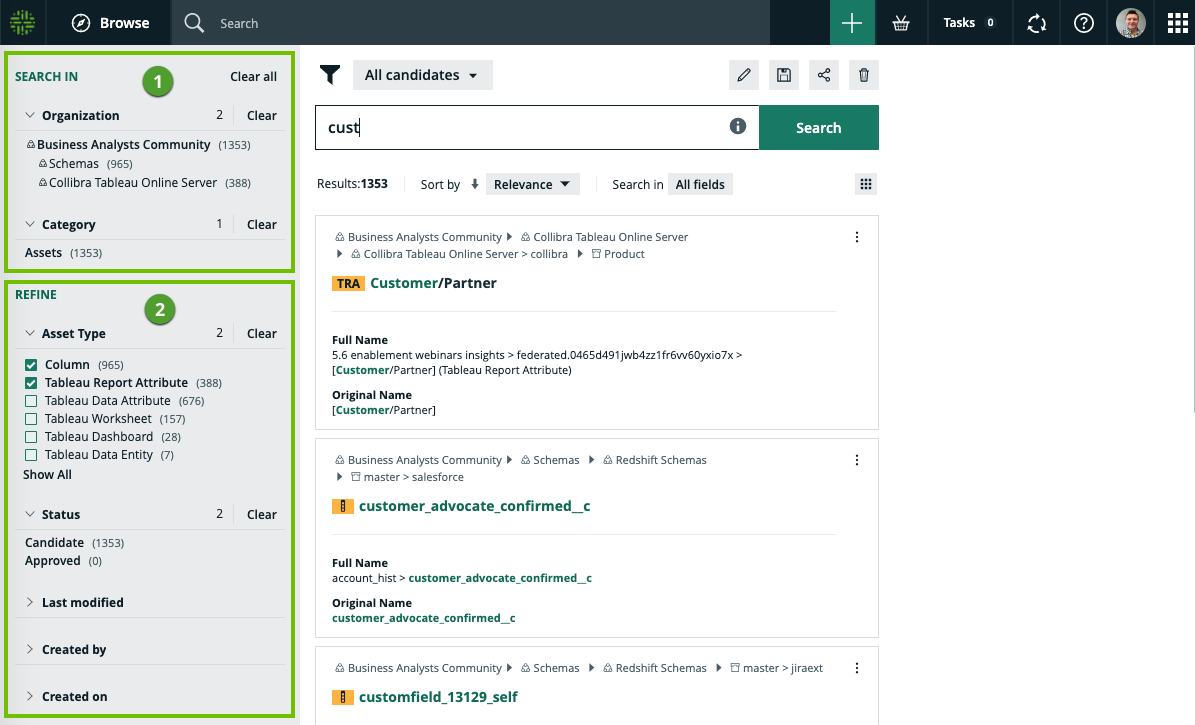
The Search page offers a variety of dynamically generated facets by which to navigate and refine your search results.
| No. | Part name | Description | ||||||||||||||
|---|---|---|---|---|---|---|---|---|---|---|---|---|---|---|---|---|
| 1 | "Search in" facets |
These facets enable you to navigate to resources via organizational path or resource category.
|
||||||||||||||
| 2 | "Refine" facets |
These facets act as filters to refine the search results. The following table shows the packaged "refine" facets:
|
Working with facets
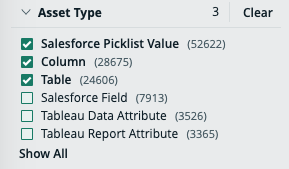
Click Clear, to clear all selections for a specific facet type.
At the top of the page, click Clear all, to clear all facet type selections on the search page.
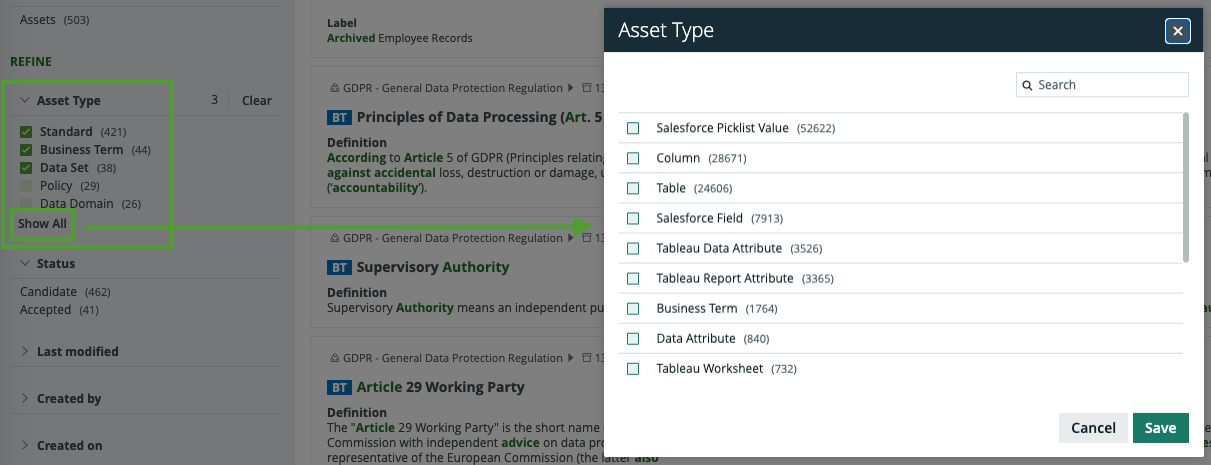
Click Show all, to show all the facets by which to refine the scope of your search for a particular facet type. As shown in the following example image, if there are more than 15 facets, the list will open in a dialog box.
Permissions
No particular license is needed to create and manage search filters; however, certain global permissions are needed.
| Permission | With this permission, you can... |
|---|---|
| Manage and share anyone's Views, Dashboards, Search filters |
Create and manage search filters for yourself and other users, and share with other users. |
| Manage your own Views, Dashboards, Search filters | Create and manage your own search filters. |
|
Share your own Views, Dashboards, Search filters |
Share search filters that you created. |
Note Users are not granted permissions directly, but through global roles and responsibilities.