You can customize the Homepage for the users of Collibra by providing relevant and contextual content.
This topic describes how to edit the Homepage, including how to preview and publish it.
Note When you edit the Homepage, your changes are automatically saved each time that you click outside the section where you made the changes.
Requirements and permissions
You have a global role that has the System administration global permission.
Steps
- Go to the Homepage.
Tip The Homepage appears when you sign in to Collibra Data Intelligence Cloud. You can also go to the Homepage from any page by clicking
 .
. - In the upper-right corner of the page, click Edit Page.
The Homepage opens in the editor mode.Tip If another administrator has edited or is editing the Homepage, a message indicating so is shown on the Homepage. For example, Draft saved 8 minutes ago by John. You can, however, still edit the Homepage. - Edit the sections as needed.
How to edit the sections
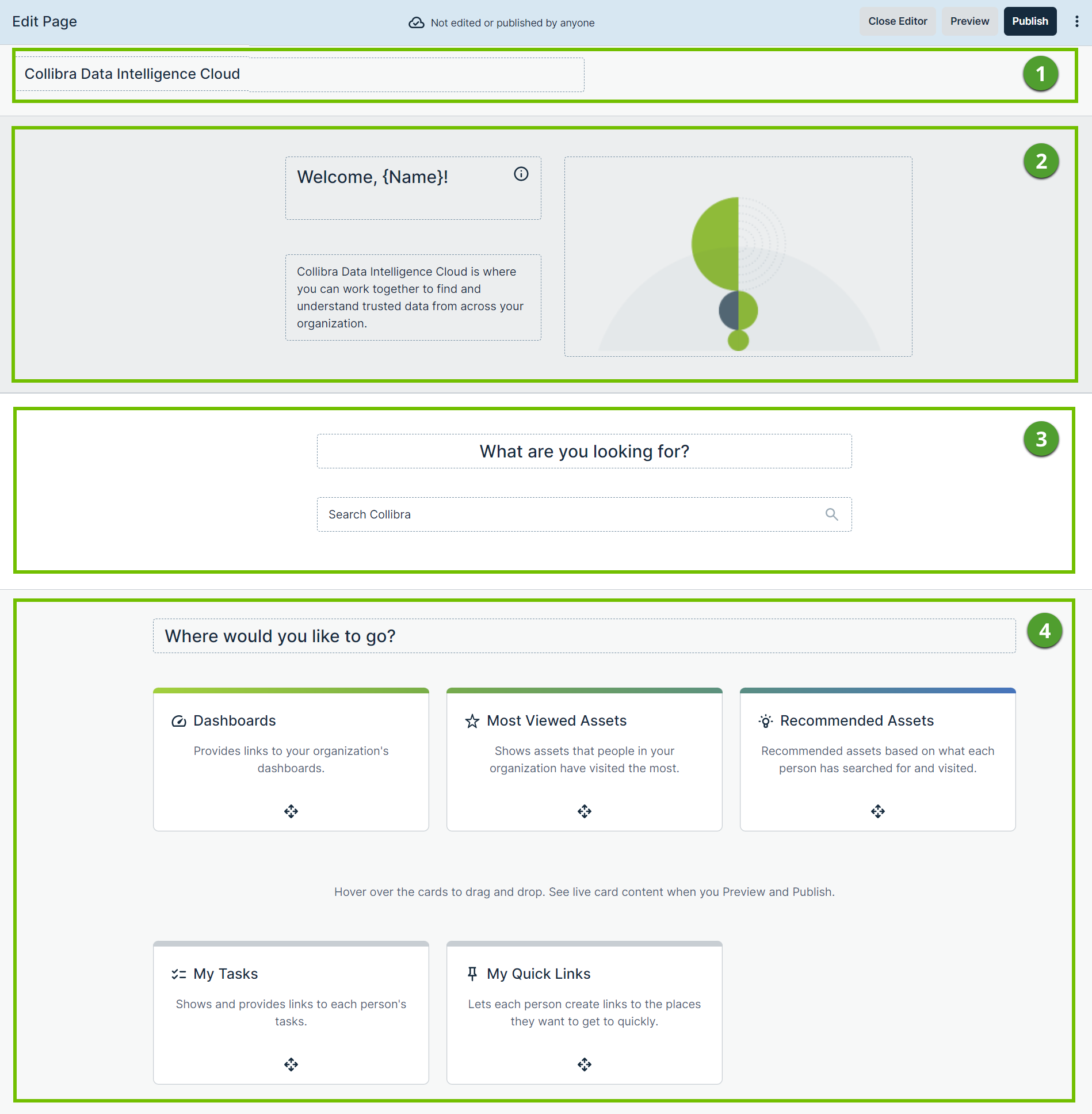
No. Description 
Enter a title for the Homepage. 
- In the first box, enter a greeting.
If you want the first name of a user to be shown in the greeting, enter {Name}. For example, if you enter Hello {Name}, when a user named Jane Doe signs in, the following greeting is shown to her: Hello Jane. If the user does not have a first name, the username is shown. - In the second box, enter an introduction.
- Add an image.
How to add an image
- Hover your pointer over the current image, and then click Add Content.
The Add Content dialog box appears.
- Enter the required information.
- Add Image by Link: The link to the image that you want to be shown. If you leave this field blank, the default Collibra Homepage image will be shown.
- Alt text: A meaningful description of the image. If the image fails to load, this description is shown in place of the image. The description also helps screen-reading tools to describe the image.
- Click Save.
- Hover your pointer over the current image, and then click Add Content.

- In the first box, enter a heading that indicates that users can perform a search, for example, What are you looking for?.
- In the second box, enter the text that you want to be shown in the search field to guide users, for example, Search Collibra.

- In the box, enter a heading that indicates that users can find content, for example, Where would you like to go?.
- The top subsection that is located below the box contains the selected cards, which will be shown to users. The bottom subsection contains the available cards, which you can choose to show to users. To move a card from one subsection to another, drag the card and drop it to where you want it in the subsection.
While a total of five cards are available, a maximum of three cards can be shown to users.
Tip On the My Quick Links card, you can add, edit, rearrange, and delete quick links.
Tip- If you want to pause editing the Homepage or want to publish the edited Homepage later, click Close Editor. This action saves all the changes that you made to the Homepage and shows the last published Homepage in the view mode.
- If you want to discard all the changes that you made to the Homepage, click
 , and then click Delete Draft. You can then continue to make new changes to the Homepage.
 - If you want to restore the Collibra version of the Homepage, which is the original version, click Restore Collibra Version, and then click Publish.
- In the first box, enter a greeting.
-
Optional: Click Preview.
A preview of the Homepage is shown.Tip If you want to make more changes to the Homepage, click Back to Editor. - To publish the Homepage, click Publish.
The edited Homepage is published to all the users.