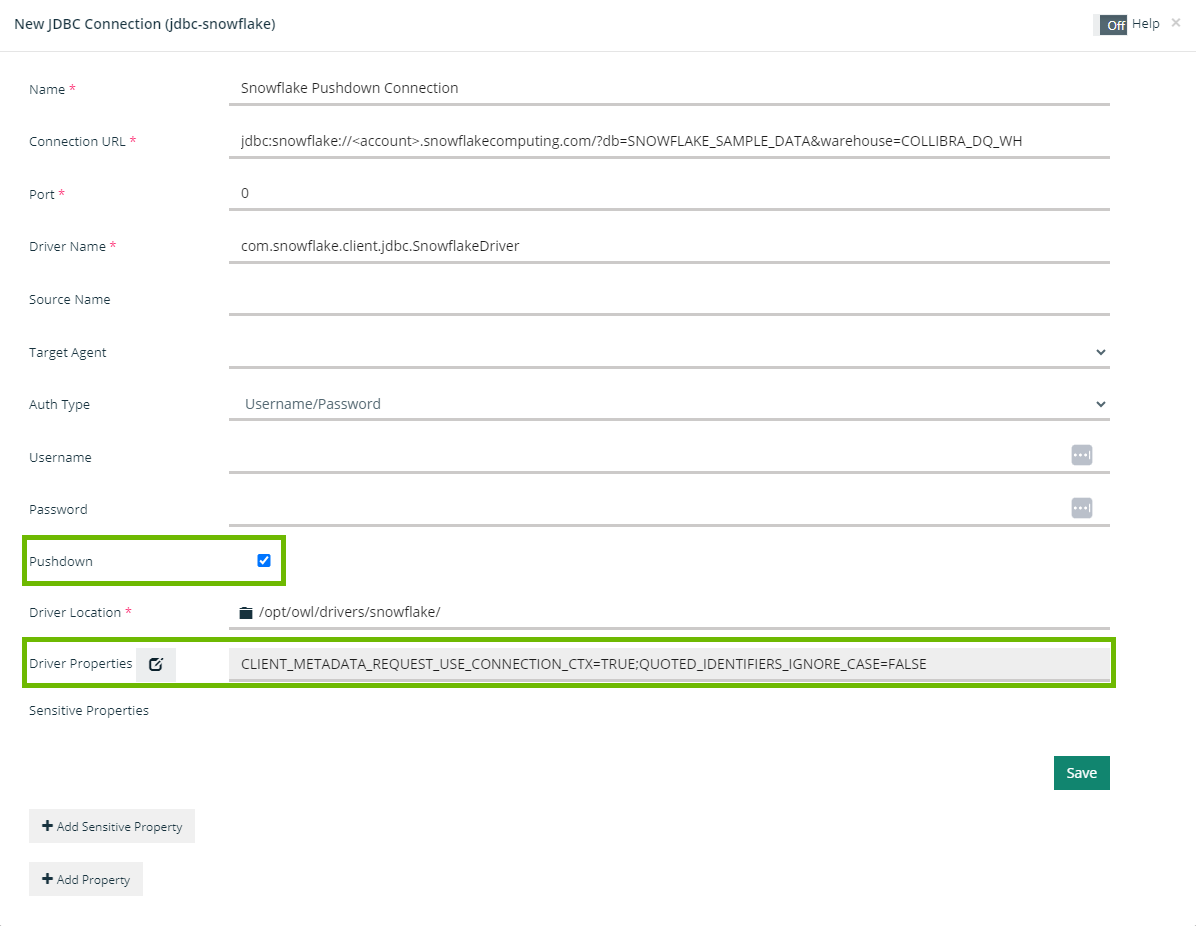
This page shows you how to set up Pushdown for a Snowflake connection.
Running the Snowflake setup script
To run a Snowflake Pushdown job, you need to opt in when setting up your Snowflake connection. Select the Pushdown option in the Connection template to turn on Pushdown capabilities.
| Step | Details |
|---|---|
| 1 | Open a terminal session. |
| 2 |
Update the following session variables: Copy
Note Warning Do not update the variables for Collibra DQ. |
| 3 |
Run as an admin user. Copy
|
| 4 |
Create a user and role for Collibra DQ. Copy
|
| 5 |
Create a virtual warehouse to run Collibra DQ. The virtual warehouse is referenced in the connection URL to direct DQ traffic to it. Copy
|
| 6 |
Assign privileges to the Collibra DQ warehouse. Copy
|
| 7 |
Assign metadata access to your Collibra DQ role. Copy
|
| 8 |
Update the session variable Copy
|
Warning Please ensure the SQL variables are updated in the above script before proceeding.
Setting up the Snowflake Connection template
On the main menu, click  , and then click Connections. Click Add on the Snowflake tile, then enter the required information.
| Required | Property | Type | Description |
|---|---|---|---|
|
|
Name | Text | The unique name of your Snowflake connection. |
|
|
Connection URL | String | The base connection string, for example, jdbc:snowflake://<account>.snowflakecomputing.com/?db=SNOWFLAKE_SAMPLE_DATA&warehouse=COLLIBRA_DQ_WH |
|
|
Port | Integer | The port number to establish a connection to the datasource. |
|
|
Driver Name | Text | The driver class name used for your connection, for example, com.snowflake.client.jdbc.SnowflakeDriver |
|
|
Source Name | String | N/A |
|
|
Target Agent | Option |
The Agent used to submit your DQ Job. You do not need to select an option because Pushdown Jobs do not require an Agent to submit them to the data warehouse. |
|
|
Auth Type | Option | The method to authenticate your connection. See the Snowflake documentation for more information about authentication methods for Snowflake connections. |
|
|
Pushdown | Checkbox |
Switches Pushdown processing on or off. Select the checkbox option to turn on Pushdown for your Snowflake connection. Warning You must select this option for Pushdown to function. |
|
|
Driver Location | File path | A file path which designates the name and location of the driver. |
|
|
Driver Properties | String |
The configurable driver properties for your connection. Add the following driver properties: CLIENT_METADATA_REQUEST_USE_CONNECTION_CTX=TRUE;QUOTED_IDENTIFIERS_IGNORE_CASE=FALSE |
 Yes
Yes
 No
No
The following image shows an example of a Snowflake connection with Pushdown turned on and additional Driver Properties.