You can delete a view, for example, if you no longer need it.
You can delete a view in several ways:
- From the view bar.
- From the overview.
Delete a view from the view bar
- Navigate to the set of assets (in table display mode or tile display mode) for which you want to delete a view.
Example: Business Glossary - Switch to the view that you want to delete.
-
In the view toolbar, click
 .
.
The Delete view <view name> dialog box appears. - Click Delete view.
Delete a view from the overview
- Navigate to the set of assets (in table display mode or tile display mode) for which you want to delete a view.
Example: Business Glossary - In the view selector, click
 , then Show all.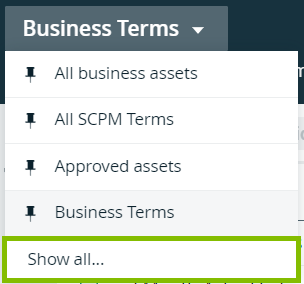
- In the table, click
 at the end of the row of the view you want to delete.
The Delete view <view name> dialog box appears. - Click Delete view.