This topic contains the following information:
Most common issues
The following messages or other issues can appear when you run the lineage harvester, view a technical lineage or upload the new relations to Data Catalog via Collibra Data Lineage.
Tip For a list of all error codes and messages that the lineage harvester displays, please see the lineage harvester error codes section.
|
Problem |
Solution |
|---|---|
|
No suitable driver is found.
|
This error occurs when the configuration for the JDBC driver in the lineage harvester configuration file is not correct. For example a trailing slash is added to the host name. Examine the |
|
You get the following error message:
|
This error message appears when the folder path to the lineage harvester is invalid. Check the folder path and make sure that it does not contain whitespaces. |
|
You get the following error message:
|
This error message appears if the lineage harvester tries to read a non-UTF-8 SQL file of a data source with connection type |
|
The lineage harvester does not connect to hosts using a proxy server. |
Technical lineage does not support proxy server authentication, but you can connect to a proxy server. For complete details, including the necessary commands, see Connecting to a proxy server. |
|
You get the following error message or a similar certificate error:
|
This message appears when the proxy server sends an unexpected certificate to the lineage harvester or when the default Java TrustStore is empty or outdated. First update Java and rerun the lineage harvester to see if that resolves the issue. If the same error message is shown, try the following: On Windows
On Linux
Note
|
|
You get the following error messages: In the lineage harvester log file:
In the console:
|
The lineage harvester uses a temporary file containing an SQLite database as a cache file. That means that you need write permission to the If this action failed, you can specify another directory with write permissions using Example You have a temporary directory with write permissions. The path to this directory is
custom/temp. Run the lineage harvester with the following command: ./bin/lineage-harvester -Dorg.sqlite.tmpdir=custom/temp full-sync |
|
The lineage harvester configuration file is not specified correctly.
|
The lineage harvester configuration file includes JSON syntax errors. Examine the lineage harvester configuration file and correct any errors. In this error message, there is a missing comma (,) or curly bracket (}). |
|
You get the following error message:
|
First make sure that there are no spelling errors in the |
|
You get the following error message:
|
The file you are trying to upload exceeds the size limit for uploaded files. Contact Collibra support to increase the maximum file size. |
|
You get the following error message:
|
This message appears when a source that is specified in the lineage harvester configuration file has never been successfully processed by the Collibra Data Lineage service. You can either:
|
|
Technical lineage is unavailable because the selected table does not contain columns. |
Technical lineage only includes tables that have columns. Add a relation of the type "Table contains/is part of Column" between your Table asset and Column assets. |
|
You get the following message in your technical lineage:
|
This message appears if one or more of the following situations apply:
|
|
You get one of the following messages:
|
This message appears when the technical lineage graph exceeds the limit of 350 nodes or 1,000 edges, and is too large to build. This happens, for example, if you have a table with many columns and you try to show the technical lineage of all columns in a table in one graph. If you see this message, we recommend that you browse through the technical lineage graph on the object level or select a single column in the Browse tab pane. Note You cannot manually change these limits. |
|
You get the following error message in your technical lineage for a Microsoft SQL Server data source: " |
This error message appears when you run the lineage harvester to create a technical lineage for a Microsoft SQL Server data source without having the correct permissions to the SQL Server. As a result, the lineage harvester processes empty files and there is no technical lineage available for this data source. Make sure you have at least the VIEW DEFINITION permission or sysadmin role in Microsoft SQL Server. Note If you use multiple users, make sure that each one of them has the proper permissions. |
|
You get the following error message:
|
The issue is related to the Arrow library, a dependency of the Snowflake JDBC driver. The issue has not been resolved in the Snowflake JDBC driver; to get rid of the error, set the On Windows
Note The On Linux
Enter the following command:
|
|
You get the following error message:
|
To access the Snowflake shared ready-only database, you need a user with a role that has the IMPORTED PRIVILEGES privilege. If the privilege is not assigned to the default role in Snowflake, you can use the |
|
The import job fails. Note If the import job fails during import and the failing job is rolled back, you can have both old and new relations. The old relations were created during the first job and the new relations are created after the rollback. If more than one job is triggered, only the failed job is rolled back. |
First, check the following:
Then, rerun the import of relations. |
|
Relations are not changed as expected. |
Check whether the lineage harvester refreshed the data source via a scheduled job. If the import job failed, then the data source was not refreshed and the previously created relations stay the same. If that happened, rerun the lineage harvester to import again. |
|
Manual relations are overwritten. |
We recommend that you do not manually add relations of the type "Data Element targets / sources Data Element" between asset types that are imported via the scheduled jobs. These relations are overwritten every time the scheduled job synchronizes the data source. |
|
Ingesting Looker or Power BI assets fails. |
For more information, see the following sections: |
|
You get the following error message:
|
This error message indicates that Java does not have enough memory allocated to finish the task. This error can happen anytime during Harvester run. Follow these steps to increase the maximum heap size. Note 4 GB RAM is sufficient in most cases, but more memory could be needed for larger harvesting tasks. On Windows
Run the following command: In this example, Note The Tip If you want to check the default maximum heap size, run the following command:
java -XX:+PrintFlagsFinal -version | findstr MaxHeapSizeOn Linux
Run the following command: Tip If you want to check the default maximum heap size, run the following command:
java -XX:+PrintFlagsFinal -version | grep MaxHeapSize |
|
You get the following error message:
|
This error message indicates that the JAVA_HOME was not specified; therefore, the harvester was using a previous version of Java. With the following commands, you can specify the Java version to 11, which is needed to successfully run the lineage harvester:
|
|
You get the following error message:
|
In this error message, If there are multiple versions of Java installed, the lineage harvester might pick Java 8 instead of Java 11. You can run the command To resolve this issue, set the path to the correct Java installation directory, in the
On Windows: Note The
On Linux: |
You get a NegativeArraySizeException error. |
A To resolve this error, try running the lineage harvester with the string compaction feature enabled, by running the following command:
|
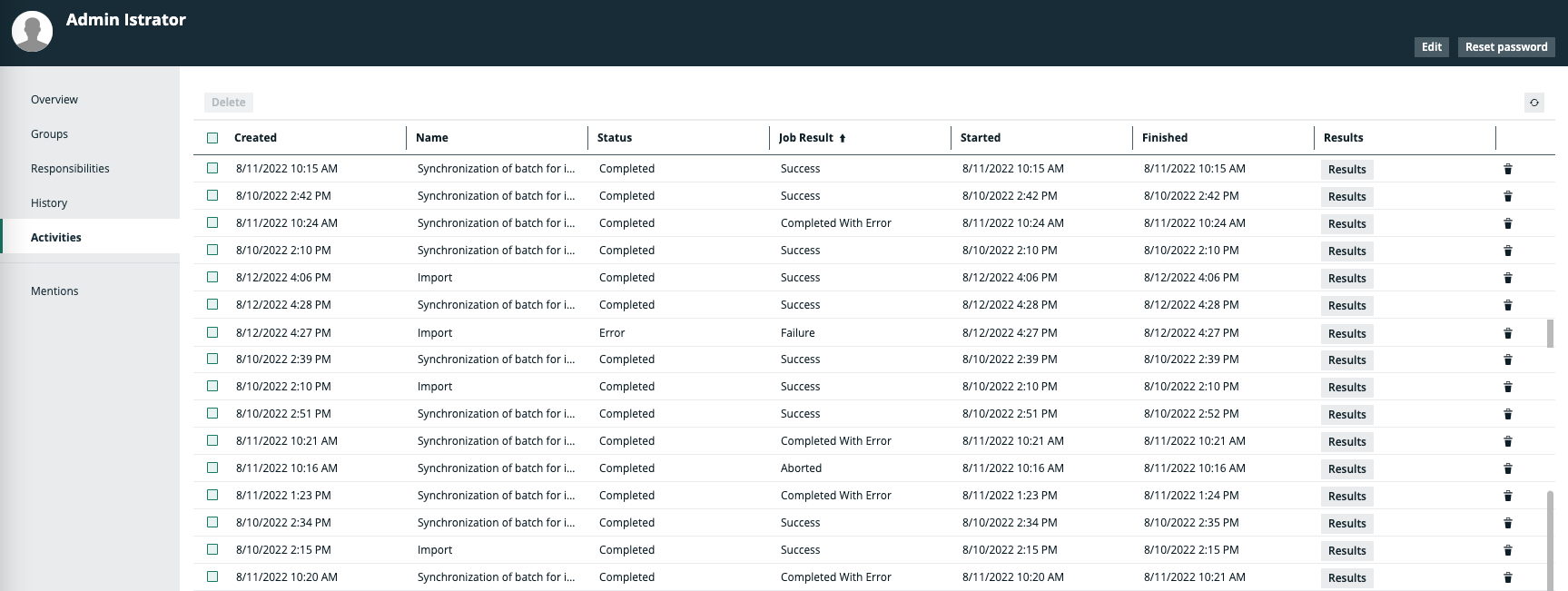
| Synchronization of a data source fails completely or with some errors. |
A synchronization job that is completed without any errors has the Success status. Other possible statuses, Completed With Error, Aborted and Failure, are determined in part by the value of the "Number of failed commands before stopping import job" setting, in Collibra Console. For complete information, see Synchronization: Continue on error option. You can view the results of a synchronization job in the Activities list.
In the Activities list, click Results in the relevant row to view the details of a synchronization job. The details are intended to help you resolve the errors. To help reduce the chance of an aborted synchronization job, consider increasing the value of the "Number of failed commands before stopping import job" setting. |
| The technical lineage viewer does not show the technical lineage. |
If a technical lineage graph does not show up, change the technical lineage graph details on the tool bar to Objects.
For more information, go to Technical lineage viewer. |

Testing connectivity
You can check whether the lineage harvester can connect to the Collibra Data Lineage service instance and Data Catalog.
- Run the lineage harvester in command line.
- Run the following command:
test-connection.
The result shows if the lineage harvester can connect to the Collibra Data Lineage service instance and Data Catalog.
The logs will also show the IP addresses of the Collibra Data Lineage service instances that you have to allow.
Password errors
If you mistyped the password or want to change an existing password, go to the lineage harvester folder > config/pwd.conf and delete the lines below. As a result, the lineage harvester will ask for the password again.
Tip If you have the lineage harvester version 1.3.0 or newer, you can also provide your passwords via stdin or a password manager.
{
	"url" : "<URL>",
	"userName" : "<user>",
	"password" : "<password>"
}