Data import via API best practices
Recommendation
The Import API allows you to add, update or remove data, though not typically metadata, from your Collibra environment. The import API determines how to process each resource based on the content of the input file and the selected API method and parameters.
Impact
Ensures that your imports provide the right data for your purpose with the appropriate performance characteristics, avoiding timeouts and interference with other running processes.
Best Practice Recommendations
The Import API supports the following file formats:
- The Import API supports the following file formats:
- CSV, preferred for manual, user interface-driven imports.
- Excel.
- JSON , preferred for automated, batch imports, typically for more advanced users.
- An additional parameter is required to run the import operation on tabular formats, such as CSV and Excel, to indicate how the Import API interprets the columns in the file. For example, it allows you to specify that the second column contains the name of the imported assets and the third column refers to the domain that should be used as a target for the imported assets.
- JSON, by contrast, avoids the requirement for this parameter and maintains the relationships between objects. It offers the optimum combination of file size and flexibility for both scale and performance.
- In establishing your imports, be sure to consider whether they are one-time imports or will be scheduled for periodic refreshing so that you can structure them appropriately and leverage the appropriate Import API option, for example with synchronization API or external identifiers.
Because of the nature of tabular formats (CSV, Excel), an additional parameter is required to run the import operation on these input file types to indicate how the columns in the file should be understood by the Import API. It allows you to specify, for example, that the second column contains information about the names of the assets that should be imported, the third one refers to the domain that should be used as a target for imported assets, and so on.
JSON, by contrast, avoids the requirement for this parameter as well as maintaining relationships between objects. It offers the optimum combination of file size and flexibility for both scale and performance.
In establishing your imports, be sure to consider whether they are one-time imports or will be scheduled for periodic refreshing so that you can structure them appropriately and leverage the appropriate import API option, for example with synchronization API or the external identifiers.
Authentication
You must be authenticated to access the APIs for all import operations. Available methods include BasicAuth and JWT, which is recommended as it is more secure.
Validation Criteria
You can monitor imports from the Collibra Settings page under Activitiesby searching for activities with the name “import.” For more advanced monitoring, you can use the Job API and Collibra Console. Set up your logging by following the Logging best practices.
Postman Collection
You can use the Postman collection to test out the API examples and tutorials. Note that another client can work just as well, but for this exercise we are using Postman. After installation, follow the example instructions below:
- In Postman, select File > Import and upload the file Import API.postman_collection.json.
You should now see an Import API entry under Collections.
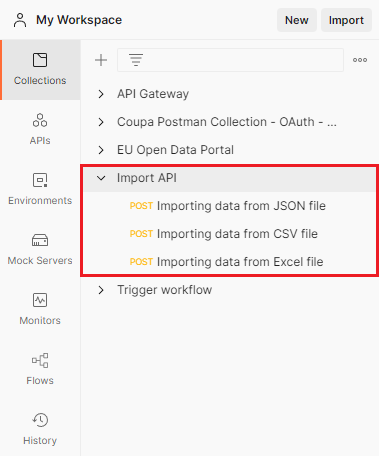
- Select the Import API collection and fill in the current value of the following variables:
- dgc_url: the base URL of your Collibra environment.
- rest_endpoint: should be /rest/2.0.
- username: the username of your account.
- password: the password of your account.
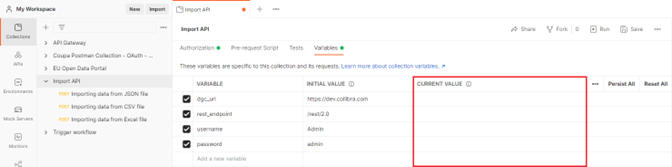
- Save your changes and then select a use case from input file examples. For each example you will see there are two .json files, one .csv and one .xlsx. These files have the same content but use different API endpoints. For the steps below, we have selected the Add community, domain, asset with responsibilities example.
- In the Postman collection, select your desired endpoint:
- CSV
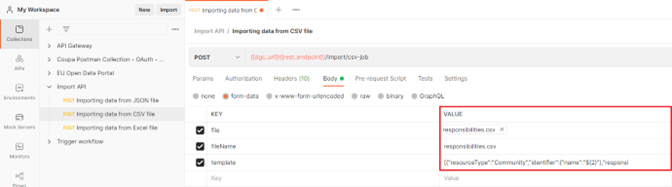
- Select Importing data from CSV file.
- Select Body, and then provide the required form-data for the chosen example:
- file: the CSV file.
- filename: the name of the CSV file.
- template: the content of the JSON file called example-template.json.
- Excel
- Select Importing data from Excel file.
- Select Body, and then provide the required form-data for the chosen example:
- file: the XLSX file.
- filename: the name of the XLSX file.

- JSON
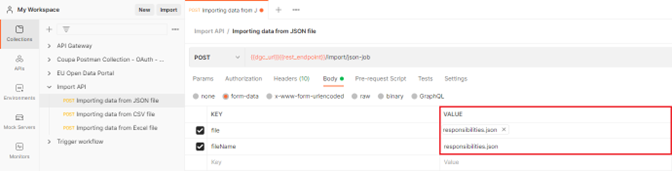
- Select Importing data from JSON file.
- Select Body, and then provide the required form-data for the chosen example:
- file: the JSON file that does not have "-template" in its name.
- filename: the name of the JSON file.
- CSV
- In Postman, click Send and check the response. The status should be 200 - OK and contain the details of the import job.
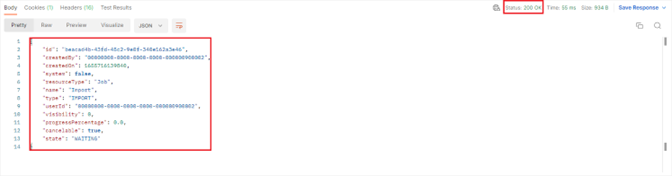
- In Collibra, log in with the username and password you used in Postman and then click the Activities tab.
You should see the details of the import job such as its status, when it started, finished and the results.

Things to note
- The input file format has no impact on the performance of the operation.
- Using the finalization strategy affects performance when there are over 1,000 assets.
- Enabling or disabling hyperlinks has no impact on the import operation in the latest releases.
Additional Information
For more information, go to the following resources:
- See the Collibra Documentation Center for more information on diagnostic files.
- See the Collibra Documentation Center for more information on how to navigate Activities.
- See the Import API documentation in the Developer Portal.
- There are additional API examples and tutorials in our public GitHub repository.