Migrating schemas from Jobserver to Edge
When you migrate from Jobserver to Edge, Collibra allows you to migrate Schema assets that were registered via Jobserver to Edge.
For more information on Edge, go to About Edge.
After the migration of a Schema asset from Jobserver to Edge:
- You can synchronize, profile and classify the migrated Schema asset and the related Table and Column assets via Edge.
- The migrated Schema asset and the related Table and Column assets receive a new full name based on the Edge naming conventions.
- The existing assets remain available.
Existing assets that are missing from the data source receive the "Missing from source" status. - If you selected another target domain than the existing location for a Schema asset, the existing assets are moved to the new location.
- Any Table assets with the View table type are changed into Database View assets.
- New assets can be available if new objects were added to the data source.
Migration overview
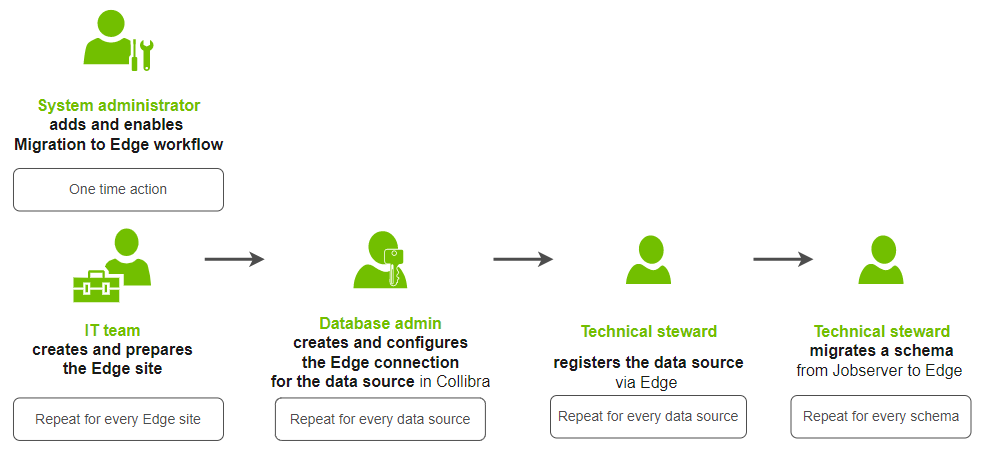
The following image illustrates the high-level steps of each user and the frequency these steps need to be performed to migrate your Schema assets from Jobserver to Edge.
Before you begin
- The Migrate Schema to Edge workflow has been enabled in your environment.
- An Edge site has been installed.
- An Edge connection has been created for the data source and the following capabilities have been added:
Steps
| Step | Description | Result |
|---|---|---|
| 1 | For every data source: Register the data source via Edge. | A new Database asset is available in Collibra for the data source. |
| 2 |
For each schema that you want to migrate from Jobserver to Edge for the data source, migrate the existing Schema asset. |
Depending on the workflow configuration, tasks guide you through the migration. You need to migrate the schema, synchronize it and remove the original Jobserver configuration from the schema. |