Prepare the data source files for IBM DataStage, Informatica PowerCenter and SQL Server Integration Services
If you want to create a technical lineage for data sources such as IBM InfoSphere DataStage, Informatica PowerCenter or SQL Server Integration Services (SSIS), or if you want to create a custom technical lineage, you must prepare the data source files and store the source files in the folder that you created when you created the shared storage connection.
Select an external directory:
Prerequisites
- You have IBM InfoSphere Information Server version 11.5 or newer.
- You have Informatica PowerCenter version 9.6 or newer.
- You have SQL Server Integration Services 2012 or newer with package format version 6 or newer.
- You have Microsoft Visual Studio version 2012 or newer.
- You have created a shared storage connection.
Steps
-
Export the Informatica objects or repository for which you want to create a technical lineage to the shared storage connection folder.
Manually exporting Informatica objects in Informatica PowerCenter 10.0.0.- Open Informatica PowerCenter Repository Manager.
- Connect to your Informatica repository.
- In the navigation panel, navigate to the workflow that contains the Informatica objects that you want to export.
- Right-click on the workflow and click Dependencies.
- In the Dependencies dialog box, do the following:
- Select Primary/Foreign Key dependencies.
- Select Global Shortcut dependencies.
- In the Object Types selector, select all object types except User-Defined.
- Click OK.
The Dependencies dialog box closes.
A dialog box with all Informatica objects appears. - Select all objects.
- In the toolbar, click
 (Export to XML).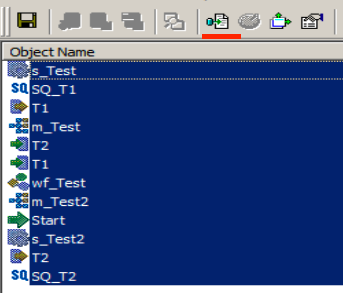
- Save the resulting XML files in your local folder.
Exporting Informatica repository objects in Informatica PowerCenter via command line.- In the Informatica PowerCenter Client or PowerCenter Services bin directories, open pmrep.
- Export Informatica PowerCenter repository objects.
Note Make sure that you export the same Informatica PowerCenter repository objects as during a manual export.
- Save the resulting XML files in your local folder.
Note- All XML and parameter files, for example PAR, TXT or PRM files in this folder and its subfolders are taken into account when you create a technical lineage, but Collibra Data Lineage only shows a technical lineage for workflows that have mappings with sources, transformations and targets. Collibrasupports the most common Informatica PowerCenter transformations. For more information, see the Informatica PowerCenter documentation.
- A technical lineage is created when the following tags are present in your XML file:
- <REPOSITORY>
- <FOLDER>
- <SOURCE> / <TARGET>
- <SESSION>
- <MAPPING>
- <TRANSFORMATION> (within a <MAPPING> tag)
- Put your parameter files in the shared storage connection folder.
-
Export the SSIS files for which you want to create a technical lineage.
Tip You can export them directly from the SQL Server Integration Services repository or via Microsoft Visual Studio. For more information, see the SQL Server Integration Services documentation. -
Store the SSIS files to
- SSIS package files (DTSX), containing the SQL Server Integration Services source code.
- Connection manager files (CONMGR), containing environment and connection information.
- Parameter files (PARAMS), if applicable.
Note- All files in this folder and subfolders are taken into account when you create a technical lineage.
- Not all SSIS files are processed and shown in the technical lineage.
-
Export the DataStage project files (DSX) for which you want to create a technical lineage.
-
Store the DataStage files in your shared storage connection folder.
-
Optionally, if your DataStage project uses environment variables, manually export the environment files (ENV).
-
Give the environment files the same name as the DataStage project files. For example, if your project file is named datastage-project-1.dmx, you have you name your environment file datastage-project-1.env.
-
Store the environment files in the same shared storage connection folder.
Important- Collibra Data Lineage only supports DSX and ENV files.
- You can have one DSX file per DataStage project.
- You can have one or none ENV file per DSX file.
- The name of the DSX file and the ENV file has to be the same.