Understanding the data in the Visitors section
This topic describes the data that appears when you click a card in the Visitors section.
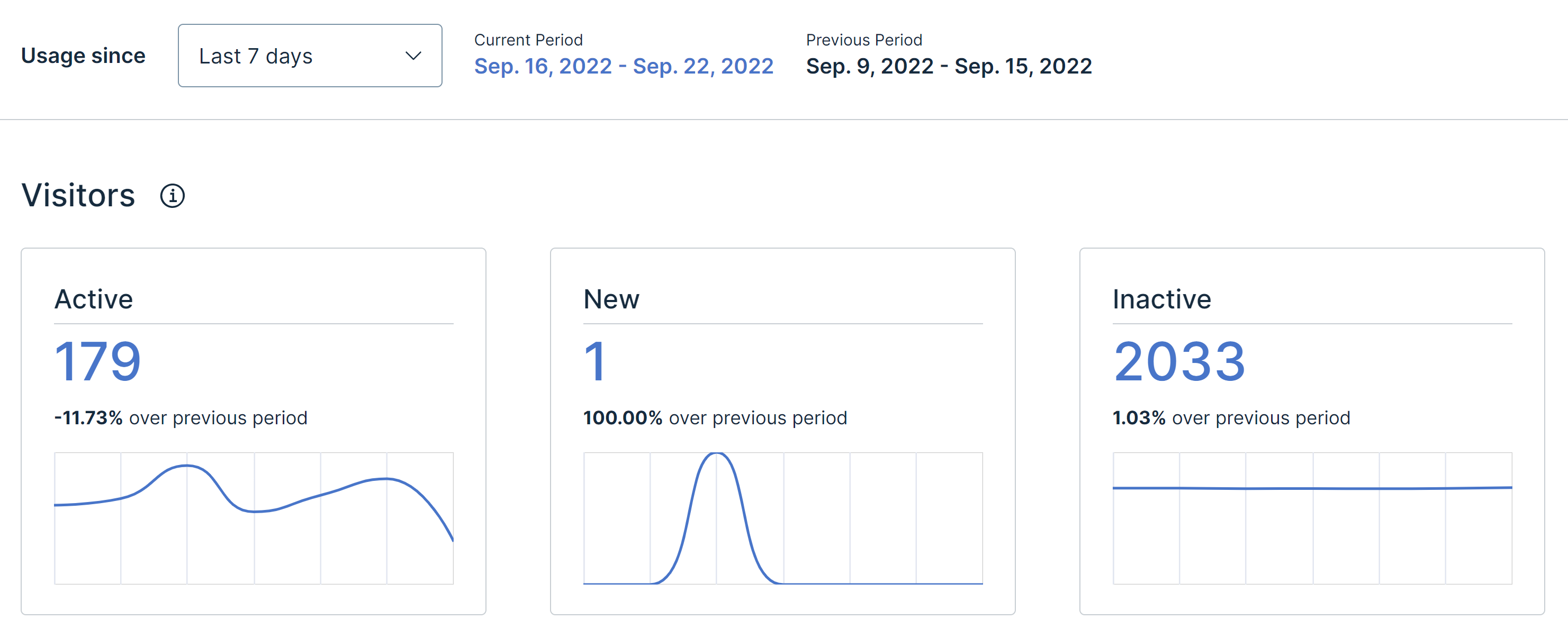
Select the card whose data you want to understand:
Active
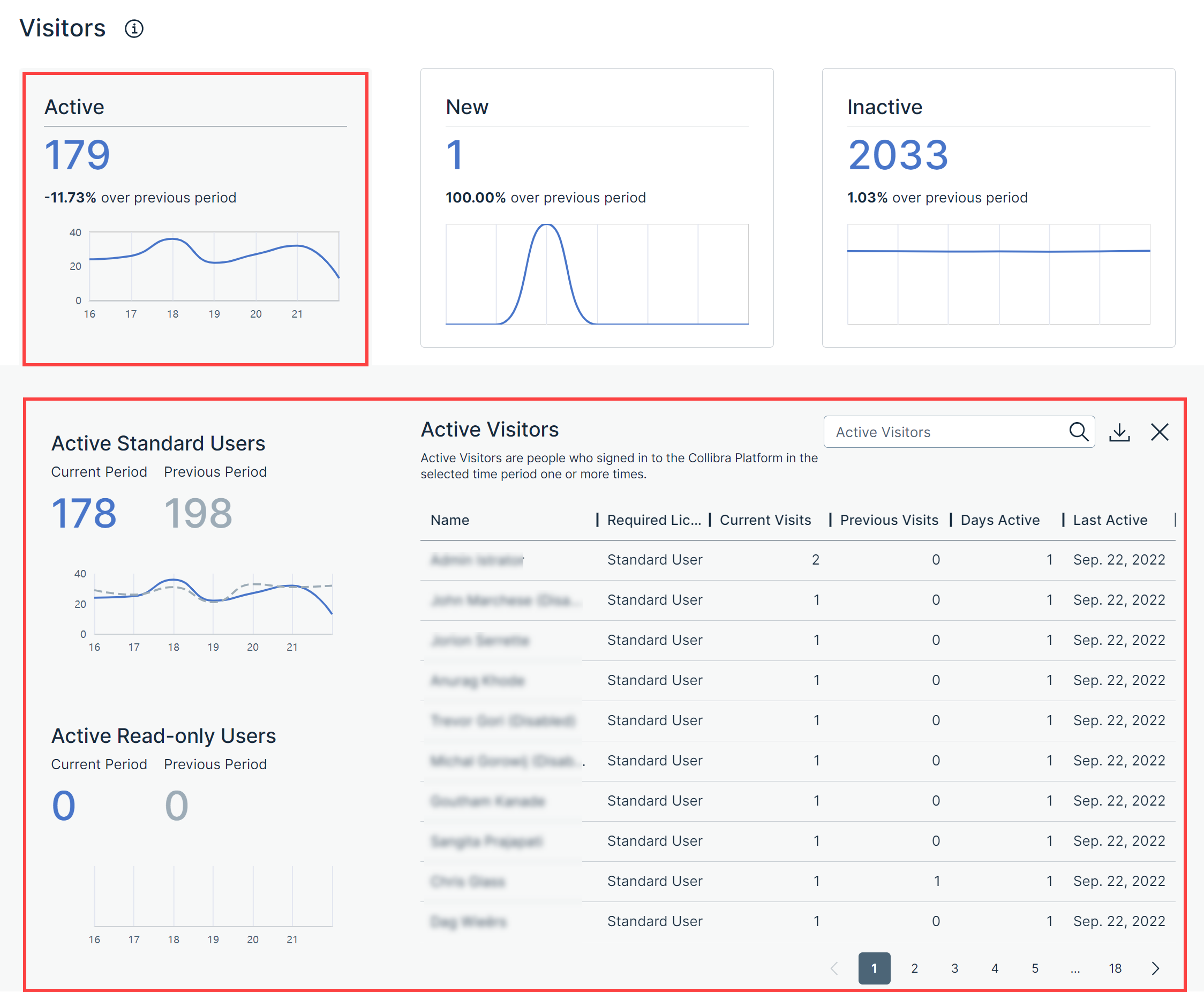
Depending on your permission, when you click the card, the following subsections appear:
- Active Standard Users: The number and evolution of
- Active Read-only Users: The number and evolution of
- Active Visitors: The names and other attributes, such as the required license and the number of
Tip On the
What the number and text on the Active card indicates
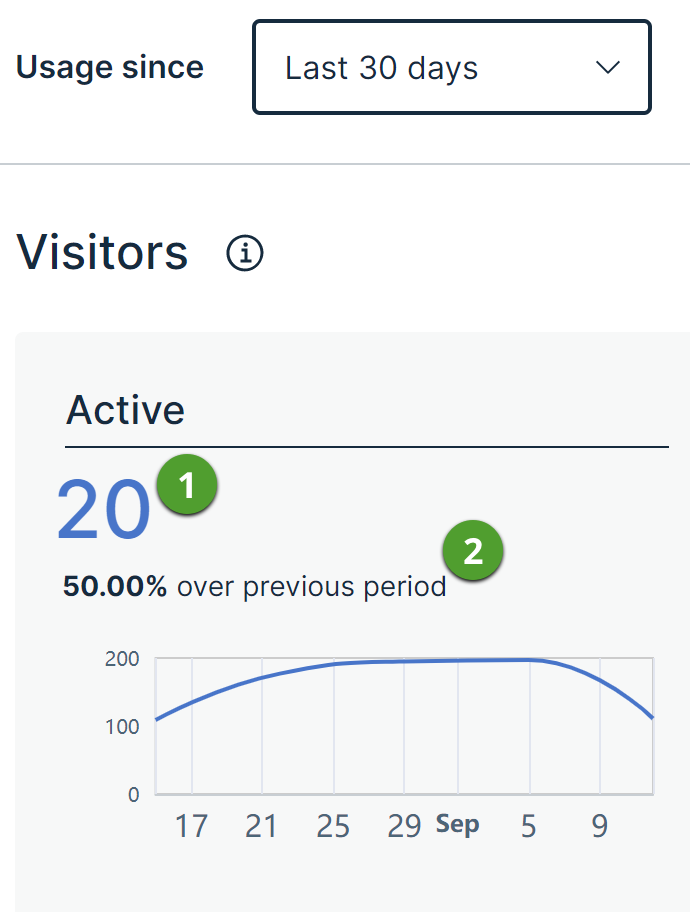
The following table describes what the number and the text on the Active card indicates.
| No. | Description |
|---|---|
|
|
The number on the Active card considers all users who signed in to Collibra in the current period. These include not only standard and read-only visitors but also visitors whose profiles were deleted in the meantime. Suppose that the number on the Active card is 20, the number on the Active Standard Users is 10, and the number on the Active Read-only Users card is 8. This indicates that the remaining two users are deleted. |
|
|
The text on the Active card indicates the approximate percentage of Suppose that for a period of 30 days, the number on the Active card is 20 and the text on the Active card is 50.00% over previous period. The text means that there is approximately a 50% increase in the number of |


Understanding the data in the Active Visitors subsection
The following table describes the columns that are available in the Active Visitors subsection, including hidden columns and columns that appear only in the downloaded version of the subsection.
Note Columns that are shown only in the downloaded version of the subsection are indicated by (*) next to them in the following table.
| Column | Description |
|---|---|
| Name | The name of the visitor. |
| User Name | The username of the visitor. Note This column is hidden by default. For information about how to show a column, go to Customize a table. |
| User ID (*) | The user ID of the visitor. |
| Required License | The license that the visitor requires for the assigned roles and responsibilities. Note If this data is unavailable, - is shown in the column. |
| Effective License | The actual license that the visitor is assigned. If this data is unavailable, - is shown in the column. Note This column is hidden by default. For information about how to show a column, go to Customize a table. |
| Participated in workflows |
Note This column is hidden by default. For information about how to show a column, go to Customize a table. |
| Current Visits | The number of times that the visitor signed in to Collibra in the current period. |
| Previous Visits | The number of times that the visitor signed in to Collibra in the previous period. |
| Days Active | The number of days that the visitor signed in to Collibra. |
| Last Active | The UTC (Coordinated Universal Time) date when the visitor last signed in to Collibra. Tip In the downloaded file, this column additionally shows the time in milliseconds. |
| Deleted User Flag (*) |
|
| Disabled User Flag (*) |
|
| Is New in Period (*) |
|
New
Suppose that the current period is October 1, 2022-October 7, 2022 and the previous period is September 24, 2022-September 30, 2022. Consider a user named Jane who signed in to Collibra before the previous period (for example, on September 20th) but did not sign in to Collibra in the previous period. If Jane signs in to Collibra in the current period, Jane is considered a new user because she was inactive in the previous period.
Depending on your permission, when you click the card, the following subsections appear:
- New Standard Users: The number and evolution of
- New Read-only Users: The number and evolution of
- New Visitors: The names and other attributes, such as the required license and the number of
Tip On the
What the number and text on the New card indicates
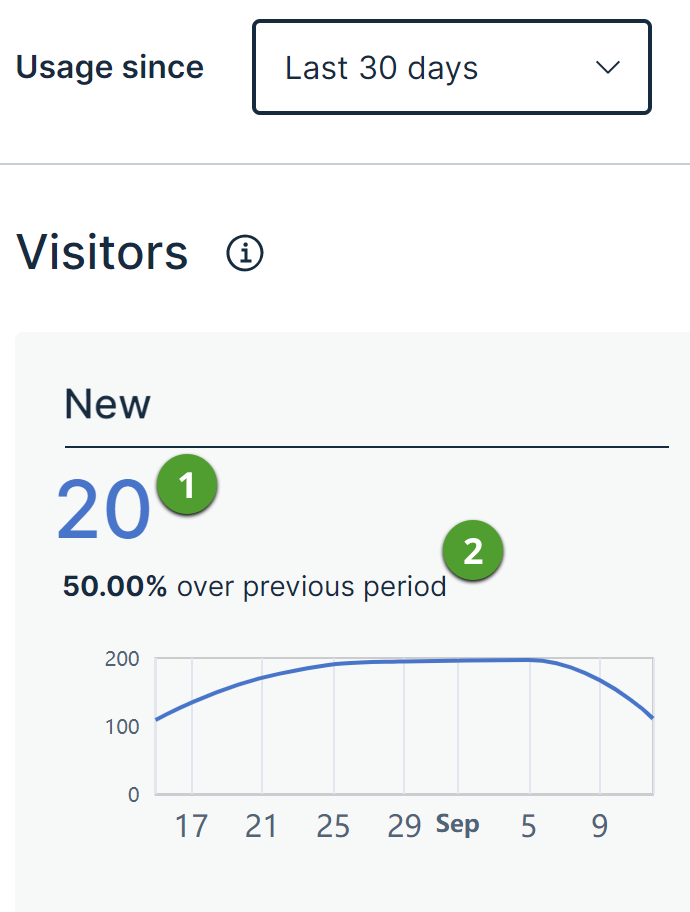
The following table describes what the number and the text on the New card indicates.
| No. | Description |
|---|---|
|
|
The number on the New card considers all users who signed in to Collibra in the current period. These include not only standard and read-only visitors but also visitors whose profiles were deleted in the meantime. Suppose that the number on the New card is 20, the number on the New Standard Users is 10, and the number on the New Read-only Users card is 8. This indicates that the remaining two users are deleted. |
|
|
The text on the New card indicates the approximate percentage of Suppose that for a period of 30 days, the number on the New card is 20 and the text on the New card is 50.00% over previous period. The text means that there is approximately a 50% increase in the number of |
Understanding the data in the New Visitors subsection
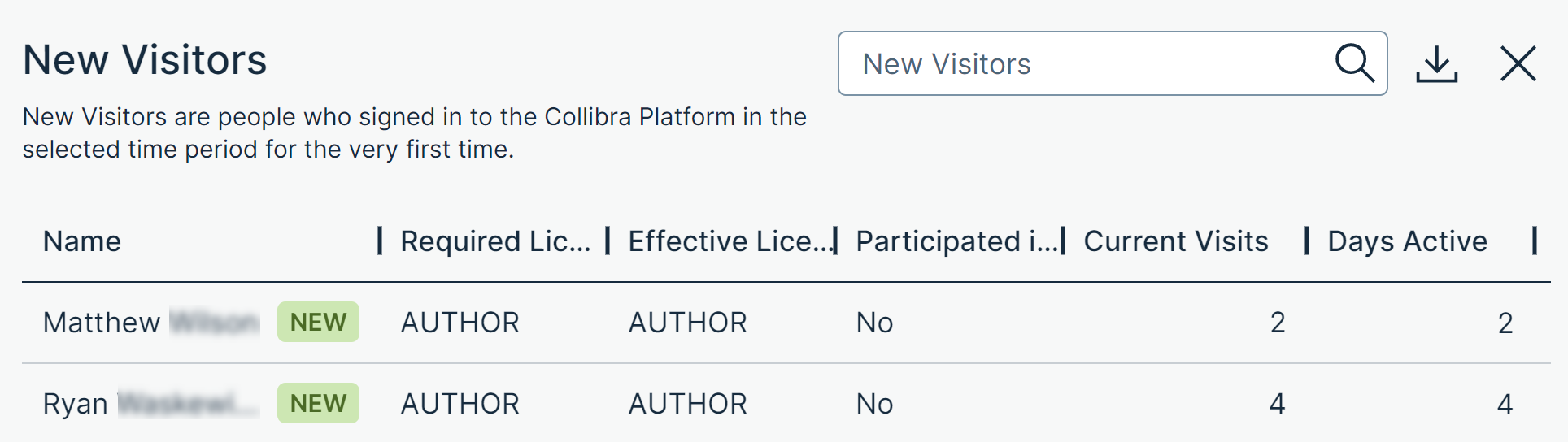
The following table describes the columns that are available in the New Visitors subsection, including hidden columns and columns that appear only in the downloaded version of the subsection.
In the New Visitors subsection, users who signed in to Collibra for the first time since the time that the Usage Analytics dashboard was enabled are identified by the label NEW .
Note Columns that are shown only in the downloaded version of the subsection are indicated by (*) next to them in the following table.
| Column | Description |
|---|---|
| Name | The name of the visitor. |
| User Name | The username of the visitor. Note This column is hidden by default. For information about how to show a column, go to Customize a table. |
| User ID (*) | The user ID of the visitor. |
| Required License | The license that the visitor requires for the assigned roles and responsibilities. Note If this data is unavailable, - is shown in the column. |
| Effective License | The actual license that the visitor is assigned. If this data is unavailable, - is shown in the column. Note This column is hidden by default. For information about how to show a column, go to Customize a table. |
| Participated in workflows |
Note This column is hidden by default. For information about how to show a column, go to Customize a table. |
| Current Visits | The number of times that the visitor signed in to Collibra in the current period. |
| Days Active | The number of days that the visitor signed in to Collibra. |
| First Active | The date when the visitors first signed in to Collibra, represented in Coordinated Universal Time (UTC). Tip In the downloaded file, this column additionally shows the time in milliseconds. |
| Last Active | The UTC (Coordinated Universal Time) date when the visitor last signed in to Collibra. Tip In the downloaded file, this column additionally shows the time in milliseconds. |
| Deleted User Flag (*) |
|
| Disabled User Flag (*) |
|
| Is New in Period (*) |
|
Inactive
Depending on your permission, when you click the card, the following subsections appear:
- Inactive Standard Users: The number and evolution of
- Inactive Read-only Users: The number and evolution of
- Inactive Visitors: The names and other attributes, such as the required license and the number of
Tip On the
What the number and text on the Inactive card indicates
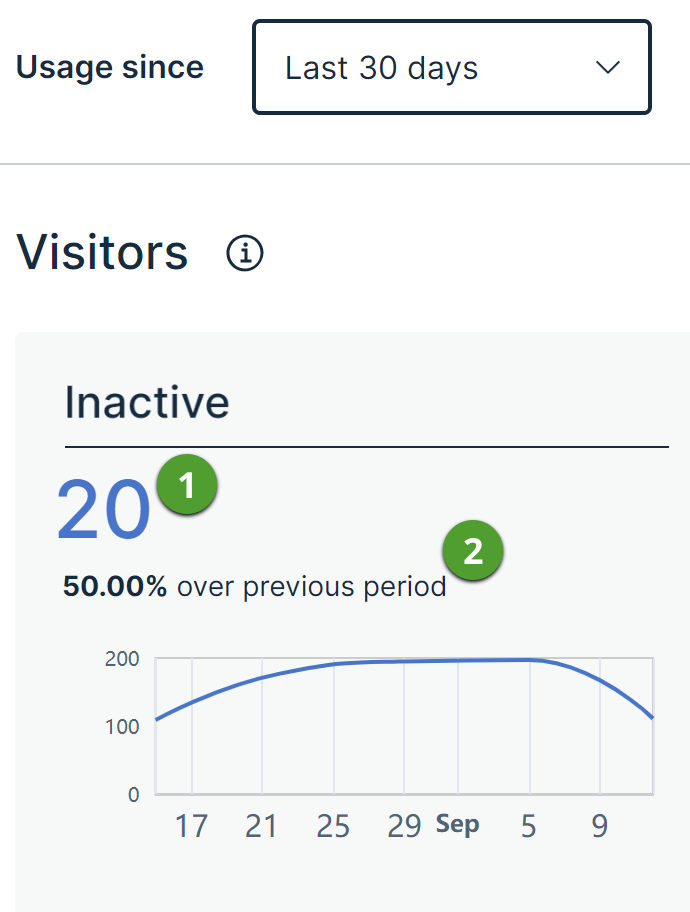
The following table describes what the number and the text on the Inactive card indicates.
| No. | Description |
|---|---|
|
|
The number on the Inactive card considers all users who signed in to Collibra in the current period. These include not only standard and read-only visitors but also visitors whose profiles were deleted in the meantime. Suppose that the number on the Inactive card is 20, the number on the Inactive Standard Users is 10, and the number on the Inactive Read-only Users card is 8. This indicates that the remaining two users are deleted. |
|
|
The text on the Inactive card indicates the approximate percentage of Suppose that for a period of 30 days, the number on the Inactive card is 20 and the text on the Inactive card is 50.00% over previous period. The text means that there is approximately a 50% increase in the number of |
Understanding the data in the Inactive Visitors subsection
The following table describes the columns that are available in the Inactive Visitors subsection, including hidden columns and columns that appear only in the downloaded version of the subsection.
Note Columns that are shown only in the downloaded version of the subsection are indicated by (*) next to them in the following table.
| Column | Description |
|---|---|
| Name | The name of the visitor. |
| User Name | The username of the visitor. Note This column is hidden by default. For information about how to show a column, go to Customize a table. |
| User ID (*) | The user ID of the visitor. |
| Required License | The license that the visitor requires for the assigned roles and responsibilities. Note If this data is unavailable, - is shown in the column. |
| Effective License | The actual license that the visitor is assigned. If this data is unavailable, - is shown in the column. Note This column is hidden by default. For information about how to show a column, go to Customize a table. |
| Participated in workflows |
Note This column is hidden by default. For information about how to show a column, go to Customize a table. |
| Previous Visits | The number of times that the visitor signed in to Collibra in the previous period. |
| Last Active | The UTC (Coordinated Universal Time) date when the visitor last signed in to Collibra. Tip In the downloaded file, this column additionally shows the time in milliseconds. |
| Deleted User Flag (*) |
|
| Disabled User Flag (*) |
|
| Is New in Period (*) |
|