Searching in fields
When you perform a search, by default, the search engine searches for your text in all the fields. On the Search page, you can then select certain fields to reduce the scope of the search to only those selected fields. Conversely, if you apply a search filter for which certain fields have been selected, you can clear one or all of the selected fields to expand the scope of the search.
You can select and clear fields via the Search in fields dialog box.
In the following example, 6 of the 547 available fields have been selected. 37 fields have been loaded in the dialog box. If you scroll through the list of fields, more fields are loaded and the count is updated.
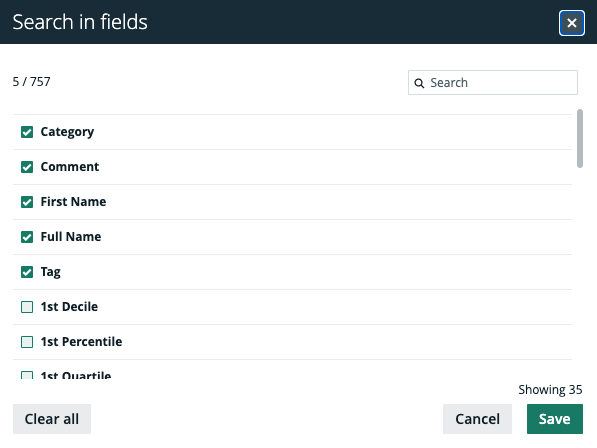
Tip When you scroll to show more fields, all attributes are shown first, in alphabetical order. Properties such as Name, Comment, and Tag are shown at the end of the list. Instead of scrolling through numerous fields, you can use the Search field in the dialog box to find specific attributes and properties.
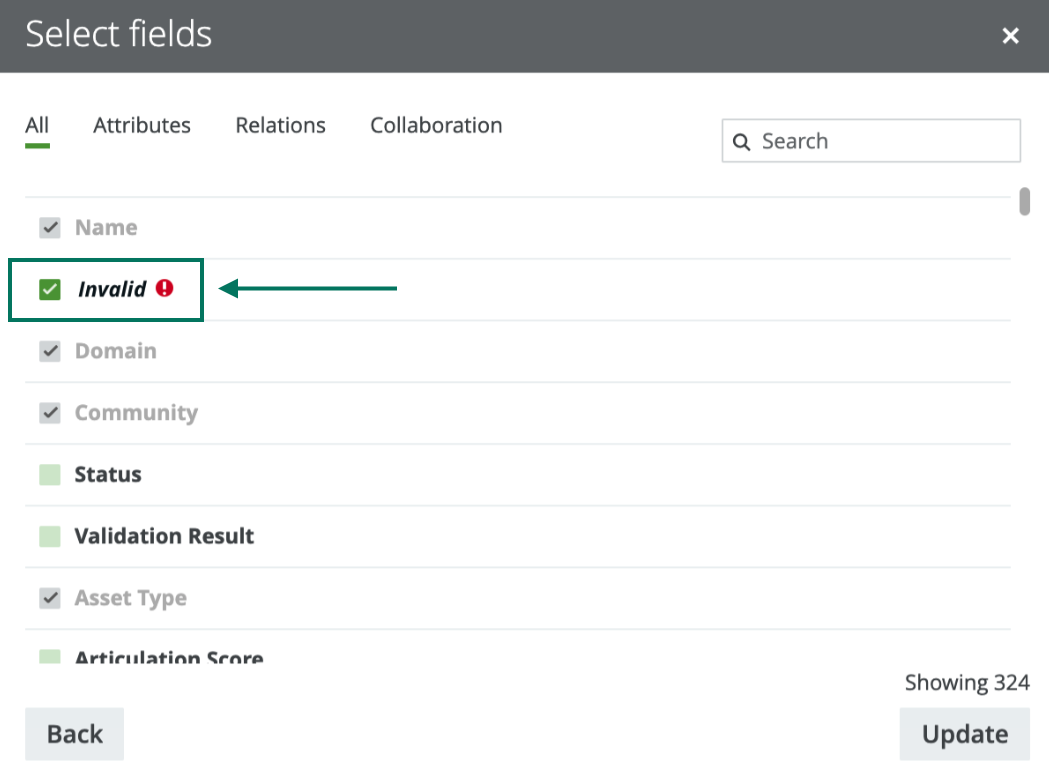
Note It is possible that you or another user created a search filter that includes a field or facet that no longer exists in your Collibra Data Intelligence Cloud environment. In this case, the invalid field or facet is highlighted, as shown in the following image, so that you can easily identify it and delete it from the search filter. Invalid fields and facets are ignored during search queries.