Modify a data access rule
Requirements and permissions
- You have the Protect Author or Protect Admin global role.Note If you have the Protect Author global role, you can modify only the
- You have the Catalog global role. This role is required to view data classifications for selection in a
- You have the permissions to view the assets that are associated with the
Steps
- Open Protect.
- In the table, in the row containing the
 .
The Edit a Data Access Rule dialog box appears.
.
The Edit a Data Access Rule dialog box appears. -
Details
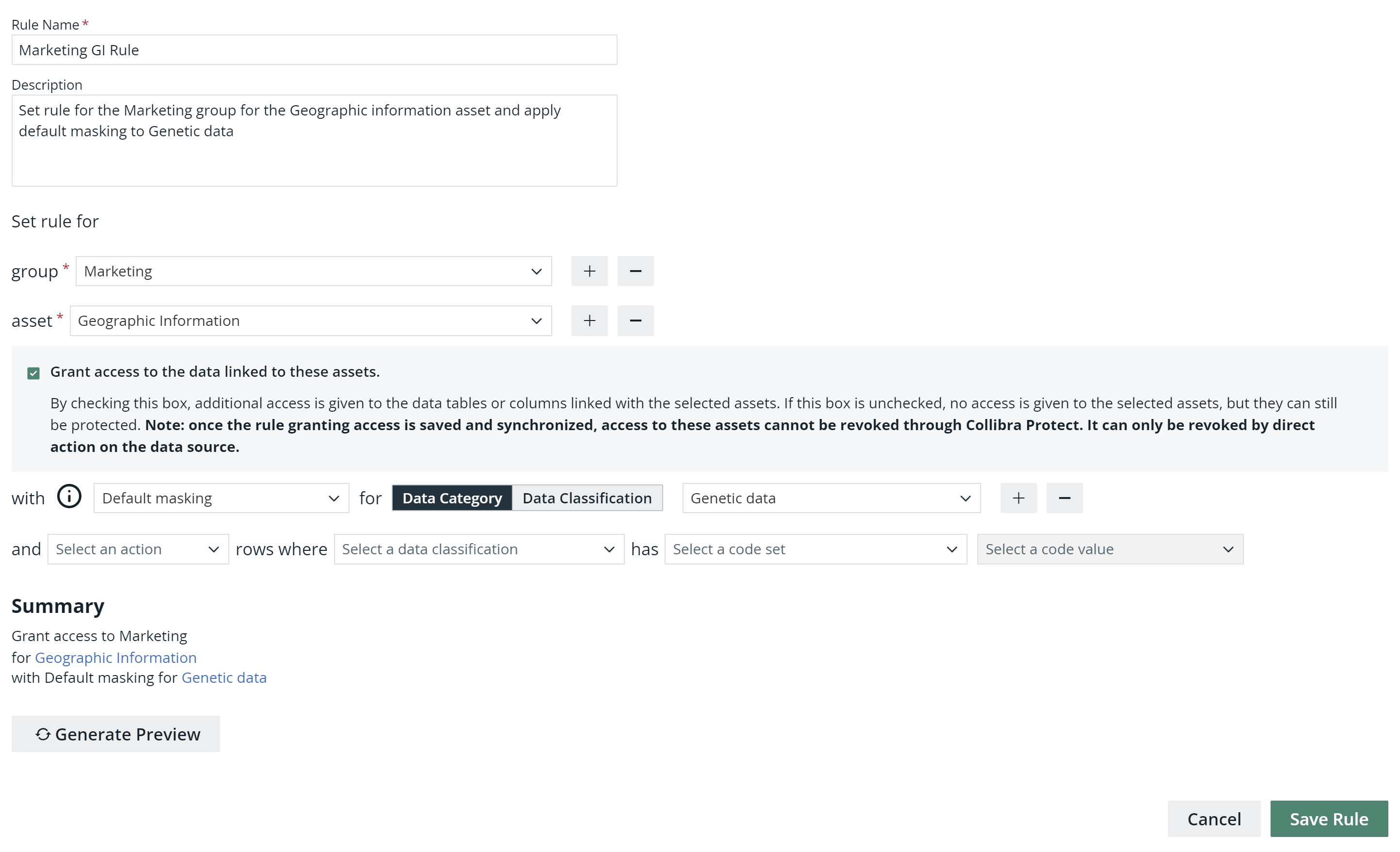
Field Description Enter a name for the Optional: Description Enter a description for the Group Select the group for the Tip You can add more groups by using the plus icon.Asset Select the data asset that the rule is protecting.
Tip- This field contains Business Process, Data Category, and Data Set assets, in addition to assets of custom asset types.
- For more information, go to Technical background and Prescriptive paths.
- You can add more groups by using the plus icon.
Optional: With (masking option) - Select the type of masking that you want to apply to a data category or data classification.
Tip This field contains the following options:
- Default masking
- Hashing
- Show last
- No masking
- Click Data Category or Data Classification, and then select the data category or data classification for the selected masking option.
Tip You can add more data categories and data classifications for masking by using the plus icon.Optional: And (action)
- Select the type of row-filtering action that you want to apply to a data classification with a specific code set and code value.
- Show
- Hide
- In the rows where field, select the data classification that you want to show or hide.
- In the has field, select the code set for the selected data classification.
- In the next field, select the code value for the selected code set.
Tip This field contains the following options:Tip You can add more data classifications for row-filtering by using the plus icon.Tip- A selected Grant access to the data linked to these assets checkbox indicates that you are granting access to the tables and the columns in the database that are linked to the selected assets to the groups that you selected in the rule. If you do not want to grant this level of access to the selected groups, clear the checkbox.
- The Summary section shows a summary of the
-
To preview the rule, click Generate Preview.Tip The preview shows only the first 1,000 affected columns. The drop-down list box below the Generate Preview button is used to switch between the assets that you selected in the rule. Each asset has its own preview table.
- Click Save Rule.
A message appears stating that the rule is sent to source, and the rule is shown in the table on the Data Access Rules tab.