Prepare the lineage harvester configuration file for SSRS and PBRS integration
You have to prepare a configuration file before you run the lineage harvester. The lineage harvester collects your SQL Server Reporting Services (SSRS) and Power BI Report Server (PBRS) metadata and sends it to Collibra Data Intelligence Cloud, where it is processed and analyzed. Collibra then imports the SSRS and PBRS assets and relations to Data Catalog.
Tip We recommend that you use the configuration file generator to make sure your configuration file is valid.
Before you begin
- Set up the latest lineage harvester.
- Prepare a domain in Data Catalog.
- Prepare a SSRS and PBRS <source ID> configuration file, if necessary.
Requirements and permissions
-
A role with user access to the server from which you want to ingest:
- A system-level role, which is at least a System user role.
- An item-level role, which is at least a Content Manager role.
- Collibra Data Intelligence Cloud.
- A global role with the following global permissions:
- Manage all resources
- System administration
- Technical lineage
- A resource role with the following resource permission on the community level in which you created the BI Data Catalog domain:
- Asset: add
- Attribute: add
- Domain: add
- Attachment: add
Steps
- Start the lineage harvester to create an empty lineage harvester configuration file by entering the following command:
- Windows:
.\bin\lineage-harvester.bat
- For other operating systems:
chmod +x bin/lineage-harvesterand thenbin/lineage-harvester
An empty configuration file is created in the config folder.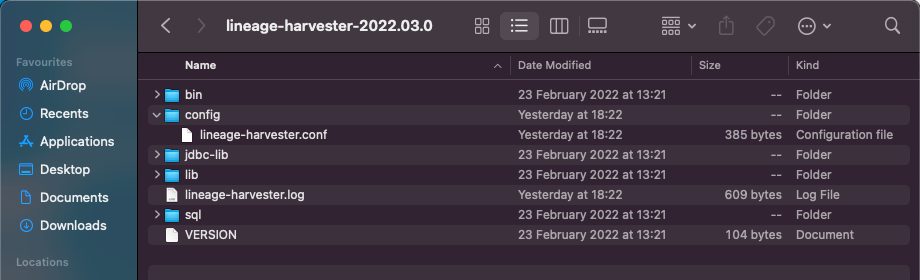
- Windows:
- Open the lineage-harvester.conf file and enter the values for each property.
Properties Description general This section describes the connection information between the lineage harvester and Data Catalog.
catalogThis section contains information that is necessary to connect to Data Catalog.
urlThe URL of your Collibra Data Intelligence Cloud environment.
Note You can only enter the public URL of your Collibra Data Intelligence Cloud environment. Other URLs will not be accepted.
usernameThe username that you use to sign in to Collibra.
useCollibraSystemNameIndication whether you want to use the system or server name of a data source to match to the System asset you created when you prepared the physical data layer. This is useful when you have multiple databases with the same name.
By default, the
useCollibraSystemNameproperty is set tofalse. If you want to use it, set it totrue.Important- If you set this property to
true, the lineage harvester reads the value of thecollibraSystemNameproperty in your SSRS-PBRS <source-ID> configuration file. - If you set the
useCollibraSystemNameproperty tofalse, the lineage harvester ignores thecollibraSystemNameproperty in the <source-ID> configuration file.
sources This section contains all
SSRS connection properties.idThe unique ID to identify the
Tip This value can be anything as long as it is a unique. The lineage harvester uses the ID to identify a batch of data on the Collibra Data Lineage service.
Warning In the
sourcessection of your lineage harvester configuration file, you can only specify oneidproperty peridproperties for a singleidproperties in the configuration file, it means you intend to ingest from multiple uniquetypeThe kind of data source. In this case, the value has to be SSRS or PBIRS. Note There is no difference between type SSRS or PBIRS.
urlThe URL to the server's web portal. By default, the URL is http://<computer-name>/reports. For example, "http://1.23.45.678/PowerBIReports".
usernameThe username you use to sign in to the web portal.
Tip If you use NTLM authentication, your username also contains the NTLM domain name. For example
MyDomain\\username.domainIdThe unique ID of the domaindomain in Collibra Data Intelligence Cloud in which you want to ingest the
Finding the domain ID- Open the domain.
- Copy the domain ID.
Tip If you go to your domain, you can find the domain ID in the URL. The URL looks like: https://<yourcollibrainstance>/domain/22258f64-40b6-4b16-9c08-c95f8ec0da26?view=00000000-0000-0000-0000-000000040001. In this example, the domain ID is in bold.
folderFilterAn option to exclude specific folders that contain reports or KPIs from the ingestion process.
You can add multiple folders by listing folder names, providing the full path to folders or by using a wildcard:
- Use folder names when the folder name is unique: ["folder 1", "folder 2"]
- Use the full path to the folder to only ingest a specific folder: ["/database1/folder1", "/database2/folder2"]
- Use a wildcard to ingest all child folders or a specific folder: ["/folder1/*", "/folder2/*"]
You can also use a combination of these methods. For example, ["folder 1", "/database/folder2", /folder3/*"]
Important This property must be included in your configuration file and it cannot be empty. If you want to ingest all folders, use
*, for example:"folderFilter":["*"].Tip For more information about connecting to a SSRS or PBRS folder, see the Microsoft documentation.
deleteRawMetadataAfterProcessingThe lineage harvester harvests metadata from specified data sources and uploads it in a ZIP file to a Collibra Data Lineage service instance, for processing.
You can use this optional property to specify whether or not the raw metadata should be deleted after it has been processed.
The default value is
false.If the property is set to
true, the raw metadata is deleted after processing. If set tofalse, it is stored in an Amazon S3 bucket.Note- Setting this property to
truecan negatively impact performance. - This property is not yet supported by the technical lineage backend, so it can't be used yet. Backend support is coming soon.
- If you set this property to
- Save the configuration file.
- Start the lineage harvester again in the console and run the following command:
- for Windows:
.\bin\lineage-harvester.bat full-sync - for other operating systems:
./bin/lineage-harvester full-sync
- for Windows:
- When prompted, enter the passwords to connect to Collibra and SSRS. Do one of the following:
-
Enter the passwords in the console.The passwords are encrypted and stored in /config/pwd.conf.
- Provide the passwords via command line.The passwords are stored locally and not in your lineage harvester folder.
-
Enter the passwords in the console.
Example
{
 "general": {
   "catalog": {
     "url": "https://<organization>.collibra.com",
     "username": "<your-collibra-username>"
   },
   "useCollibraSystemName": false
 },
  "sources": {
    "id": "<unique-id>",
    "type": "SSRS",
    "url": "http://<IP address or computer name>/Reports",
    "username": "<server-api-user-name>",
    "domainId": "<domain-resource-id>",
    "folderFilter":  ["/Folder1/*", "Folder2"],
	"deleteRawMetadataAfterProcessing": true
  }
}
Note There is no difference between type SSRS or PBIRS.
Tip We highly recommend you to use the lineage harvester configuration file generator when you create a configuration file.
What's next?
The lineage harvester triggers Collibra to import SSRS and PBRS assets and their relations and create a technical lineage for SSRS assets.Collibra also stitches the new SSRS assets to existing assets in Data Catalog.
Note We can only access stitching and lineage information for SSRS assets, but not for Power BI reports in SSRS and PBRS.
If issues occur during the ingestion process, check the Collibra Data Lineage troubleshooting section to solve your problems.
To synchronize the SSRS and PBRS metadata, you can run the lineage harvester again or schedule jobs to run them automatically.
Tip You can check the progress of the ingestion in Activities. The results field indicates how many relations were imported into Data Catalog.