About synchronizing schemas
Synchronizing schemas is the process of updating the metadata of a registered data source in Collibra Data Intelligence Cloud.
You can synchronize a schema manually or automatically at fixed intervals:
- Synchronize manually if you want to test the synchronization of your data source or if you want to synchronize immediately.
- Synchronize automatically if the content of the data source changes regularly.
Synchronization process
- After you registered a data source via Edge, Data Catalog connects to your Edge site to create a list of schemas from the registered database.
You can see the schema list on the Configuration tab page of the Database asset page. - You can refresh the schema list in the Configuration tab page, by clicking the
 Refresh List icon.
 - You can synchronize all schemas that have a table rule.
- During the synchronization process, the Edge site connects to your data source again and ingests all schemas, tables and columns according to the table rules. Collibra Data Intelligence Cloud also detects whether there are changes since the last synchronization of a schema.
Edge resolves the possible conflicts in the following way:
Change in data source Result in Collibra Required action A table, column or foreign key has been added to the schema. Collibra creates the assets. No action is required of you. A table, column or foreign key has been removed from the schema. The existing asset receives the Missing from source status.
If it concerns a table, also the related Column assets receive the Missing from source status.If needed, you can manually delete the assets. A schema has been removed. The schema receives the Missing from source status. Also the related Table and Column assets receive the Missing from source status. If needed, you can manually delete the Schema asset and all related assets. A column or foreign key has been renamed. - Collibra creates an asset with the new name.
- The existing asset receives the Missing from source status.
If needed, you can apply any manual changes you made to the original asset, to the new asset. And then remove the assets that are no longer applicable. A table has been renamed. - Collibra creates a Table asset with the new name. Collibra also creates new Column assets for the new Table asset.
- The existing Table and related Column assets receive the Missing from source status.
If needed, you can apply any manual changes you made to the original assets, to the new assets. And then remove the assets that are no longer applicable. A schema has been renamed. - Collibra creates a Schema asset with the new name. Collibra also creates new Table and Column assets for the new Schema asset.
- The existing schema and related assets receive the Missing from source status.
If needed, you can apply any manual changes you made to the original assets, to the new assets. And then delete the assets that are no longer applicable. Schema, Table, Column or Foreign Key assets with the Missing from source status don't block the synchronization process.
Note In the asset diagram, assets with the Missing from source status are shown by default. If you don't want to see these assets, apply a filter to the diagram view to only display assets with valid statuses.
- If a schema is synchronized, you can see a check symbol (
 ) beside the schema name. If the synchronization of a schema failed or the schema is no longer available in the source, an exclamation mark (
 ) is shown instead.
You can also see the synchronization status in the Activities list.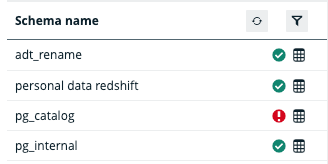
Table rules
The table rule determines which tables of a schema you synchronize in Data Catalog. Only schemas that have a table rule can be synchronized. If a schema has a table rule, you can see a table icon ( ) beside the schema name.

The following table shows fields of table rules:
| Table rule field | Description |
|---|---|
| Include |
A comma-separated list of the names of the tables you want to synchronize.
Example
|
| Exclude |
A comma-separated list of the names of the tables you do not want to synchronize.
You can use the Exclude table rule to do the following:
Example
|
| Target domain |
The Physical Data Dictionary domain in which the schema is synchronized. The default value is Schema domain: the metadata is placed in a domain located in the same community as the domain of your Database asset. If that domain doesn't exist yet, Data Catalog creates it. You can select any other Physical Data Dictionary domain for which you have a resource role with the Configure external system resource permission. |
| Options |
Additional options to specify which type of tables you want to synchronize. |
|
Skip database views
|
A checkbox to exclude database views from the synchronization process. If selected, no assets of the type Database view are created. Tip You can also use the table rules to include or exclude specific database views. |