Install the lineage harvester
Before you can use the lineage harvester, you have to download it and install it. You can download the lineage harvester from the Collibra Community downloads page.
Note We highly recommend that you always install and use the newest lineage harvester.
Where you choose to install the lineage harvester depends on the repository that the lineage harvester will access to harvest the metadata. You can install it either:
- On the MicroStrategy server, to access the local PostgreSQL or Microsoft SQL Server repository.
- Close to your data source, to access a remote PostgreSQL or Microsoft SQL Server repository.
- If you have a MicroStrategy on-premises environment, you can install the lineage harvester on a server that has access to the MicroStrategy server or on the MicroStrategy server itself.
- If you use MicroStrategy cloud:
- To connect to a remote PostgreSQL or Microsoft SQL Server repository, you have to install the lineage harvester where it can access the database.
- To access the local PostgreSQL or Microsoft SQL Server repository, you have to install the lineage harvester on the MicroStrategy server.
Install the lineage harvester on the MicroStrategy server
For local database access, only PostgreSQL and Microsoft SQL Server repositories are supported. The MicroStrategy Intelligence Server has an embedded PostgreSQL repository, as its default repository. For complete information, see the MicroStrategy repository documentation.
Prerequisites
- You have Collibra Data Intelligence Cloud 2021.07 or newer.
- You have MicroStrategy 2021 or newer.
- If you intend to access a Microsoft SQL Server repository, you need the Admin permission for the repository.
- You meet the minimum lineage harvester system requirements.
- Java Runtime Environment version 11 or newer or OpenJDK 11 or newer.
- You have added Firewall rules so that the lineage harvester can connect to:
- The host names of all databases in the lineage harvester configuration file.
- All Collibra Data Lineage service instances within your geographical location:
- 15.222.200.199 (techlin-aws-ca.collibra.com)
- 18.198.89.106 (techlin-aws-eu.collibra.com)
- 54.242.194.190 (techlin-aws-us.collibra.com)
- 51.105.241.132 (techlin-azure-eu.collibra.com)
- 20.102.44.39 (techlin-azure-us.collibra.com)
- 35.197.182.41 (techlin-gcp-au.collibra.com)
- 34.152.20.240 (techlin-gcp-ca.collibra.com)
- 35.205.146.124 (techlin-gcp-eu.collibra.com)
- 34.87.122.60 (techlin-gcp-sg.collibra.com)
- 35.234.130.150 (techlin-gcp-uk.collibra.com)
- 34.73.33.120 (techlin-gcp-us.collibra.com)
Note The lineage harvester connects to different instances based on your geographic location and cloud provider. If your location or cloud provider changes, the lineage harvester rescans all your data sources. You have to whitelist all Collibra Data Lineage service instances in your geographic location. In addition, we highly recommend that you always whitelist the techlin-aws-us instance as a backup, in case the lineage harvester cannot connect to other Collibra Data Lineage service instances.
Steps
- Download the lineage harvester.
- Sign in to the MicroStrategy web portal.
- Click Remote Desktop Gateway.
- Sign in to Apache Guacamole.
- Click Platform Instance VNC.
- Copy the lineage harvester ZIP file to the Platform Instance VNC home directory.
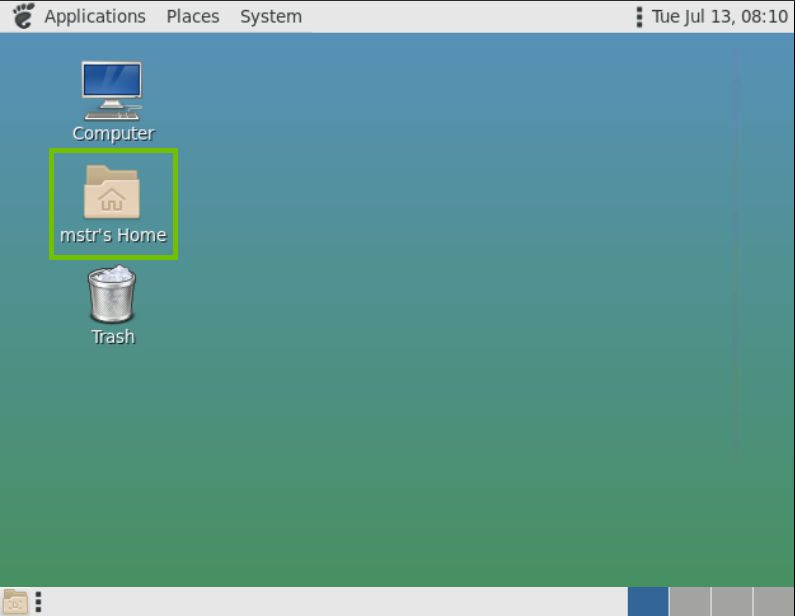
- Unzip the archive. You can now access the lineage harvester folder.
- Start the lineage harvester to create an empty lineage harvester configuration file by entering the following command:
- Windows:
.\bin\lineage-harvester.bat
- For other operating systems:
chmod +x bin/lineage-harvesterand thenbin/lineage-harvester
An empty configuration file is created in the config folder.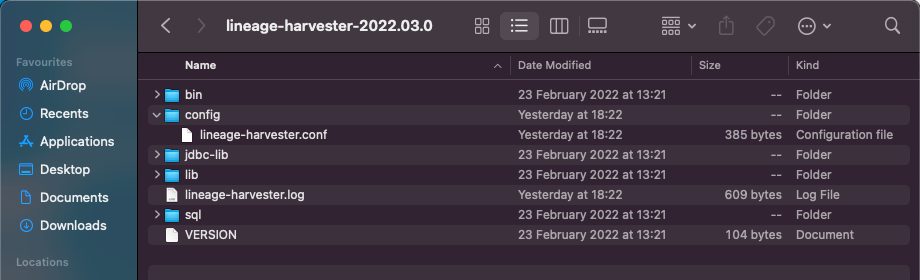
- Windows:
./bin/lineage-harvester --help. Install the lineage harvester close to your data source
To access a remote PostgreSQL or remote Microsoft SQL Server repository, install the lineage harvester close to the data source.
Prerequisites
- You have Collibra Data Intelligence Cloud 2021.07 or newer.
- You have MicroStrategy 2021 or newer.
- If you intend to access a Microsoft SQL Server repository, you need the Admin permission for the repository.
- You meet the minimum lineage harvester system requirements.
- Java Runtime Environment version 11 or newer or OpenJDK 11 or newer.
- You have added Firewall rules so that the lineage harvester can connect to:
- The host names of all databases in the lineage harvester configuration file.
- All Collibra Data Lineage service instances within your geographical location:
- 15.222.200.199 (techlin-aws-ca.collibra.com)
- 18.198.89.106 (techlin-aws-eu.collibra.com)
- 54.242.194.190 (techlin-aws-us.collibra.com)
- 51.105.241.132 (techlin-azure-eu.collibra.com)
- 20.102.44.39 (techlin-azure-us.collibra.com)
- 35.197.182.41 (techlin-gcp-au.collibra.com)
- 34.152.20.240 (techlin-gcp-ca.collibra.com)
- 35.205.146.124 (techlin-gcp-eu.collibra.com)
- 34.87.122.60 (techlin-gcp-sg.collibra.com)
- 35.234.130.150 (techlin-gcp-uk.collibra.com)
- 34.73.33.120 (techlin-gcp-us.collibra.com)
Note The lineage harvester connects to different instances based on your geographic location and cloud provider. If your location or cloud provider changes, the lineage harvester rescans all your data sources. You have to whitelist all Collibra Data Lineage service instances in your geographic location. In addition, we highly recommend that you always whitelist the techlin-aws-us instance as a backup, in case the lineage harvester cannot connect to other Collibra Data Lineage service instances.
Steps
- Download the newest lineage harvester.
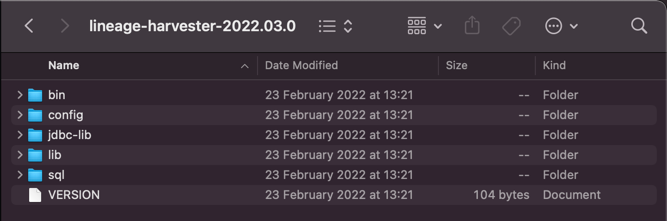
- Unzip the archive. You can now access the lineage harvester folder.
- Start the lineage harvester to create an empty lineage harvester configuration file by entering the following command:
- Windows:
.\bin\lineage-harvester.bat - For other operating systems:
chmod +x bin/lineage-harvesterand thenbin/lineage-harvester
An empty configuration file is created in the config folder. - Windows:
./bin/lineage-harvester --help.