Using the Query Builder
With the Query Builder, you decide which data you add to the grid data set. In a grid, you can only show the data from this data set.
Adding assets
When you want to add data to your data set, you create a hierarchy of relations. Each node in the hierarchy is represented by a relation, except the top node which is the asset type that you selected when you created the grid.
For each node, you can select attributes, responsibilities and a relation to another asset type. Adding a relation means that you add a new asset type to the data set. A relation has the format "<head> <relation> <tail>". The new asset type is then the tail of the relation.
Example In the relation "Table has Column", "Table" is the head, "has" is the relation and "Column" is the tail, so adding this relation adds the Column asset type to your data set.
The easiest way to find the relations is to use the Collibra for Desktop app. If you know the grid's root asset type, look up any asset of that asset type in the app. From this asset, you can follow the relations until you have all the necessary asset types. Each of the relations that you follow will become a node in your query.
Example On a database asset page, you can see the relation to schemas. If you follow a related schema asset, you see the relation to a table and lastly, if you follow a Table asset, you see the relation between tables and columns.
This can involve trial and error, as it can happen that the first asset you look up does not lead you to all the data you need. In that case, you have to find another asset and again follow the relations to the necessary asset types.
Tip Sometimes it can be easier to start from your end-point and then look up the relations to your starting point. It's easier to find the relation between a column asset and its data domain if you start your search via the data domain, rather than via the column asset.
Adding attributes
To show attributes in the asset preview of your grid, you can add asset attributes to the data set.
Example If you want to show the description of a database when you open the details of a database, you have to include the description attribute at the database level in the Query Builder. 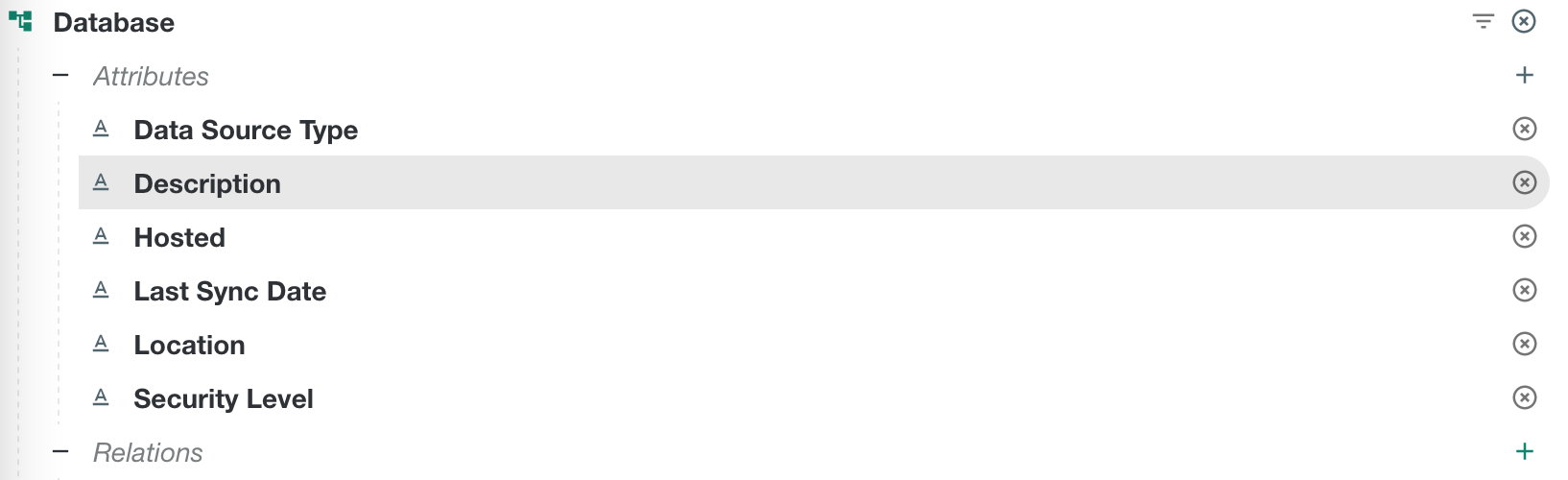
Adding responsibilities
To organize the data by the responsibilities, you have to add responsibilities in the Query Builder.

Query asset count
When you build your query, it's difficult to know if your grid will contain results. To avoid creating a query with no results, click the Asset count header on the right side of your query builder.
Tip If you don't see the Asset count section, click  in the top-right corner.
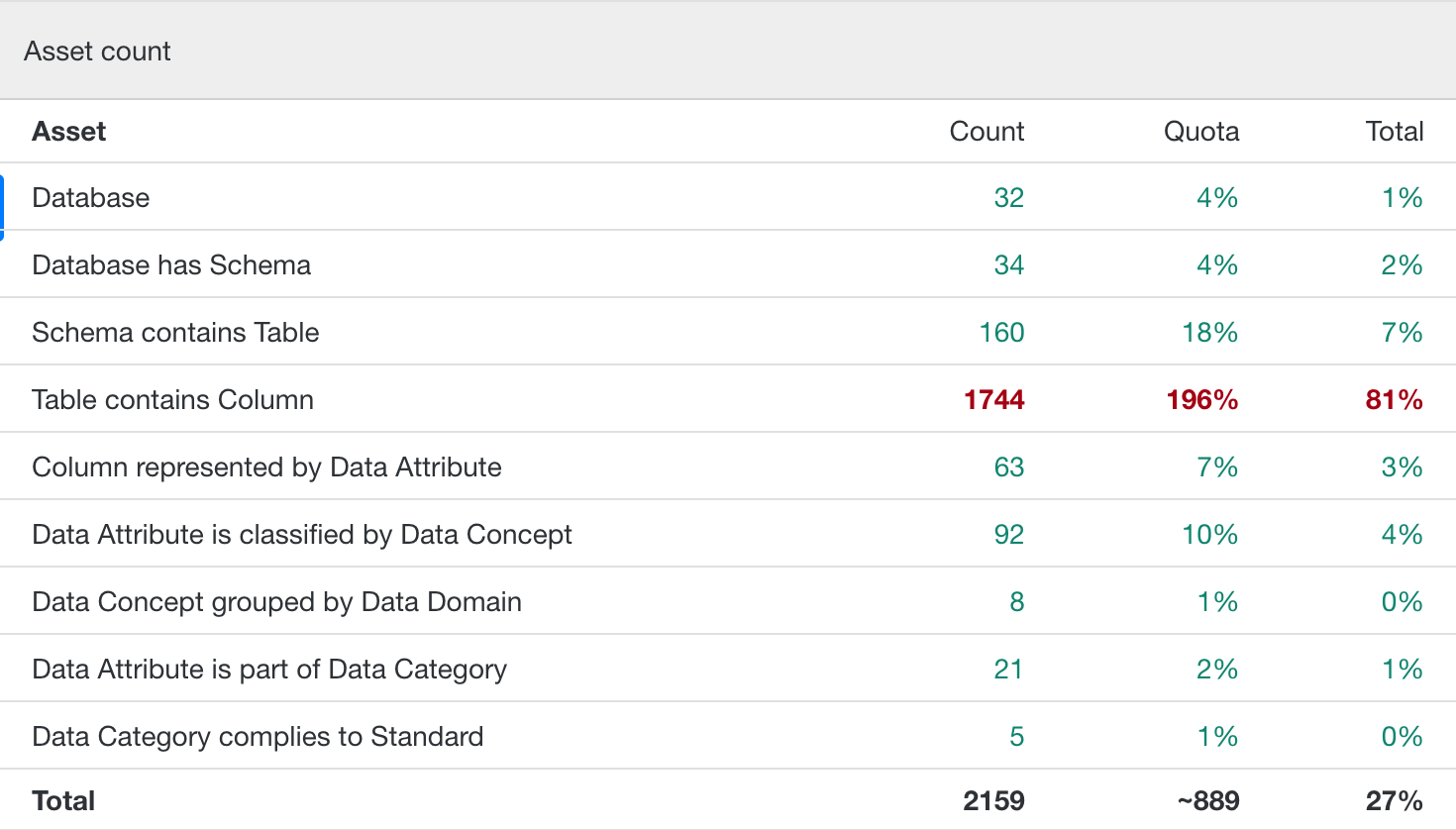
Currently a grid can contain a maximum of 8,000 assets. The Asset count not only helps you to know if there are results, it also show you how many assets your query will return. The number of assets are counted per asset type so you can easily identify which asset type will add most to the results. In the above example, you see that columns represent the majority of the 2,159 total assets.
Query filters
You can create filters for every relation in your query. This helps you limit the data to only the relevant data for your grid. You can only create simple filters with one or more criteria. If you use more than one criteria, the data must meet all criteria.
To create a filter, click  to the right of a relation or the root asset type, or click
  in the Filters section of the Query Builder information pane.

Sample data
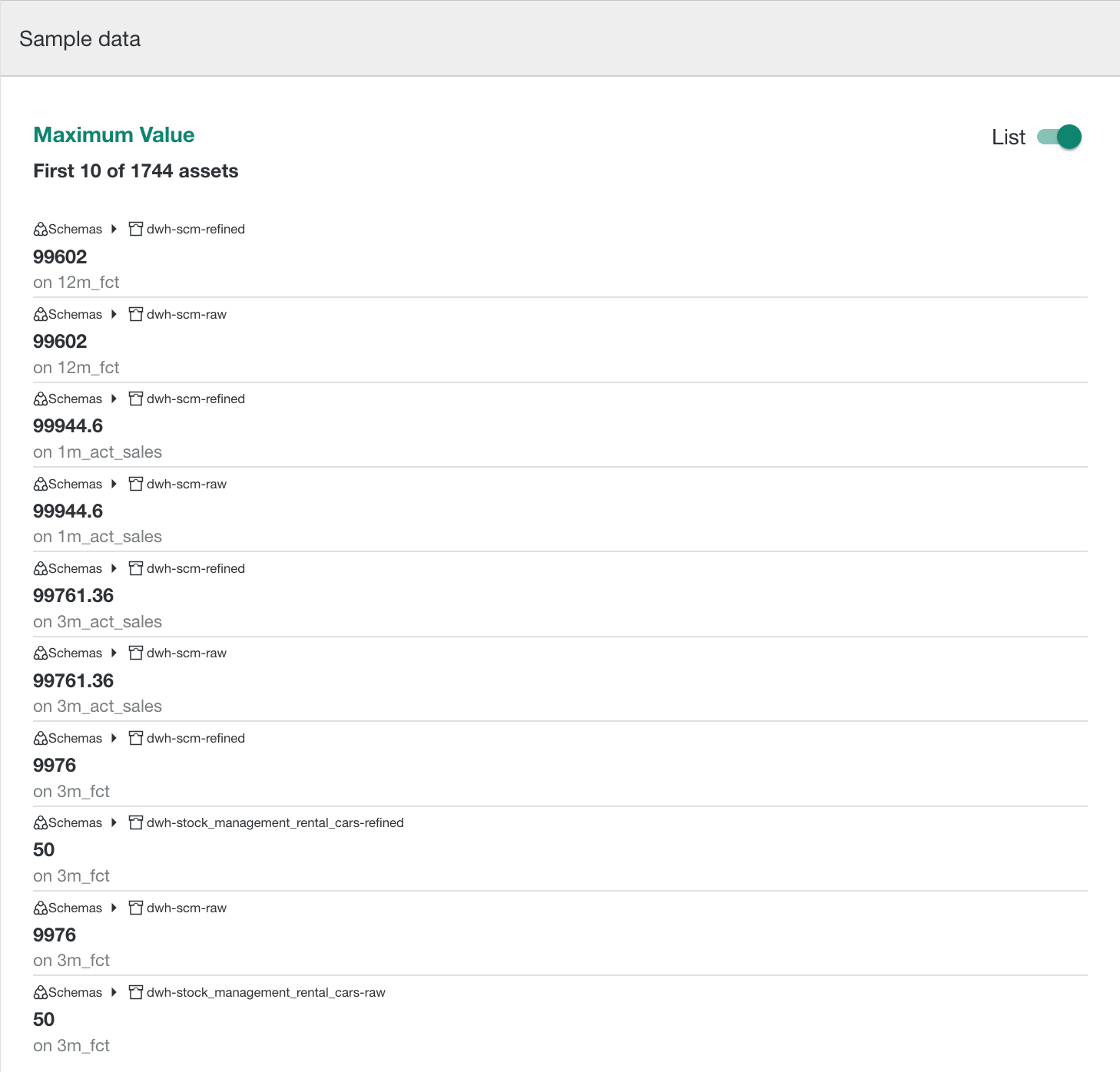
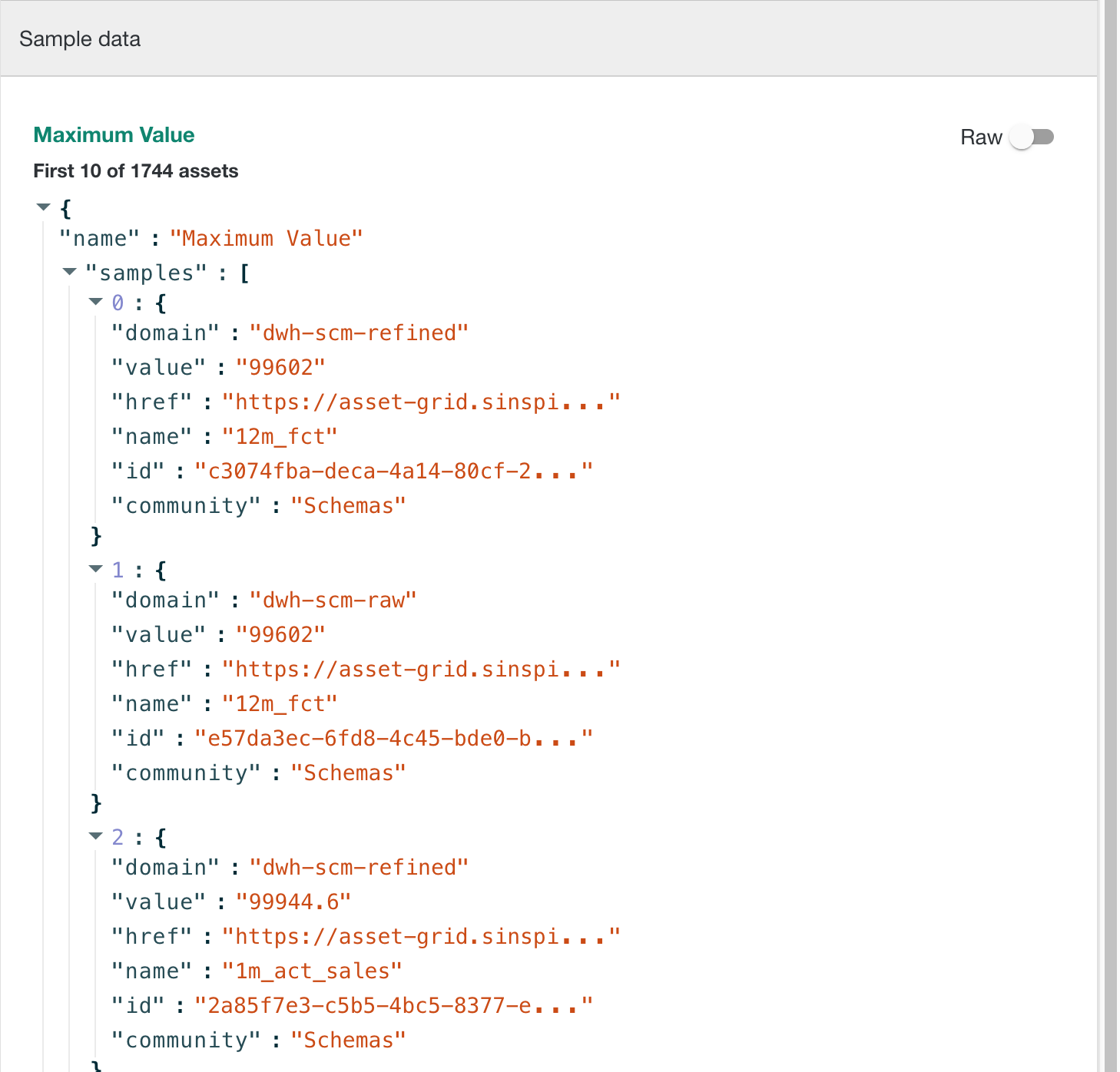
When you select a node, attribute or responsibility in the Query Builder, you see sample data in the information pane, if available. You can present the sample data as raw data in JSON format or as a list. Click the List/Raw switch to switch the views.
Query Builder actions
Located between the fields to build the query and the asset count, are the following action icons:
|
Icon |
Description |
|---|---|

|
Expand the Query Builder canvas. This hides the information pane. |
|
|
Collapse ( |
|
|
|

|
 or
or 
