The Data Marketplace asset preview
After searching, you analyze the search results to find what you want. When you click a search result, its details open in an asset preview dialog box.
-
An asset preview contains multiple sections.
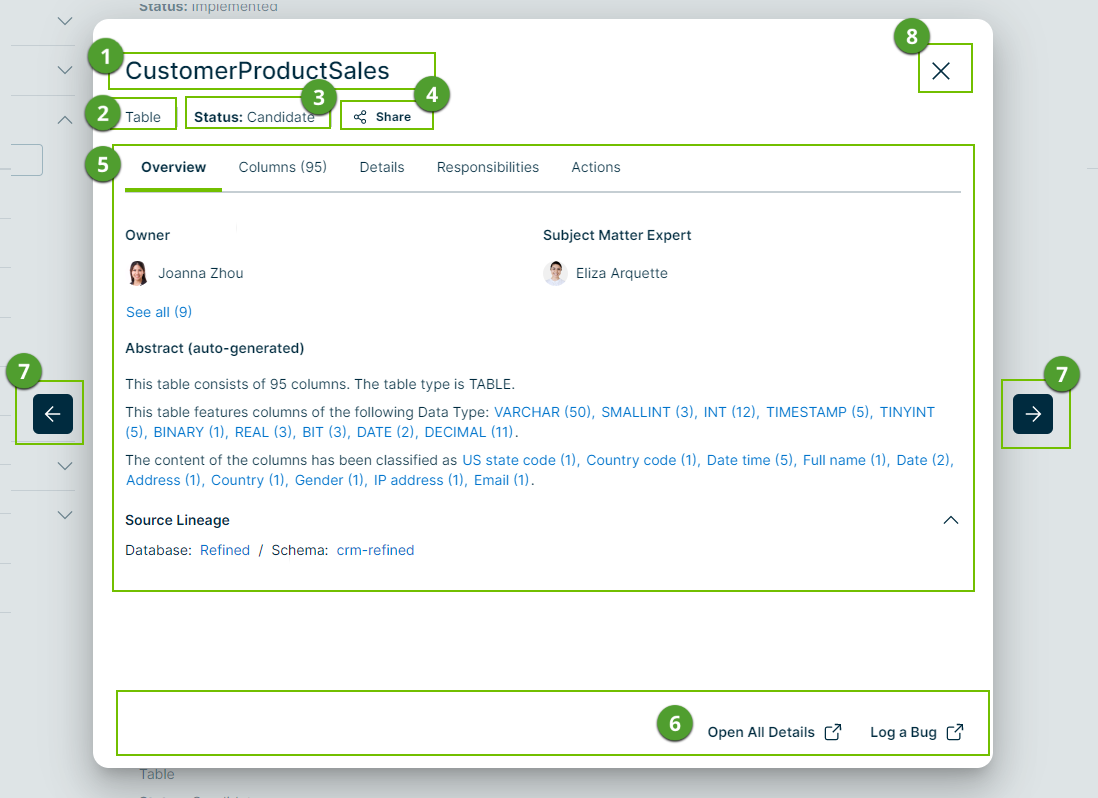 Get more information about the sections
Section
Description

Asset title The name of the asset. 
Asset type The kind of asset you are previewing. 
Asset status The status of the asset in your governance cycle. 
Share Click Share to collect the URL to the asset and share it with colleagues. 
Tabs and tab content area The available tabs depend on the asset type. The most common tabs are: - Overview: this tab page includes, for example:
- The description of the asset.
- All tags applied to the asset.
- All responsibilities configured for the asset.
- Details: this tab page includes, for example ratings and reviews of the asset.
- Responsibilities: this tab page includes the roles assigned to the asset. Inherited responsibilities are not shown in Data Marketplace.
- Actions: this tab pages includes all actions you can perform from this asset. They are the secondary actions.

Main actions This section shows the actions that administrator configured to be the most important actions.
By default, you can always open the asset page in Collibra via Open All Details.
Navigation area Click the arrows to navigate to the previous or to the next search result. 
Close Click Close to closes the asset preview. - Overview: this tab page includes, for example:
-
The asset preview content depends on the asset type.
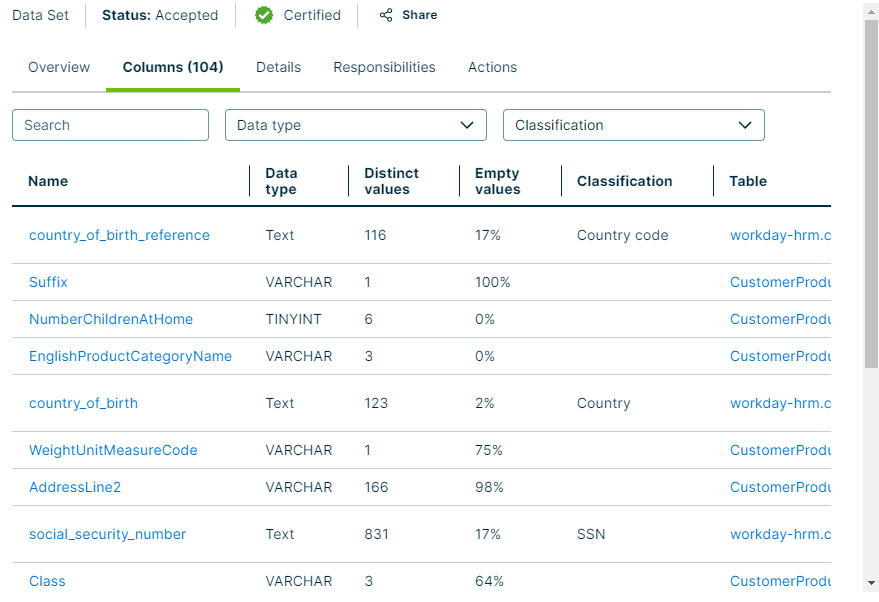
Most asset types are shown using the same layout, but some asset types follow a specific asset type template.View examplesInformation for a Data Set asset:

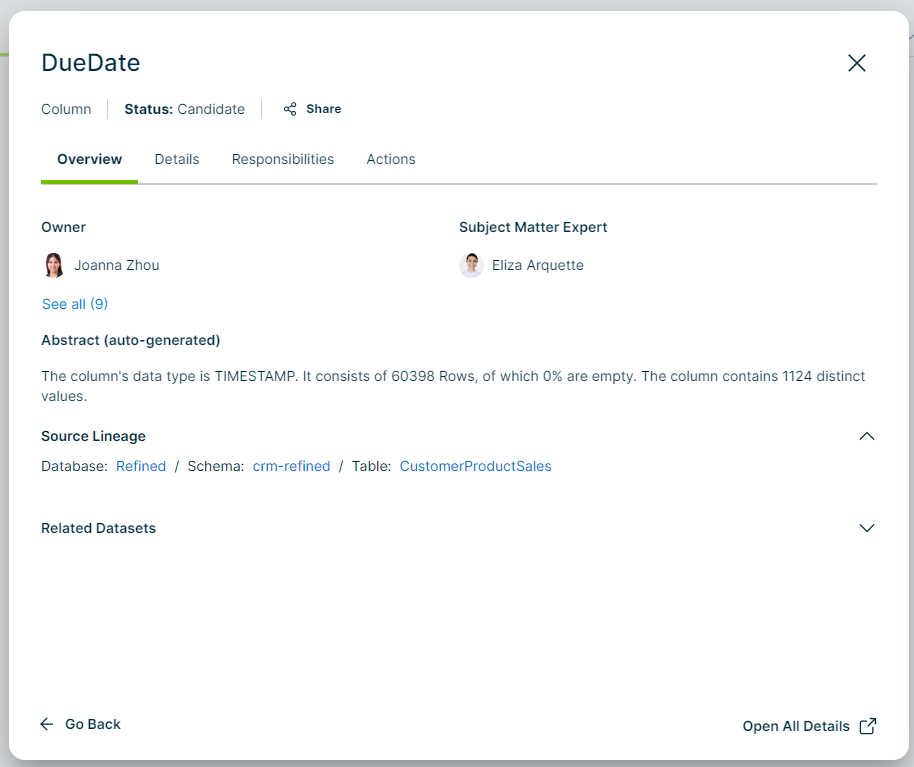
Information for a Column asset:
Note
If, in the asset type template, a field is defined but the information is not available for the selected asset, the field will not be displayed in the preview. This means you never see empty fields in the preview.
For example: If the data has not been profiled, no profiling details are visible.
-
From an asset preview, you can start multiple actions.
- Main actions:
- Main actions are located at the bottom of the asset preview.
- By default, the Open All Details button is available. This opens the asset page in Collibra.
- The Data Marketplace administrator can add more actions to this section.
- Secondary actions:
- Secondary actions are all grouped in the Actions tab page of the asset preview.
- The Data Marketplace administrator configures the secondary actions.
- Secondary actions are all grouped in the Actions tab page of the asset preview.
- From the title bar section in the preview, you can share an asset link with someone else.
- Main actions:
-
Column and Table assets show a summary of the asset information that is generated by Data Marketplace based on the asset details.

-
Some asset previews contain a Columns tab. This tab page shows the available columns in the asset.
The columns are displayed in a table in which you can search.