Tableau operating model
Synchronizing Tableau data means ingesting metadata from Tableau to your Collibra Data Intelligence Cloud environment. The metadata is represented as assets of specific types and their characteristics.
- The assets have the same names as their counterparts in Tableau.
- Some asset types are only created if the Tableau user has specific permissions.
- Relations that were created between Tableau assets and other assets via a relation type in the Tableau operating model, are deleted upon synchronization. The same is true of any attribute types in the operating model that you add to Tableau assets. To ensure that the characteristics you add to Tableau assets are not deleted upon synchronization, be sure to use characteristics that are not part of the Tableau operating model.
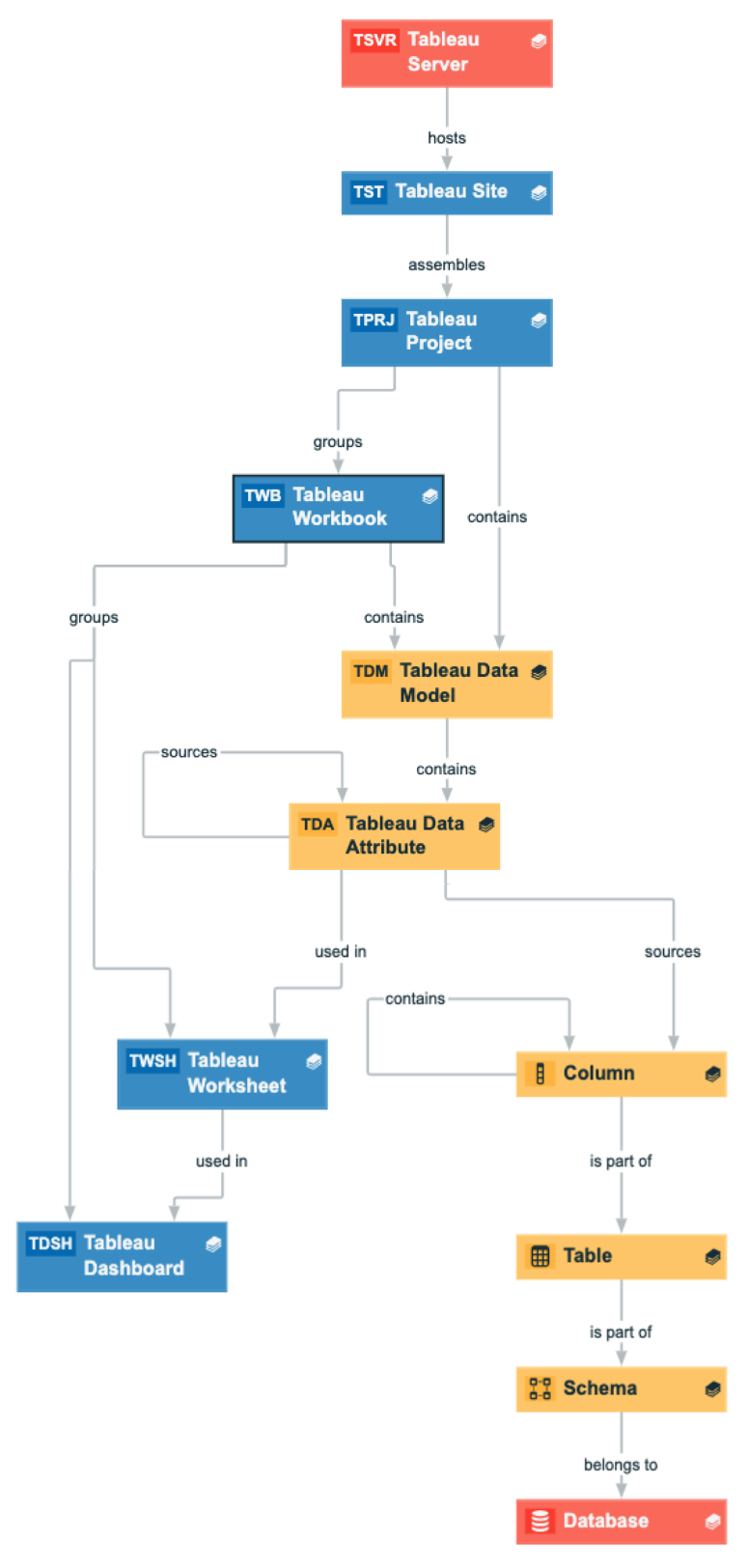
The following image shows the relations between Tableau asset types.
You can easily recreate this diagram view in your Collibra environment. See Create a Tableau operating model diagram view.
Harvested metadata per asset type
This table shows the metadata for each Tableau asset type and the resource ID for each asset type and metadata.
|
Asset type |
Synchronized metadata |
Resource ID |
|---|---|---|
|
Tableau Server Resource ID: 00000000-0000-0000-0000-110000000005 |
Description |
00000000-0000-0000-0000-000000003114 |
| Server hosts / is hosted in Business Dimension | 00000000-0000-0000-0000-120000000000 | |
| URL: The link to the data in Tableau | 00000000-0000-0000-0000-000000000258 | |
|
Tableau Site Resource ID: 00000000-0000-0000-0000-110000000000 |
BI Folder assembles / Is assembled in BI Folder |
00000000-0000-0000-0000-120000000001 |
| Description | 00000000-0000-0000-0000-000000003114 | |
| Server hosts / is hosted in Business Dimension | 00000000-0000-0000-0000-120000000000 | |
| URL: The link to the data in Tableau | 00000000-0000-0000-0000-000000000258 | |
|
Tableau Project Resource ID: 00000000-0000-0000-0000-110000000001 |
Description |
00000000-0000-0000-0000-000000003114 |
|
BI Folder assembles / is assembled in BI Folder |
00000000-0000-0000-0000-120000000001 | |
| Business Dimension groups / is grouped into Report | 00000000-0000-0000-0000-120000000002 | |
|
BI Folder contains / contained in Data Asset |
00000000-0000-0000-0000-120000000014 | |
|
Tableau Workbook Resource ID: 00000000-0000-0000-0000-110000000002 |
Description |
00000000-0000-0000-0000-000000003114 |
|
Certified |
00000000-0000-0000-0001-000500000001 | |
| Document creation date | 00000000-0000-0000-0000-000000000260 | |
| Document modification date | 00000000-0000-0000-0000-000000000261 | |
| Document size | 00000000-0000-0000-0000-000000000259 | |
| Report Image | 00000000-0000-0000-0000-000000000262 | |
| URL: The link to the data in Tableau | 00000000-0000-0000-0000-000000000258 | |
| Report groups / is grouped into Report | 00000000-0000-0000-0000-120000000004 | |
| Tableau Workbook contains / contained in Tableau Data Model | 00000000-0000-0000-0000-120000000020 | |
| Business Dimension groups / is grouped into Report | 00000000-0000-0000-0000-120000000002 | |
|
Tableau Dashboard Resource ID: 00000000-0000-0000-0001-110000000301 Assets of this type are only created if the Tableau user has the Download/Save As permission on the workbook. |
Certified |
00000000-0000-0000-0001-000500000001 |
| Document creation date | 00000000-0000-0000-0000-000000000260 | |
|
Document modification date |
00000000-0000-0000-0000-000000000261 | |
|
Report image: The image of the report.
Images are downloaded and stored in Data Catalog. You can configure the maximum file size and content types of the Tableau images in the Collibra DGC service settings.
|
00000000-0000-0000-0000-000000000262 | |
| URL: The link to the data in Tableau | 00000000-0000-0000-0000-000000000258 | |
| Visible on server | 00000000-0000-0000-0000-000000000265 | |
| Report groups / is grouped into Report | 00000000-0000-0000-0000-120000000004 | |
| Report uses / used in Data Attribute | 00000000-0000-0000-0000-120000000021 | |
| Report uses / used in Report | 00000000-0000-0000-0000-120000000007 | |
|
Tableau Worksheet Resource ID: 00000000-0000-0000-0001-110000000300 Assets of this type are only created if the Tableau user has the Download/Save As permission on the workbook. |
Certified |
00000000-0000-0000-0001-000500000001 |
| Document creation date | 00000000-0000-0000-0000-000000000260 | |
|
Document modification date |
00000000-0000-0000-0000-000000000261 | |
|
Report image: The image of the report.
Images are downloaded and stored in Data Catalog. You can configure the maximum file size and content types of the Tableau images in the Collibra DGC service settings.
|
00000000-0000-0000-0000-000000000262 | |
| URL: The link to the data in Tableau | 00000000-0000-0000-0000-000000000258 | |
| Visible on server | 00000000-0000-0000-0000-000000000265 | |
| Report groups / is grouped into Report | 00000000-0000-0000-0000-120000000004 | |
|
Report uses / used in Data Attribute |
00000000-0000-0000-0000-120000000021 | |
| Report uses / used in Report | 00000000-0000-0000-0000-120000000007 | |
|
Tableau Data Attribute Resource ID: 00000000-0000-0000-0000-110000000010 Assets of this type are only created if the Tableau user has the Download/Save As permission on the data source. |
Calculation Rule |
00000000-0000-0000-0000-000000003117 |
| Data Type: The data type of a data asset, as it is declared by the data source. | 00000000-0000-0000-0001-000500000005 | |
| Role in Report | 00000000-0000-0000-0000-000000000266 | |
| BI Data Model contains / is part of BI Data Attribute | 00000000-0000-0000-0000-000000007196 | |
| Data Element targets / sources Data Element | 00000000-0000-0000-0000-000000007069 | |
|
Report uses / used in Data Attribute |
00000000-0000-0000-0000-120000000021 | |
|
Tableau Data Model Resource ID: 00000000-0000-0000-0000-110000000008 Assets of this type are only created if the Tableau user has the Download/Save As permission on the data source. |
Certified |
00000000-0000-0000-0001-000500000001 |
| Document creation date | 00000000-0000-0000-0000-000000000260 | |
| Document modification date | 00000000-0000-0000-0000-000000000261 | |
| Original Name: The name of the data source in Tableau | 00000000-0000-0000-0001-000500000032 | |
| BI Data Model contains / is part of BI Data Attribute | 00000000-0000-0000-0000-000000007196 | |
| Business Dimension source / is source of System | 00000000-0000-0000-0000-120000000003 | |
| Tableau Workbook contains / contained in Tableau Data Model | 00000000-0000-0000-0000-120000000020 |
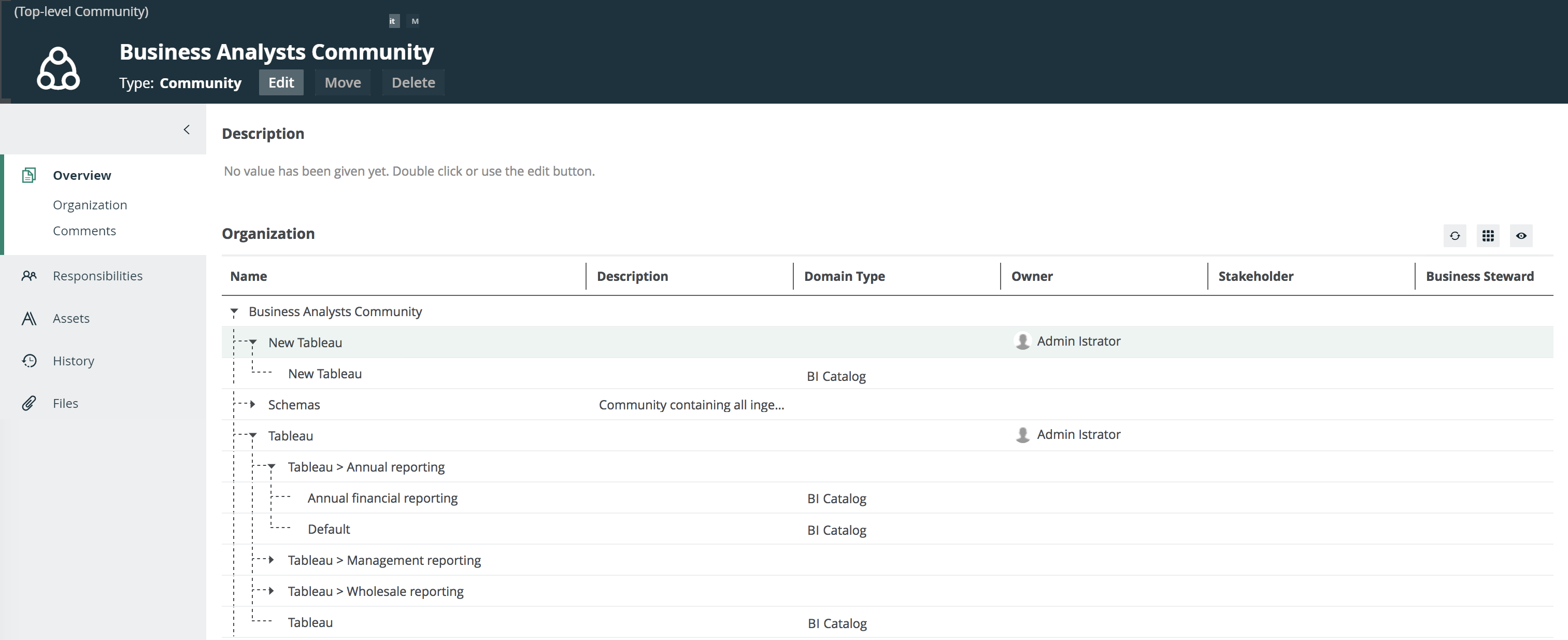
Example of ingested Tableau metadata
The following image shows an example structure after synchronizing Tableau.
Recommended hierarchy within a domain
You can enable hierarchies for the domain (or domains) in which your Tableau assets were ingested. Doing so makes it easier to understand the relation between your Tableau assets, when viewing the assets on the domain page.
Follow these steps to enable and configure the recommended hierarchy.
Steps
- Open the domain page of the relevant BI Catalog domain.
- On the content toolbar, click
 .
.
The Configure Hierarchy dialog box appears. - Select Enable Hierarchy.
- Select Single path.
- Start typing and select each of the following relation types:
- Server hosts Business Dimension
- BI Folder assembles BI Folder
- Business Dimension groups Report
- Report groups Report
- Report uses Report
- Report uses Data Attribute
- BI Data Attribute is part of BI Data Model
- Click Apply.
Note In an asset view, if any asset is deleted, for example via synchronization or manual deletion, the view is recreated and the hierarchy is lost. In this case, you can again enable and configure the recommended hierarchy.
Create a Tableau operating model diagram view
You can create a Tableau-specific diagram view, to visualize the operating model. The following procedure provides instruction on how to quickly create a new diagram view by copying and pasting the JSON code in the diagram view text editor.
Steps
- Open an asset page.
-
In the tab pane, click
 Diagram.
The diagram appears in the default diagram view. - Click
 to add a new view.
 - Click the Text tab, to switch to the diagram view text editor.
- Click Show me the JSON code below this procedure, to expand the code.
- Click
 in the top-right of the expanded code, to copy the code.
The code is copied to your clipboard.
in the top-right of the expanded code, to copy the code.
The code is copied to your clipboard. - Paste the code in diagram view text editor.
- Click Save.
- Edit the name and description of the diagram view, to suit your needs.
{
	"nodes": [
		{
			"id": "Tableau Workbook",
			"type": {
			"id": "00000000-0000-0000-0000-110000000002"
			},
			"layoutRegion": "context"
		},
		{
			"id": "Tableau Dashboard",
			"type": {
			  "id": "00000000-0000-0000-0001-110000000301"
			},
			"layoutRegion": "context"
		},
		{
			"id": "Tableau Worksheet",
			"type": {
			  "id": "00000000-0000-0000-0001-110000000300"
			},
			"layoutRegion": "context"
		},
		{
			"id": "Tableau Data Model",
			"type": {
			  "id": "00000000-0000-0000-0000-110000000008"
			},
			"layoutRegion": "context"
		},
		{
			"id": "Tableau Project",
			"type": {
			  "id": "00000000-0000-0000-0000-110000000001"
			},
			"layoutRegion": "context"
		},
		{
			"id": "Tableau Site",
			"type": {
			  "id": "00000000-0000-0000-0000-110000000000"
			},
			"layoutRegion": "context"
		},
		{
			"id": "Tableau Server",
			"type": {
			  "id": "00000000-0000-0000-0000-110000000005"
			},
			"layoutRegion": "context"
		},
		{
			"id": "Tableau Data Attribute",
			"type": {
			  "id": "00000000-0000-0000-0000-110000000010"
			},
			"layoutRegion": "context"
		},
		{
			"id": "Column",
			"type": {
			  "id": "00000000-0000-0000-0000-000000031008"
			},
			"layoutRegion": "context"
		},
		{
			"id": "Table",
			"type": {
			  "id": "00000000-0000-0000-0000-000000031007"
			},
			"layoutRegion": "context"
		},
		{
			"id": "Schema",
			"type": {
			  "id": "00000000-0000-0000-0001-000400000002"
			},
			"layoutRegion": "context"
		},
		{
			"id": "Database",
			"type": {
			  "id": "00000000-0000-0000-0000-000000031006"
			},
			"layoutRegion": "context"
		}
	],
	"edges": [
		{
			"from": "Tableau Project",
			"to": "Tableau Workbook",
			"label": "",
			"style": "boxing",
			"type": {
			  "id": "00000000-0000-0000-0000-120000000002"
			},
			"roleDirection": true
		},
		{
			"from": "Tableau Site",
			"to": "Tableau Project",
			"label": "",
			"style": "boxing",
			"type": {
			  "id": "00000000-0000-0000-0000-120000000001"
			},
			"roleDirection": true
		},
		{
			"from": "Tableau Server",
			"to": "Tableau Site",
			"label": "",
			"style": "boxing",
			"type": {
			  "id": "00000000-0000-0000-0000-120000000000"
			},
			"roleDirection": true
		},
		{
			"from": "Tableau Data Model",
			"to": "Tableau Data Attribute",
			"label": "",
			"style": "boxing",
			"type": {
			  "id": "00000000-0000-0000-0000-000000007196"
			},
			"roleDirection": true
		},
		{
			"from": "Tableau Data Attribute",
			"to": "Tableau Data Attribute",
			"label": "",
			"style": "arrow",
			"type": {
			  "id": "00000000-0000-0000-0000-000000007069"
			},
			"roleDirection": false
		},
		{
			"from": "Tableau Workbook",
			"to": "Tableau Data Model",
			"label": "",
			"style": "boxing",
			"type": {
			  "id": "00000000-0000-0000-0000-120000000020"
			},
			"roleDirection": true
		},
		{
			"from": "Tableau Project",
			"to": "Tableau Data Model",
			"label": "",
			"style": "arrow",
			"type": {
			  "id": "00000000-0000-0000-0000-120000000014"
			},
			"roleDirection": true
		},
		{
			"from": "Column",
			"to": "Column",
			"label": "",
			"style": "boxing",
			"type": {
			  "id": "00000000-0000-0000-0000-000000007042"
			},
			"roleDirection": false
		},
		{
			"from": "Column",
			"to": "Table",
			"label": "",
			"style": "boxed",
			"type": {
			  "id": "00000000-0000-0000-0000-000000007042"
			},
			"roleDirection": true
		},
		{
			"from": "Table",
			"to": "Schema",
			"label": "",
			"style": "boxed",
			"type": {
			  "id": "00000000-0000-0000-0000-000000007043"
			},
			"roleDirection": false
		},
		{
			"from": "Schema",
			"to": "Database",
			"label": "",
			"style": "boxed",
			"type": {
			  "id": "00000000-0000-0000-0000-000000007024"
			},
			"roleDirection": false
		},
		{
			"from": "Tableau Data Attribute",
			"to": "Tableau Worksheet",
			"label": "",
			"style": "arrow",
			"type": {
			  "id": "00000000-0000-0000-0000-120000000021"
			},
			"roleDirection": false
		},
		{
			"from": "Tableau Workbook",
			"to": "Tableau Worksheet",
			"label": "",
			"style": "boxing",
			"type": {
			  "id": "00000000-0000-0000-0000-120000000004"
			},
			"roleDirection": true
		},
		{
			"from": "Tableau Workbook",
			"to": "Tableau Dashboard",
			"label": "",
			"style": "boxing",
			"type": {
			  "id": "00000000-0000-0000-0000-120000000004"
			},
			"roleDirection": true
		},
		{
			"from": "Tableau Worksheet",
			"to": "Tableau Dashboard",
			"label": "",
			"style": "arrow",
			"type": {
		      "id": "00000000-0000-0000-0000-120000000007"
			},
			"roleDirection": false
		},
		{
			"from": "Tableau Data Attribute",
			"to": "Column",
			"label": "",
			"style": "arrow",
			"type": {
			  "id": "00000000-0000-0000-0000-000000007069"
			},
			"roleDirection": false
		}
	],
	"showOverview": false,
	"enableFilters": true,
	"showLabels": true,
	"showFields": true,
	"showLegend": true,
	"showPreview": true,
	"visitStrategy": "directed",
	"layout": "HierarchyLeftRight",
	"maxNodeLabelLength": 50,
	"maxEdgeLabelLength": 30,
	"layoutOptions": {
		"compactGroups": false,
		"componentArrangementPolicy": "topmost",
		"edgeBends": true,
		"edgeBundling": true,
		"edgeToEdgeDistance": 5,
		"minimumLayerDistance": "auto",
		"nodeToEdgeDistance": 5,
		"orthogonalRouting": true,
		"preciseNodeHeightCalculation": true,
		"recursiveGroupLayering": true,
		"separateLayers": true,
		"webWorkers": true,
		"nodePlacer": {
			"barycenterMode": true,
			"breakLongSegments": true,
			"groupCompactionStrategy": "none",
			"nodeCompaction": false,
			"straightenEdges": true
		}
	}
}